Window Layout
The AWC Plug-in is integrated with Vista Manager EX and its functions can be accessed through Vista Manager EX's management web interface.
Typical pages for the AWC Plug-in consist of three major sections: "Menu", "Content" and "Administration".
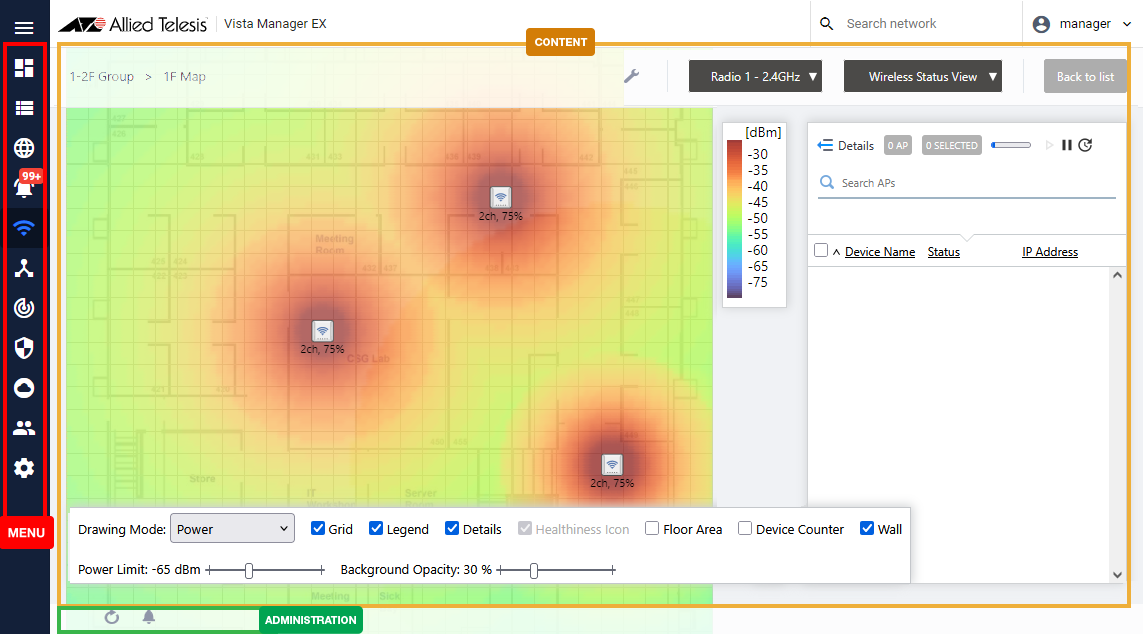
Menu Section
Menus in normal mode are the same as for Vista Manager EX. You can access the AWC plug-in functions through the "AWC Plug-in" menu on the Vista Manager EX main menu.When logged in as a user, "Wireless Monitoring", "Wireless Configuration" and "Device Search" menu items are available.
When logged in as an admin, the main menu has "User Management" and "System Management" in addition to the items available to a user.
Clicking the left chevron at the top of the menu section minimizes the menu section, so that only icons for menu items are visible.
Clicking the three-line ("Hamburger") icon at the top expands the menu section.
See the "Screen Reference" section of this guide for a detailed description of the screen corresponding to each menu item.
Content Section
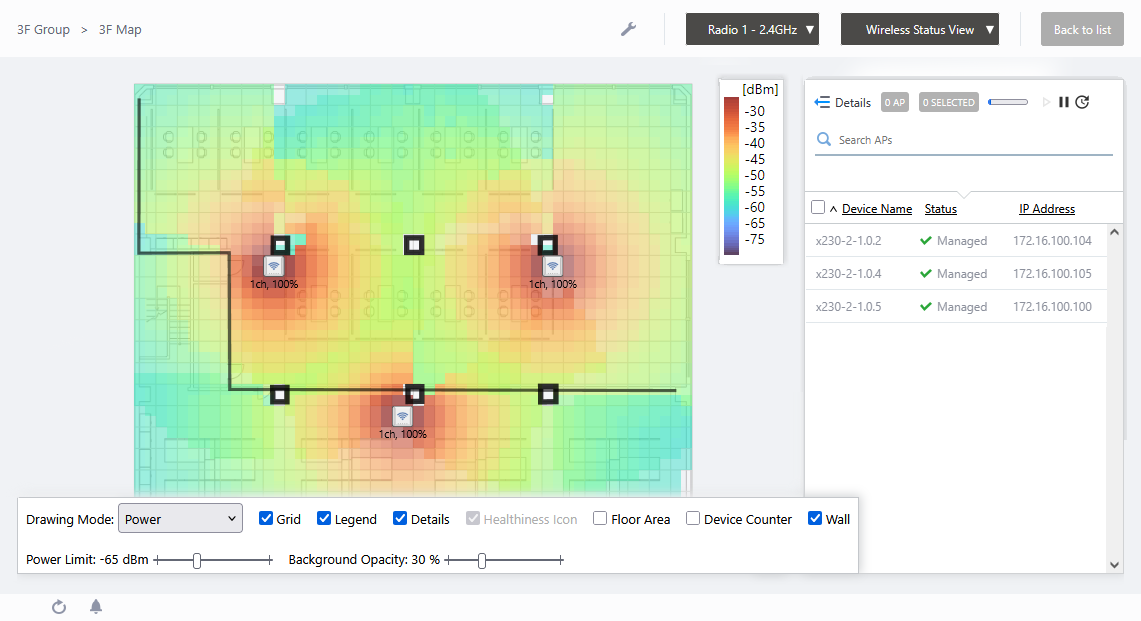
The "Content" section shows various information according to the selected menu item.◼ Example screen of a floor map
Administration Section
The "Administration" section is located under the Content section and has "Polling" and "Notification" buttons.Polling
The "Polling" button lets you initiate manual polling and update the information displayed on the page. Information which can be refreshed by the button includes the log list on the "Log Management" page and wireless client information on the "Device Search" page.When polling is in progress, it is indicated in the status field at the right bottom of the Content section. Polling is automatically performed every 15 minutes.
fReload your browser when you go to pages other than Floor Map List and Floor Map Details after polling is complete.
Notification
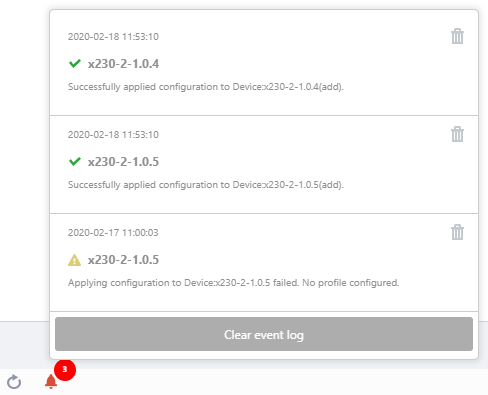
The "Notification" button notifies you of events and lets you view details of the events.When an unmanaged AP is connected to the AMF network or AP Auto Recovery is performed, the "Notification" button shows the number of events newly detected, in a "badge".
Clicking the Notification button pops up notification messages.
Clicking the trashbin icon at the top right corner of each notification message deletes the message.
To delete all notification messages at once, click the "Clear event log" button at the bottom.
29 Apr 2025 11:29