Zero Touch Configuration and Auto Recovery
If an AMF network is properly configured, you can easily add a guest device AP by specifying a guest port on the parent AMF device, instead of specifying the AP's address.
Using this feature, you can start managing a new, unconfigured AP by connecting it to an AMF device, without having to access the AP's management web interface. This is called Zero Touch Configuration.
When using Zero Touch Configuration, an AP connected to a specific switchport on an AMF device is always identified as the same AP, regardless of its IP or MAC address. This means it is possible to pre-configure an AP on the AWC Plug-in before connecting it to a network. You can quickly resolve a network issue caused by a failed AP, by replacing the failed AP with a new one, which is auto-recovered (obtains an automatically applied configuration).
To use Zero Touch Configuration and Auto Recovery, the following conditions must be met:
◼Auto-detection of AMF guest node triggered by a notification from the wireless AP side
If you are using TQ5403, TQ5403e or TQm5403 firmware version 6.0.3-0.1 or later, AMF guest node detection is performed based on the notification from the wireless AP.
- AMF Network
- Communication of untagged VLAN is allowed on the connecting switch port of the TQ series AP.
- The AP is configured as a guest node in the AMF node, and is configured to notify the device information of the guest node to be connected (using "discovery" command with "agent" parameter).
Note
"discovery agent" command is supported with AlliedWare Plus Firmware Version 5.5.3-0.1 or later.
- Communication of untagged VLAN is allowed on the connecting switch port of the TQ series AP.
- Vista Manager EX
- The AMF Network is registered in the management database.
- The AMF Network is registered in the management database.
- AP
- TQ5403, TQ5403e, or TQm5403 using firmware version 6.0.3-0.1 or later
- TQ5403, TQ5403e, or TQm5403 using firmware version 6.0.3-0.1 or later
For models or firmware other than those described above, DHCP Snooping is used for AMF guest node discovery.
- AMF Network
- Communication of untagged VLAN is allowed on the connecting switch port of the TQ series AP.
- The AP is detected as a guest device, and a parent AMF device is configured to collect the guest device information automatically (dynamic discovery).
Note
Guest devices connected to the AR series cannot perform Zero Touch Configuration or Auto Recovery because the AR series do not support the "dynamic" discovery method.
- On the parent AMF device, DHCP Snooping is enabled for the AP's management VLAN.
Note
On the AMF device, make sure you enable DHCP Snooping on the AP management VLAN only.
Note
Make sure that the TQ series' management VLAN and VAP VLAN use different VLAN IDs, to ensure an AP is detected as a guest device. Parent AMF devices should be configured to collect guest device information automatically ("dynamic discovery"), so wireless clients can get their IP addresses via DHCP..
Also make sure that DHCP snooping is only enabled on the AP's management VLAN, and disabled on the VAP VLAN.
- Communication of untagged VLAN is allowed on the connecting switch port of the TQ series AP.
- Vista Manager EX
- The AMF Network is registered in the management database.
- The AMF Network is registered in the management database.
- AP
- The compatible firmware described in Overview > What is the AWC Plug-in > Supported AP Models is applied to the target AT-TQ series AP.
- The DHCP Client is enabled on the AP (default), and the AP acquired its IP address from a DHCP server.
Note
If you specify a username and password for the AP's guest-class on a parent AMF device, ensure that the AP's login username and password are the same as the ones configured for the guest-class.
- The compatible firmware described in Overview > What is the AWC Plug-in > Supported AP Models is applied to the target AT-TQ series AP.
Zero Touch Configuration
To use Zero Touch Configuration for an AP, enable "Use AMF for AP Provisioning" when you add the AP to the AWC Plug-in's management database.Refer to Manage AP Registration for details on adding an AP to the database.
NoteEven if you added an AP with "Use AMF for AP Provisioning" disabled, you can later change the setting to "Enabled", provided that the requirements for zero touch configuration are met.
If an AP requires special configuration through its own management web interface (such as LLDP, Ethernet and HTTP/HTTPS), add it with "Use AMF for AP Provisioning" disabled as a guest device, after configuring it on its web interface.
NoteAfter registering a wireless AP as a guest device, if the AMF device name to which the guest device belongs to is changed in the AMF network, the information in the AWC plug-in must also reflect the change. On the "Wireless AP Edit" screen, update the parent device name to the latest one.
See Edit AP about changing registered information.
Register AP Manually
- Select "Wireless Configuration" > "AP Settings" to open the AP list page.
- Place the mouse cursor on the gear icon at the top right of the screen and select "Manual Registration" from the submenu.
- The "Wireless AP Edit" dialog box will appear.
- Specify the Management Group that you want the AP to belong to.
Once an AMF network is detected by specifying Management Groups, the "Enable" option will be added to "Use AMF for AP Provisioning".
Select "Enable" for "Use AMF for AP Provisioning".
- Select an AMF network name from the "Network Name" dropdown list.
- Select an AMF area to which the AP will belong to from the "Area Name" dropdown list.
- Select or specify an AMF device to which the AP will be connected to in the "Device Name" combo box.
- Enter the name of the switchport to which the AP will be connected to in the "Port Number" field (in "portx.x.x" format).
- Click "Save". The AP has been added to the AWC Plug-in's management database. At this stage, each AP's "AP Profile" is "Unconfigured", and each AP's "Management Status" is "Unmanaged."
- Apply an AP Profile and perform AP-specific configuration as required.
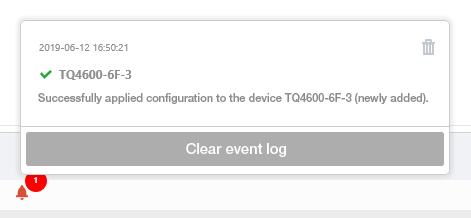
If the specified guest device is not found, the AP status is "Waiting". When the guest device is found by polling, an AP Profile and AP-specific configuration will be applied to the AP. A notification message will also appear in the Notification section.
Import AP from CSV File
- Select "Wireless Configuration" > "AP Settings" to open the AP list page.
- Place the mouse cursor on the gear icon at the top right of the screen and select "Import From CSV" from the submenu.
The "Registration from CSV File" dialog box will appear.
- Specify the Management Group that you want the AP to belong to.
Once an AMF network is detected by specifying Management Groups, the "Enable" option will be added to "Use AMF for AP Provisioning".
- Select "Enable" for "Use AMF for AP Provisioning".
- Click "Browse" and select a CSV file which contains AP information.
- Click "Add". The AP has been added to the AWC Plug-in's management database. At this stage, each AP's "AP Profile" is "Unconfigured", and each AP's "Management Status" is "Unmanaged."
- Apply an AP Profile and perform AP-specific configuration as required.
If the specified guest device is not found, the AP status is "Waiting". When the guest device is found by polling, an AP Profile and AP-specific configuration will be applied to the AP. A notification message will also appear in the Notification section.
Register AP From Guest Device AP List
- Select "Wireless Configuration" > "AP Settings" to open the AP list page.
- Place the mouse cursor on the gear icon at the top right of the screen and select "Registration from Guest Node" from the submenu.
The "Registration from Guest Node" dialog box will appear.
- Specify the Management Group that you want the AP to belong to.
Once an AMF network is detected by specifying Management Groups, the "Enable" option will be added to "Use AMF for AP Provisioning".
- Select "Enable" for "Use AMF for AP Provisioning".
- Use the checkbox to select the AP to register from the list of guest nodes.
- Click "Add". The AP has been added to the AWC Plug-in's management database. At this stage, each AP's "AP Profile" is "Unconfigured", and each AP's "Management Status" is "Unmanaged."
- Apply an AP Profile and perform AP-specific configuration as required.
Auto Recovery
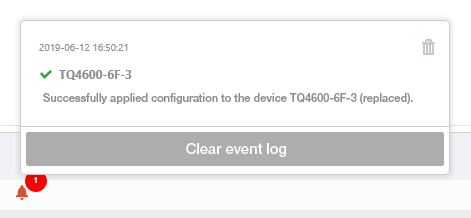
Once a TQ series AP has been configured with "Use AMF for AP Provisioning" enabled, the AWC Plug-in will be notified when a new AP is connected to the parent AMF device's same switchport.The AWC Plug-in checks the guest device's IP and MAC addresses. If they are different from the previous ones, the plug-in applies the existing configuration for the AP to the new guest device and puts it under the plug-in's management (Auto Recovery).
The following notification message will appear when the configuration is applied to the new AP:
If a firmware file is assigned to the AP, it is also applied to the new AP when it is detected.
Refer to Reboot AP and Update AP Firmware" > "Update Firmware for more details.
NoteTo use Zero Touch Configuration and Auto Recovery, AMF guest devices have to acquire their IP address from a DHCP server. When an AP's IP address is changed due to a DHCP lease's renewal, an IP address stored in the AWC Plug-in's management database is automatically updated. A notification message won't be displayed in this case.
If you do not want an AP's IP address to change, configure your DHCP server to statically assign IP addresses, or use an infinite lease time.
29 Apr 2025 11:29