How to use the setting page
This section describes the basic page configuration of the setting page and how to operate it.
Window composition
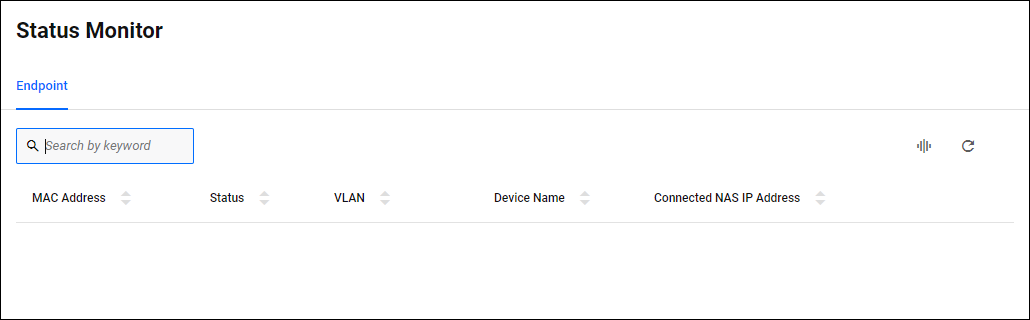
The basic configuration is as follows (below is an example of the Status Monitor page):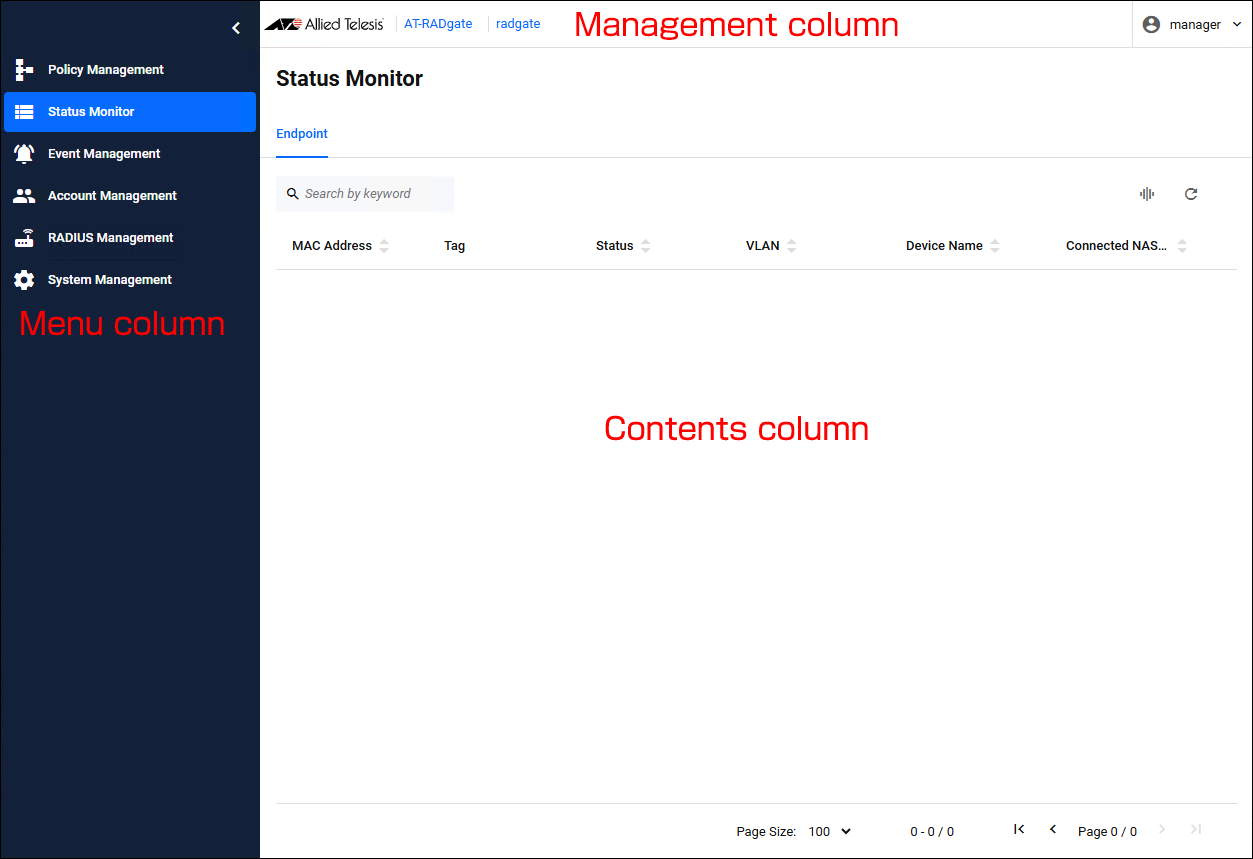
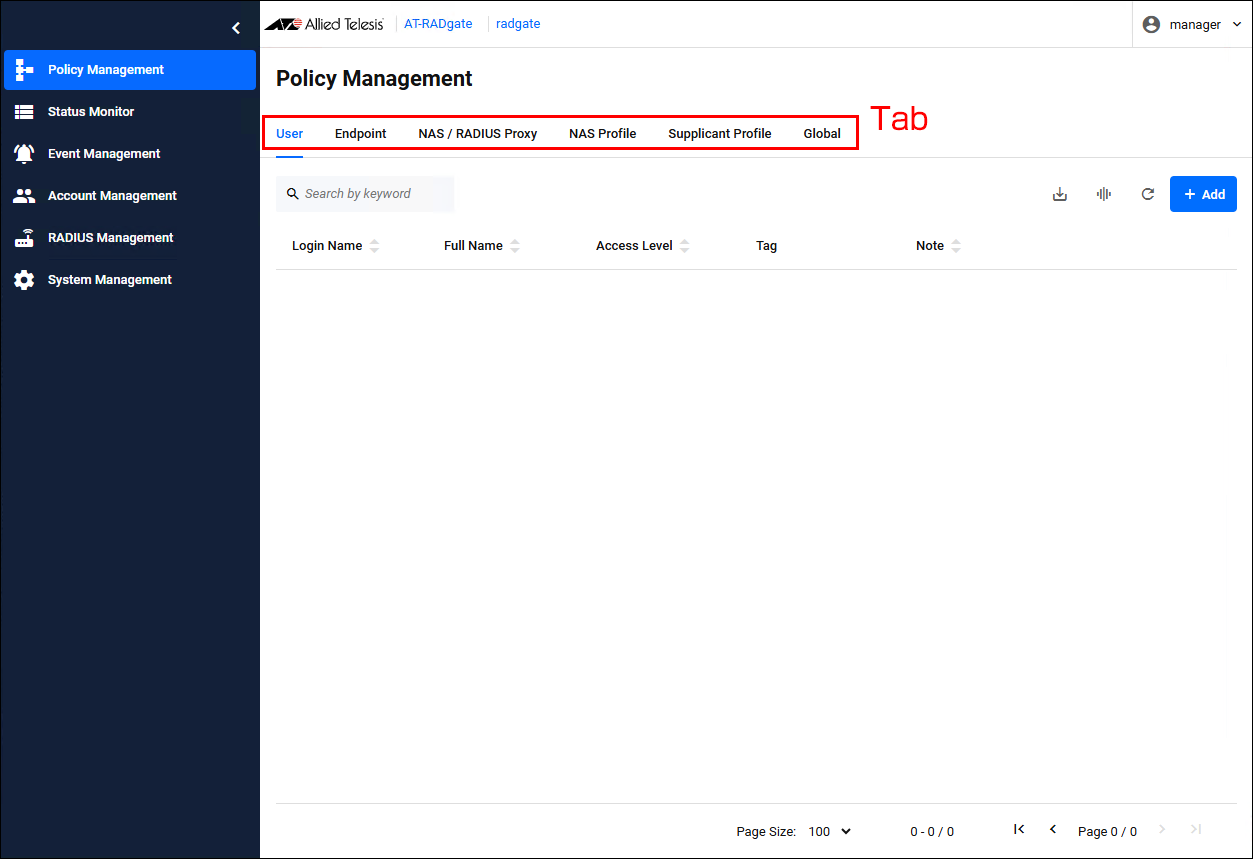
- On the Policy Management page, clicking a tab displays each setting page in the content column.
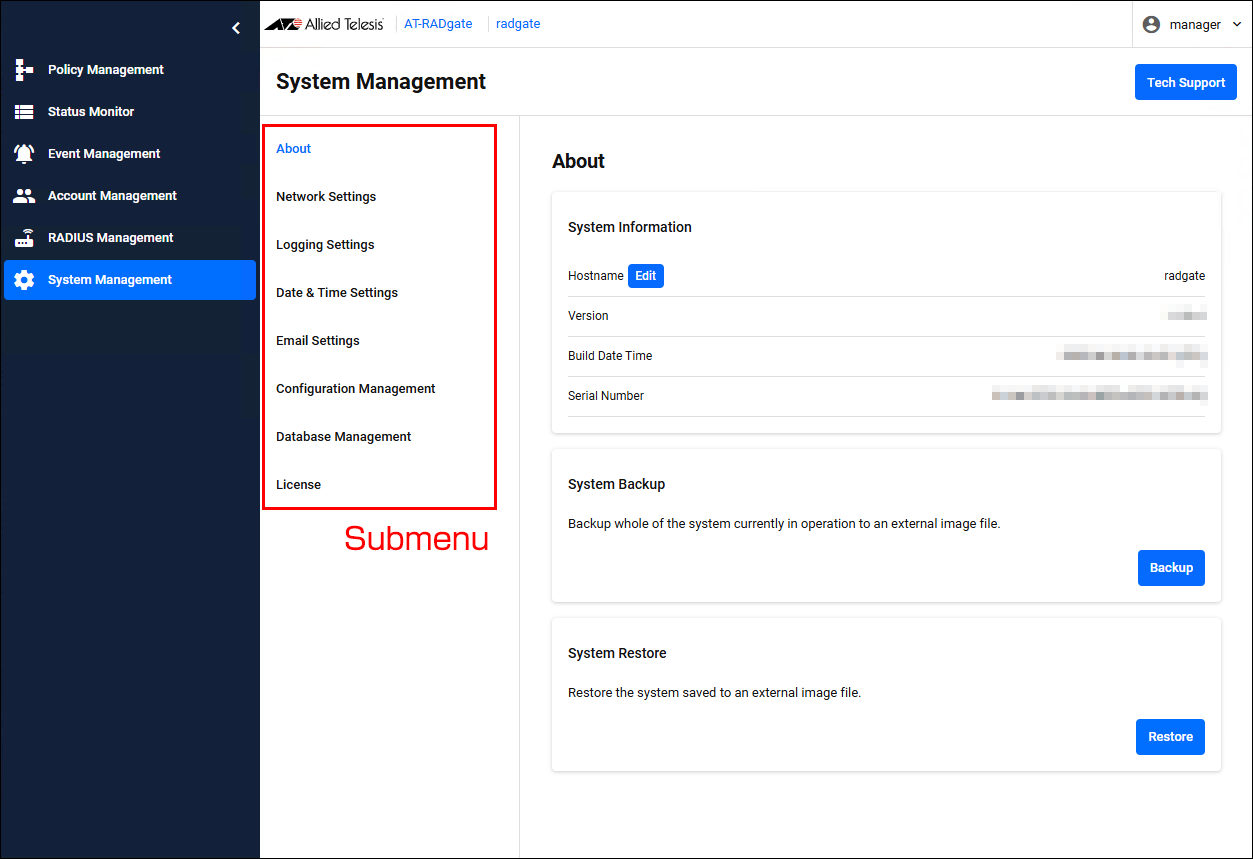
- On the RADIUS Management and System Management pages, when you click a submenu, each setting page is displayed in the contents column.
- Menu column
The menu column displays the main menu icon and menu name. Clicking on the menu name opens the respective setting page.
- Contents column
Displays various setting information and information selected in the menu. Submenus are displayed on the System Management page. Clicking on the submenu names opens the appropriate setting page.
- Management column
The following is displayed in the Management section at the top of the page:

Table 1: Management column Display example Description AT-RADgate Clicking this displays the Status Monitor page. radgate The configured Hostname. Clicking this displays the System Management > About page. manager The currently logged in user name. Clicking this displays the "My Account" and "Logout" submenus.
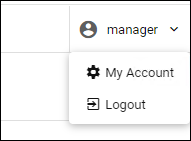
- Clicking "My Account" displays the My Account page.
- Clicking "Logout" logs you out of the settings page and display the Login page.
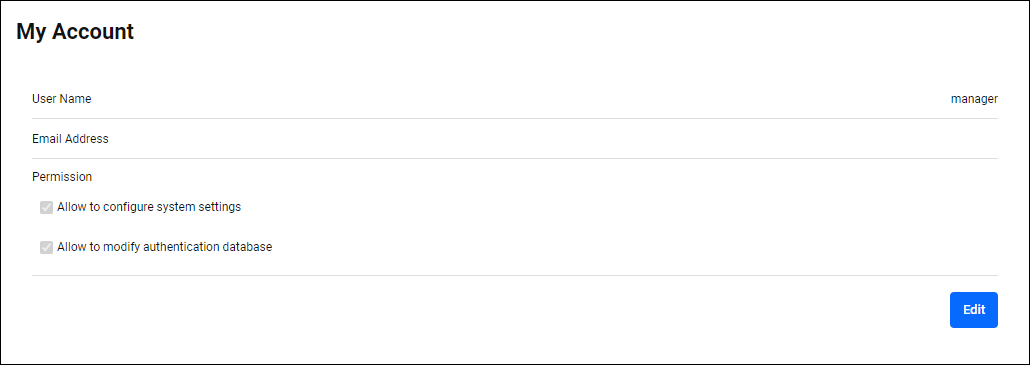
My Account
My Account page displays information about the currently logged in user. Click the “Edit” button to change settings.NoteFor more information about account settings, refer to References > Account Management.
Searching and Sorting in Tables
The following pages have controls to search, filter or sort items in tables.For information on items that can be searched, filtered, and sorted, refer to the References.
- Policy Management > User
- Policy Management > Endpoint
- Policy Management > NAS > RADIUS Proxy
- Policy Management > NAS Profile
- Policy Management > Supplicant Profile
- Status Monitor > Endpoint
Filter using search form
You can filter items to display by entering keywords in the search form.If you enter multiple keywords separated by a space character, only items matching all the keywords are displayed. (AND search)
Toggling Order
The sort order is toggled among ascending > descending > default order whenever you click the same button.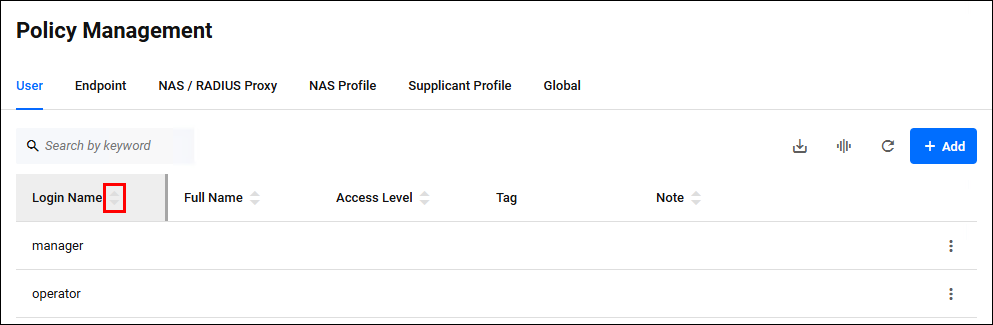
◼ Number of items displayed on the page
The range of displayed items and the total number of items are displayed at the bottom of the list page. You can also change the maximum number of items displayed on a page by using the dropdown menu.

Apply Configuration Changes
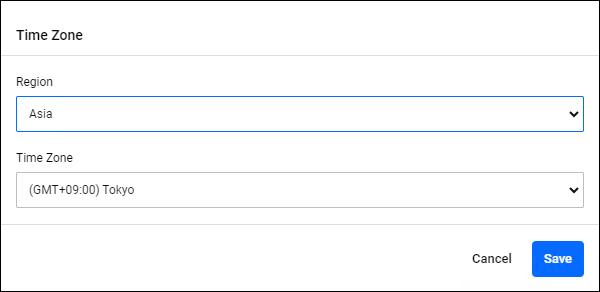
There is the "Save" button on each configuration page or dialog. After changing configurations on a page or a dialog, do not forget to click the "Save" button before moving to another page.When you click the "Save" button, the changes you made on the page are immediately applied to the AT-RADgate's operation.
NoteThere are some pages without the "Save" button because they are read-only and do not have any configuration element to change.
01 Oct 2025 12:51