Account Management
Manage your AT-RADgate account.
On the "Account Management" page, a list of accounts is displayed in the left display area, and detailed information about the currently selected account is displayed in the right display area.
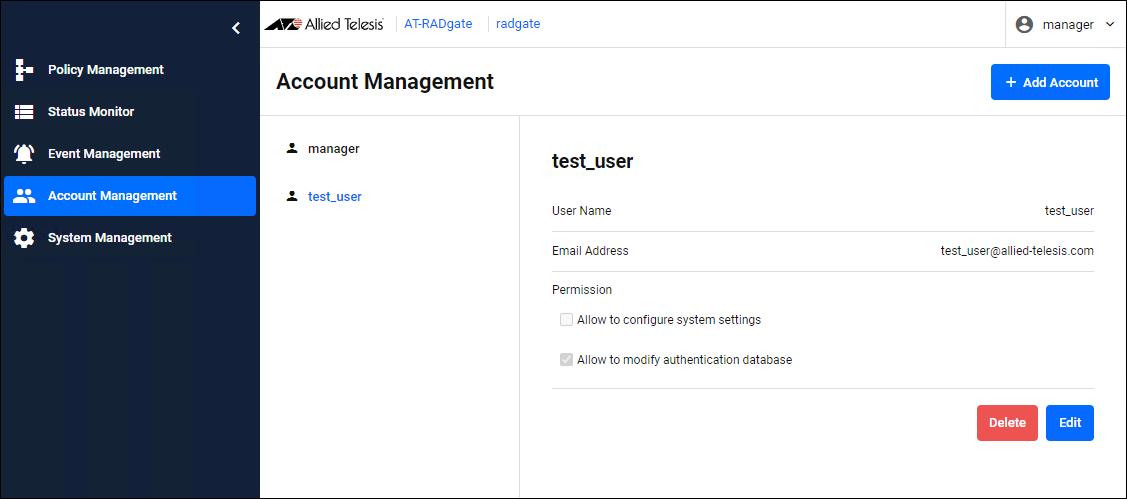
The functions of each button at the top right of the page are as follows:
| Button Name | Description |
|---|---|
| "Add Account" button | Add an account. When clicked, the New Account page is displayed. |
| Item Name | Description |
|---|---|
| User Name | Name of the login account. Used to log in to the settings page. |
| Email Address | The Email Address associated with your account.NoteRegister your Email Address in your account and set the Email Notification on the System Management > Email Settings page. This allows you to recover your password by Email Address if you forget it. Refer to Appendix / If you forget your password for instructions on how to recover your password by email. |
| Permission | The permissions assigned to the account. The types of permissions are as follows: For the actions permitted by each permission, refer to Appendix > Administrator Permission. "Allow to configure system settings" "Allow to modify authentication database" |
| Button Name | Description |
|---|---|
| "Delete" button | Delete the selected account. The currently logged in account and the default account "manager" cannot be deleted. |
| "Edit" button | Updates the information for the selected account. When clicked, the Edit Account page is displayed. |
New Account
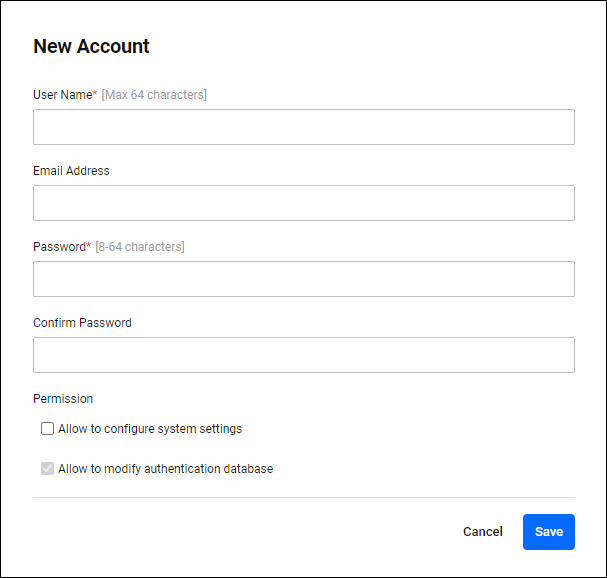
Account Management > New AccountCreate a new account.
| Item Name | Mandatory | Format | Description |
|---|---|---|---|
| User Name | × | String (Max 64 characters) | Name of the login account. Maximum length is 64 characters. Allowed characters are as follows. a-z, A-Z, 0-9, - . _ |
| Email Address | − | Email Address | Enter the Email Address associated with the account. Event notifications and password recovery via Email are available if you forget your password. |
| Password | × | Password | Login password for the account. Alphanumeric characters and symbols can be used. |
| Confirm Password | × | Password | Enter the password again. |
| Permission | − | Check box | The permissions assigned to the account. The types of permissions are as follows: For the actions permitted by each permission, refer to Appendix > Administrator Permission. "Allow to configure system settings" "Allow to modify authentication database" |
| "Cancel" button | − | − | Cancel the operation for adding a new account. |
| "Save" button | − | − | Add a new account with the input information. |
Edit Account
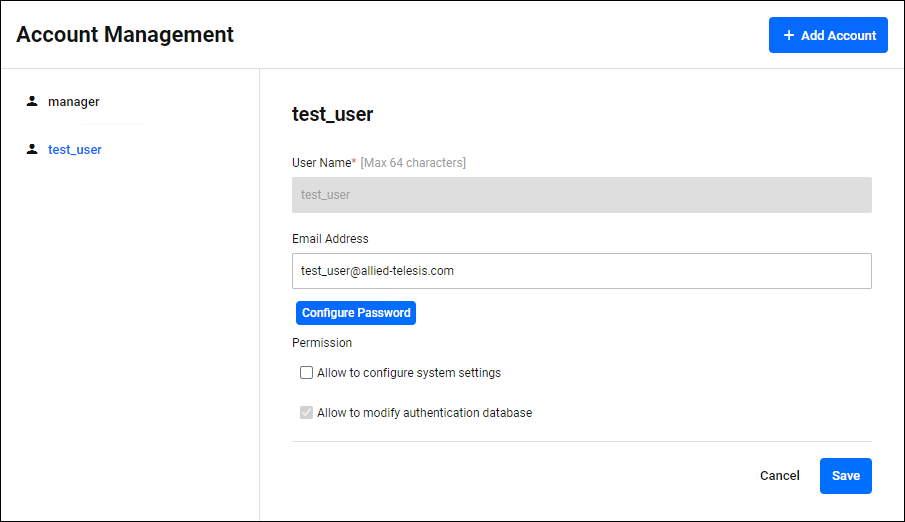
Account Management > Edit AccountYou can change the information of your registered account.
| Field Name | Mandatory | Format | Description |
|---|---|---|---|
| User Name | − | − | Name of the login account. You cannot change your registered username. |
| Email Address | − | Email Address | Enter the Email Address associated with the account. Event notifications and password recovery via Email are available if you forget your password. |
| "Configure Password" button | − | − | Clicking this displays the "Password" and "Confirm Password" items, allowing you to change your password.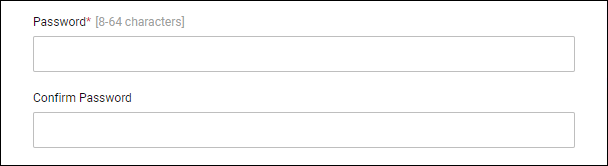
|
| Password | × | Password | Login password for the account. Alphanumeric characters and symbols can be used. |
| Confirm Password | × | Password | Enter the password again. |
| Permission | − | Check box | The permissions assigned to the account. The types of permissions are as follows: For the actions permitted by each permission, refer to Appendix > Administrator Permission. "Allow to configure system settings" "Allow to modify authentication database" |
| "Cancel" button | − | − | Cancel the operation for updating the account. |
| "Save" button | − | − | Update the account with the input information. |
01 Oct 2025 12:51