MAC Access Control
MAC Access Control is a mechanism to authenticate a wireless client by its MAC address when the client wants to associate to an AP.
There are two methods for MAC Access Control to check the validity of clients' MAC addresses. One is using RADIUS servers, and the other is using MAC Address Lists configured with the AWC Plug-in.
When you use the AWC Plug-in's MAC Address List, you can assign a single MAC Address List to each AP Profile. If an AP Profile has more than one VAP configured, you can choose whether to use the single MAC Address List on all VAPs, or to use the MAC Address List on some VAPs and use separate RADIUS servers on other VAPs.
NoteMAC Access Control is not supported in combination with Area Authentication.
NoteMAC Address Authentication is valid for TQ1402, TQm1402, TQ4600, TQ5403, TQ5403e, TQm5403, TQ6403 GEN2, TQm6403 GEN2, TQ6602, TQ6602 GEN2, TQm6602 GEN2, TQ6702 GEN2, TQm6702 GEN2, and TQ7403 running normal firmware. TQ4400 and TQ4600 running SDN/OpenFlow-capable firmware does not support this feature.
NoteTo use MAC Access Control, enable "MAC Access Control" on a VAP. Please refer to Configure AP Profiles for more details.While MAC Access Control checks the validity of a client, it does not improve the security level of the wireless communication itself. It is recommended that WPA Personal or WPA Enterprise is used for authentication and encryption in addition to the client validation by MAC Address Authentication.
If you use WPA Enterprise along with MAC Access Control, RADIUS attributes used for determining client VLANs should be configured as the ones for WPA Enterprise, not for MAC Address Authentication.
Use MAC Address List on AWC Plug-in
- First, you have to create a MAC Address List. Refer to Configure MAC Address Lists for more details.
You have to choose an action, either "Allow" or "Deny" for a new MAC Address List to create.
- "Allow" creates a whitelist, which only permits traffic from the MAC addresses in the list and blocks all other traffic.
- "Deny" creates a blacklist, which only blocks traffic from the MAC addresses in the list and permits all other traffic.
- "Allow" creates a whitelist, which only permits traffic from the MAC addresses in the list and blocks all other traffic.
- Next you have to create an AP Profile. Refer to Configure AP Profiles for details.
The following two items are related to MAC Access Control:
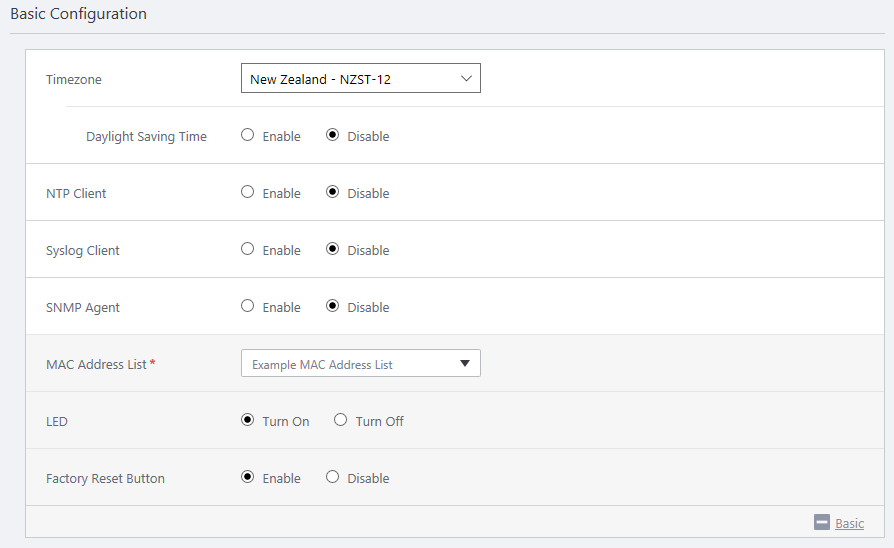
- Specify a MAC Address List to use in the "System" section's "MAC Address List".
Clicking the "MAC Address List" drop-down list shows the "Select MAC Address List" dialog box. Click a MAC Address List for use with VAPs defined in the AP Profile and click "Select".
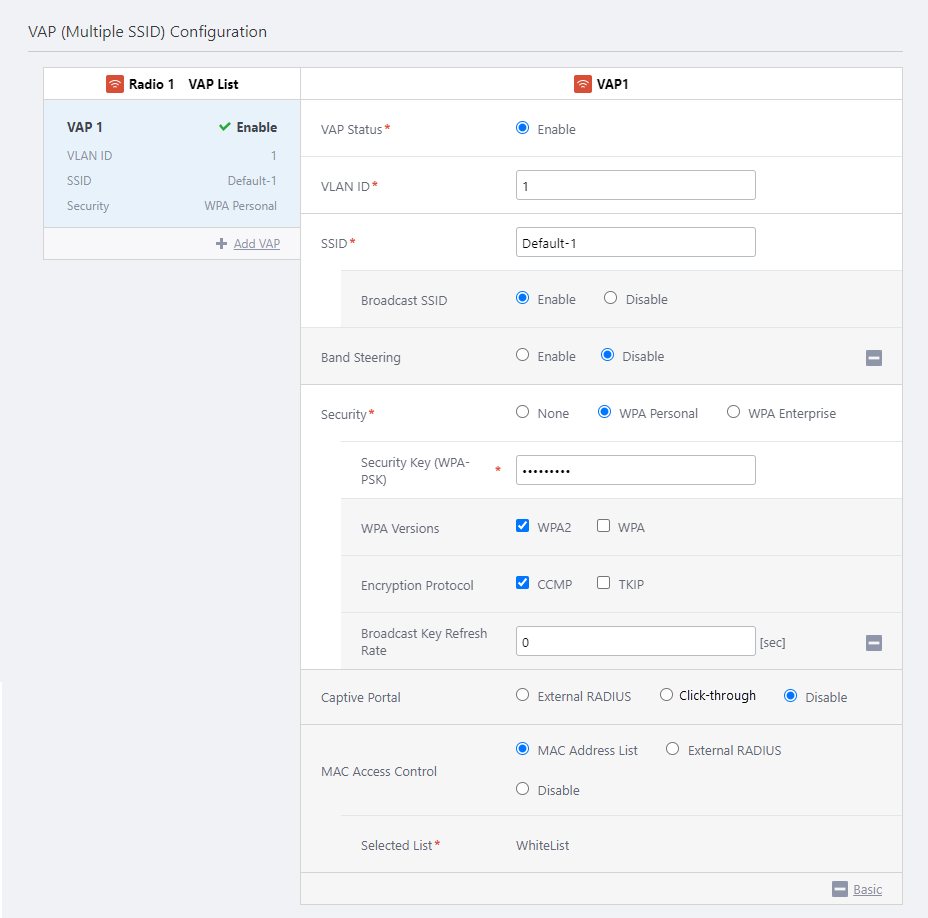
- In the "VAP (Multiple SSID) Configuration" section, select "MAC Address List" for each VAP on which you want to use MAC Access Control.
When you select "MAC Address List", the MAC Address List selected in the "Basic Configuration" section will be shown in the "Selected List" field.
Note
You cannot use separate MAC Address Lists for VAPs configured on a single AP Profile. If you want to use a different set of MAC Addresses for each VAP, you have to use external RADIUS servers.
- Specify a MAC Address List to use in the "System" section's "MAC Address List".
Use External RADIUS Server
Next you have to create an AP Profile. Refer to Configure AP Profiles for details.In the "VAP (Multiple SSID) Configuration" section, select "External RADIUS" for each VAP on which you want to use MAC Access Control via RADIUS servers.
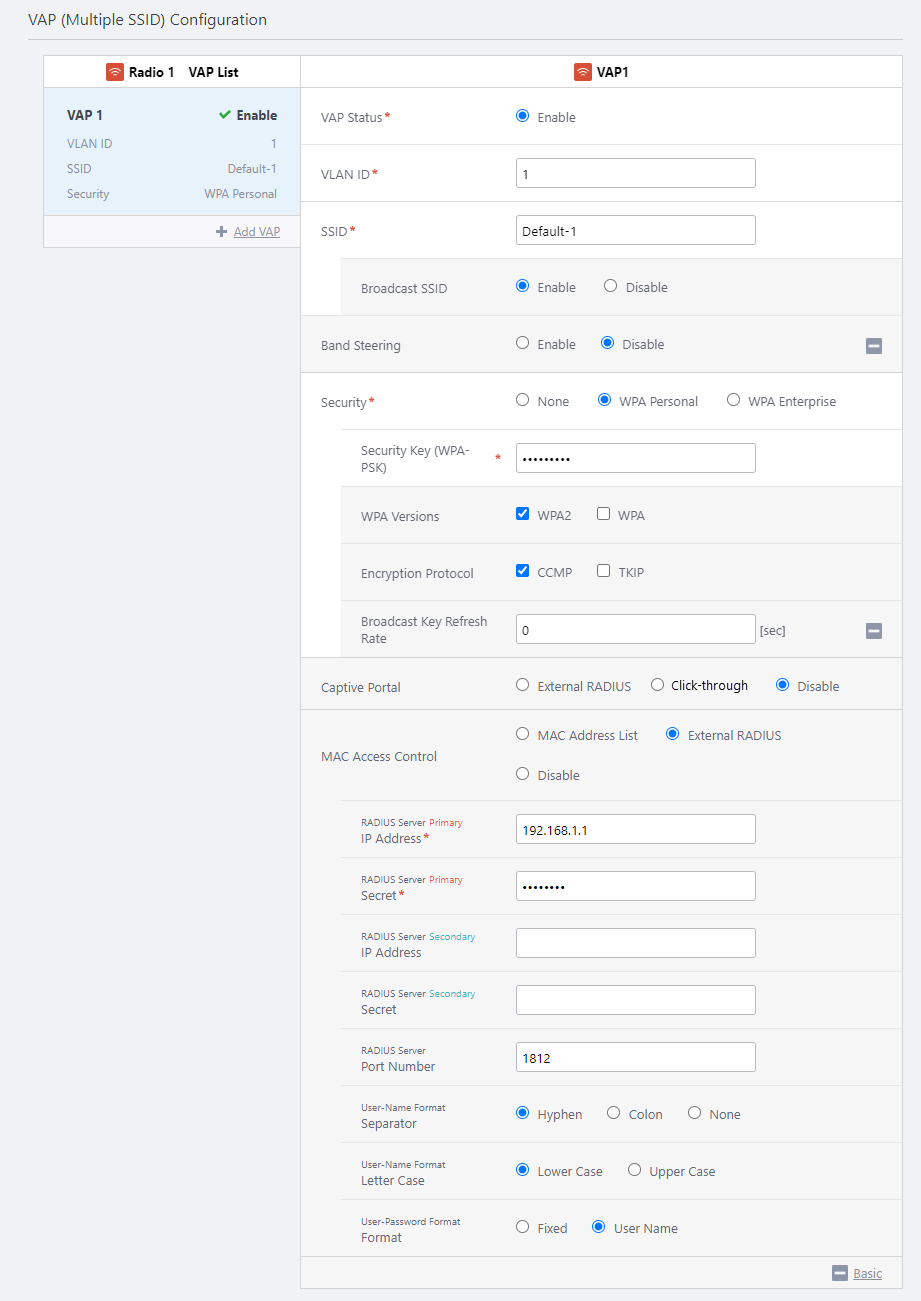
When performing MAC Address Authentication, the AWC Plug-in sends a client's MAC address to the RADIUS server as a username. Therefore, you have to use the same MAC address format on both the AWC Plug-in and the RADIUS server.
NoteRefer to the RADIUS server's documentation for detailed instructions of how to configure the server.
| Item Name | Description |
|---|---|
| User-Name Format Separator | Specify an octet delimiter to use in a User-Name attribute from "Hyphen", "Colon" and "None". The default is "Hyphen". |
| User-Name Format Letter Case | Specify which case to use in a User-Name attribute from "Upper" and "Lower". The default is "Lower". |
| User-Password Format | Specify what is used for a User-Password attribute when a client MAC address is sent to the RADIUS server for authentication. The default is "User Name". If you select "Fixed Password", a string specified in "User-Password Format Password" is always used as the value of the User-Password attribute. If you select "User Name", the same string as the User-Name attribute (MAC Address) is sent to the RADIUS server as the value of the User-Password attribute. |
| User-Password Format Password | Specify a fixed password string which is used when "User-Password Format Type" is set to "Fixed Password". |
| Attribute Name | Attribute Value | Comment |
|---|---|---|
| User-Name | Full Name | MAC Address. Lower Case, Delimited by hyphen (eg. ab-cd-ef-12-34-56) |
| User-Password | Password | Same as the User-Name. (eg. ab-cd-ef-12-34-56) |
Configure RADIUS Server
To use Dynamic VLAN, you have to add the APs to the RADIUS server's database as RADIUS clients.| Item Name | Description |
|---|---|
| RADIUS Client's IP Address | Wireless AP's IP Address (Example) 192.168.1.230 |
| Secret | Wireless AP's Password (Example) "MyPassword" |
NoteBecause client users are authenticated by APs, you have to add all APs to the RADIUS client database.
Use both MAC Address List and External RADIUS server
TQ1402, TQm1402, TQ5403, TQ5403e, TQm5403, TQ6403 GEN2, TQm6403 GEN2, TQ6602, TQ6602 GEN2, TQm6602 GEN2, TQ6702 GEN2, TQm6702 GEN2, and TQ7403 can use both the AP's own MAC Address List and MAC Access Control via an External RADIUS server.In the VAP (Multiple SSID) Settings of the AP Profile, set MAC Access Control to "MAC Address List + External RADIUS" and configure the MAC Address List and RADIUS server settings in the same way as when configuring each individually.
When using both the MAC Address List and an External RADIUS Server, the MAC address of the wireless client is queried in the order of MAC Address List and External RADIUS Server, and the wireless client is allowed to communicate if it is allowed to connect by either methods. This means that if the connection is refused by both, the client will not be able to communicate.
Combination of MAC Access Control and Captive Portal
In the VAP (Multiple SSID) Configuration of AP Profile, if any authentication method other than "None" is specified for both Captive Portal and MAC Access Control, these can be used together. In this case, the authentication process will be performed in the order of MAC Access Control, and then Captive Portal, and only the clients which have been successfully verified by both methods will be able to commuicate via the relevant VAP.Also, when you are using TQ5403/5403e with firmware version 6.0.3-0.1 or later, you can choose to grant clients 2-step authentication with either or both MAC Access Control or Captive Portal.
If any authentication method other than "None" is specified for both Captive Portal and MAC Access Control, then the "Two-step auth with Captive Portal" option is displayed below the MAC Access Control options.
| Item Name | Description |
|---|---|
| Two-step auth with Captive Portal | When any authentication method except "None" is selected for Captive Portal, the authentication will be performed in two steps: Captive Portal and MAC Access Control.
NoteThis item is displayed if you select "Dual[11ax] GEN2", "Tri[11ac Wave2]", or "Tri[11ac Wave2] with External Antenna" for the Profile Type. |
Dynamic VLAN
With TQ4600, MAC Access Control supports Dynamic VLAN directly, and can assign each client (user) to a particular VLAN that is specified as RADIUS attributed during MAC Address Authentication.NoteFor wireless APs other than the TQ4600, the combination of MAC Access Control and Dynamic VLAN is not supported.
Use with WPA Enterprise
When you use WPA Enterprise together with MAC Access Control, a wireless client is assigned to the VLAN that was determined during the WPA Enterprise authentication.This means that if the user's VLAN is set in the authentication information of the RADIUS server referenced by the WPA Enterprise, that VLAN will be applied.
If the AP doesn't receive any VLAN information during WPA Enterprise authentication, the client's traffic will be handled on a VLAN that is configured for the VAP.
As a result, VLAN attributes received during MAC Access Control will be discarded.
NoteWhen Captive Portal, MAC Access Control, and WPA Enterprise are used together, they are processed in the order of "MAC Access Control" -> "WPA Enterprise" -> "Captive Portal".
11 Jul 2024 13:43