Select target APs
Select the wireless APs to join the DCN group, which will optimize the wireless terminals using the same DCN profile.
- Select "Wireless Configuration" > "DCN Profile" from the AWC Plug-in menu.
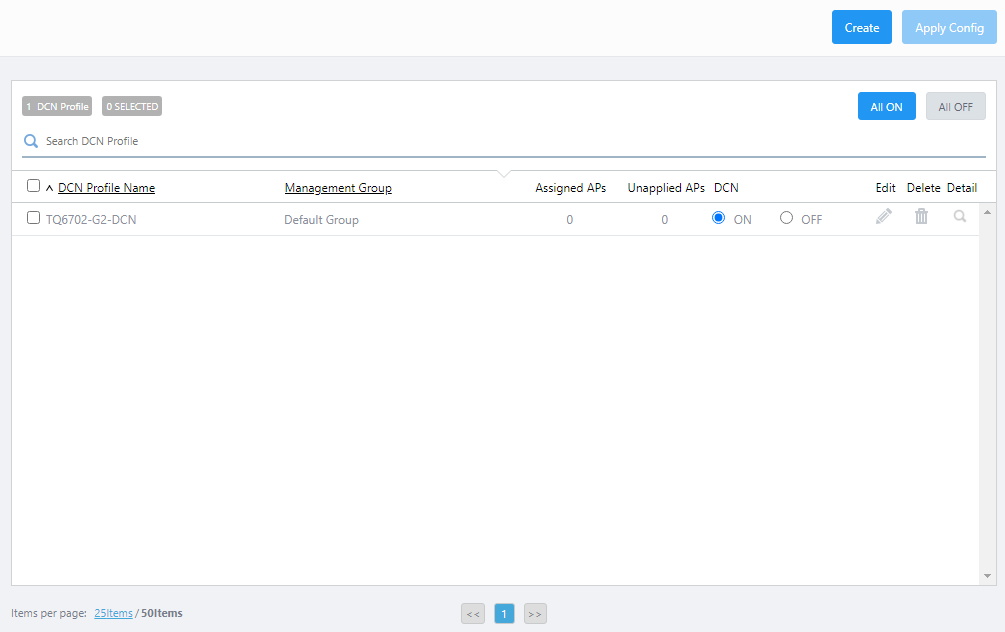
- From the list of DCN profiles, click the "Edit" button (Pencil icon) to the right of the column of DCN profile to be edited.
The DCN Profile configuration screen will appear.
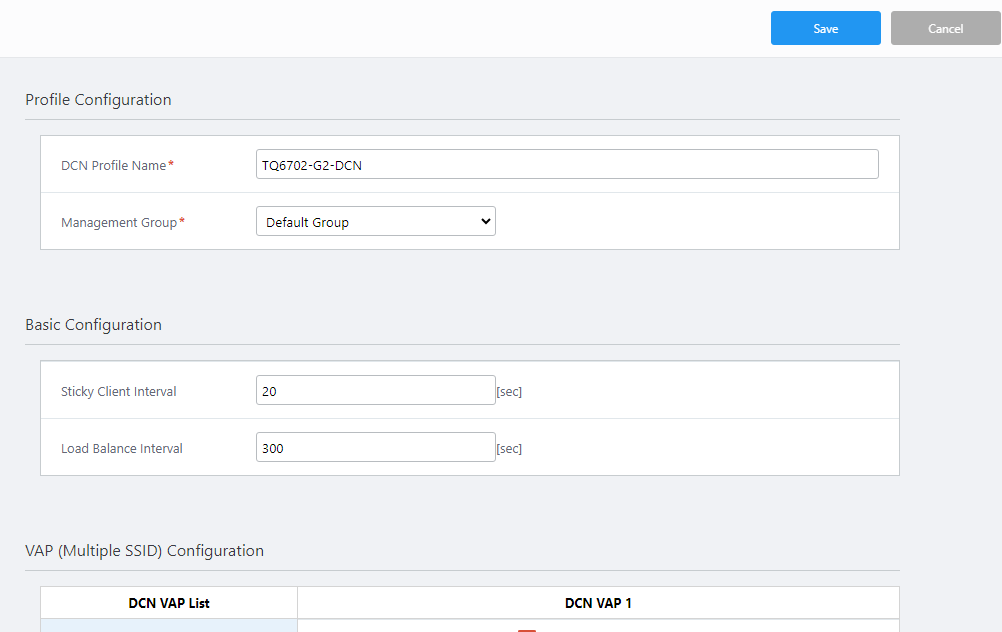
- In "AP List" at the bottom of the contents section, click the "Edit" button.
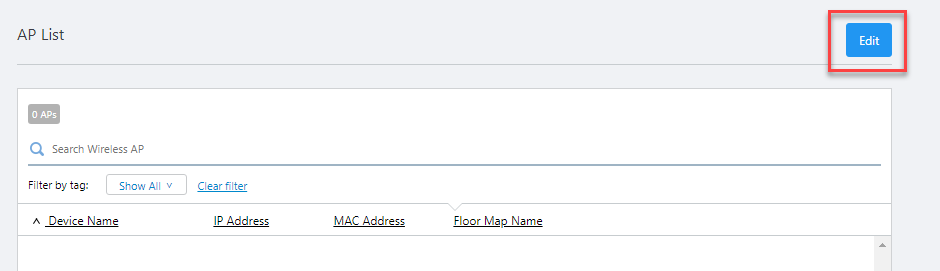
The "Add/Remove APs" dialog box will appear.
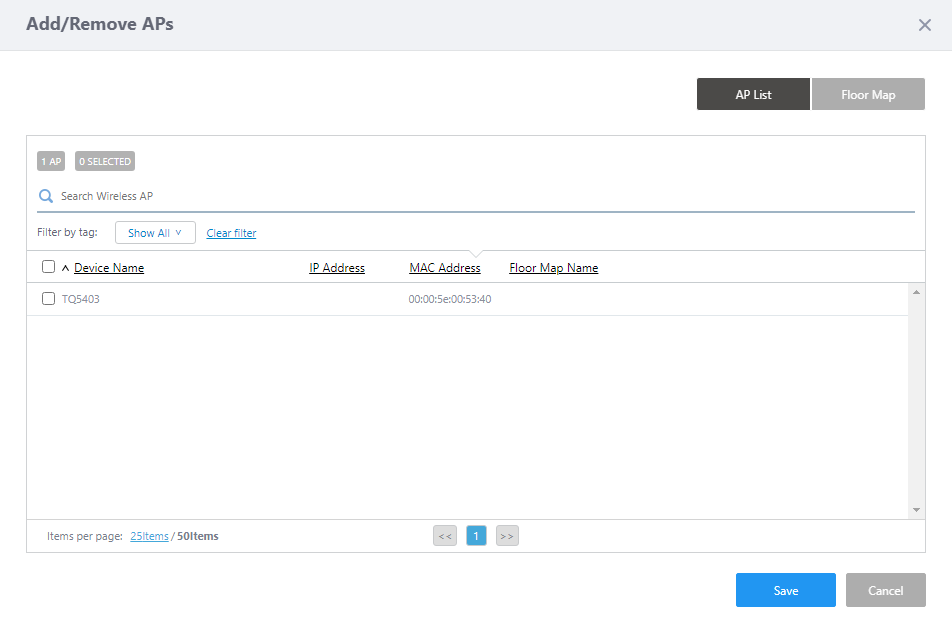
Table 1: "Add/Remove APs" dialog box Item Name Description Top of the dialog box "AP List" button Switches to the Wireless AP list.
You can select APs for the DCN group from the list."Floor Map" button Switches to the Floor Map list.
You can open a floor map and select APs for the DCN group on the map.Wireless AP List
Search Wireless AP Filter entries in the list by entering a partial string in the search box.
The Search field lets you enter a partial string to match. The screen displays entries with that string in one of the following fields: "Device Name", "IPAddress", "MAC Address" or "Floor Map".
To remove the filter, delete the string from the Search field and press Enter.
Note
The search is case-sensitive.
Filter by tag Lets you filter APs with tags.
Clicking tags uses tags to filter the list. Clicking them again removes the filter. Clicking "Clear filter" removes the filter for all tags.
Note
To select tags, you have to switch the list to detailed mode (by clicking "View Details").
Tag All tags are displayed under the "Search Wireless AP" box. Checkbox Lets you select APs. A checkbox in the header row can be used to check or uncheck all APs. Unchecking the box in the heading row deselects all entries in the list. Device Name Shows the name of the AP. IP Address Shows the AP's IP address. MAC Address Shows the device's MAC address. Floor Map Name Shows a floor map name where the AP is placed. Floor Map List 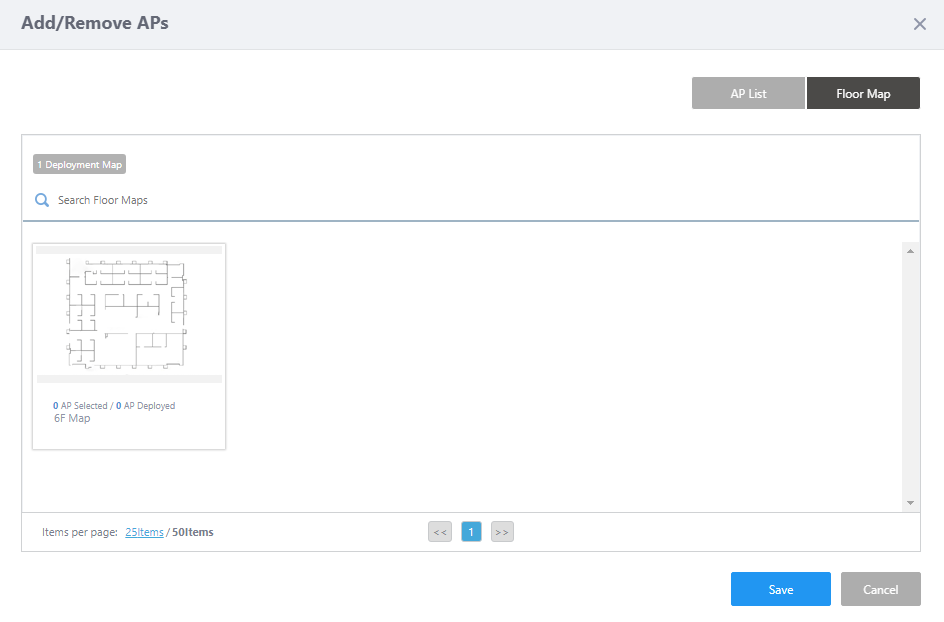
X Deployment Map The total number of floor maps under the selected management group is displayed. Search Floor Map Filter entries in the list by entering a partial string in the search box.
The Search field lets you enter a partial string to match. The screen displays entries with that string in one of the following fields: "Floor Map Name" or "Tag".
To remove the filter, delete the string from the Search field and press Enter.
Note
The search is case-sensitive.
Floor Map Panels Each floor map is shown as a panel. The name of the floor map and the number of APs placed on the map are shown below the panel.
When you mouse-over a panel, the "View Details" menu will appear on the panel. Clicking on a panel or the "View Details" menu item moves you to a floor map details page.Items per page Specifies the number of items per page. << Goes to the first page of the list. (Page Number) Shows the current page number in the list. >> Goes to the last page of the list. Save Saves the member AP information. Cancel Goes back to the "Edit DCN Profile" page without saving the member AP information. Floor Map Details 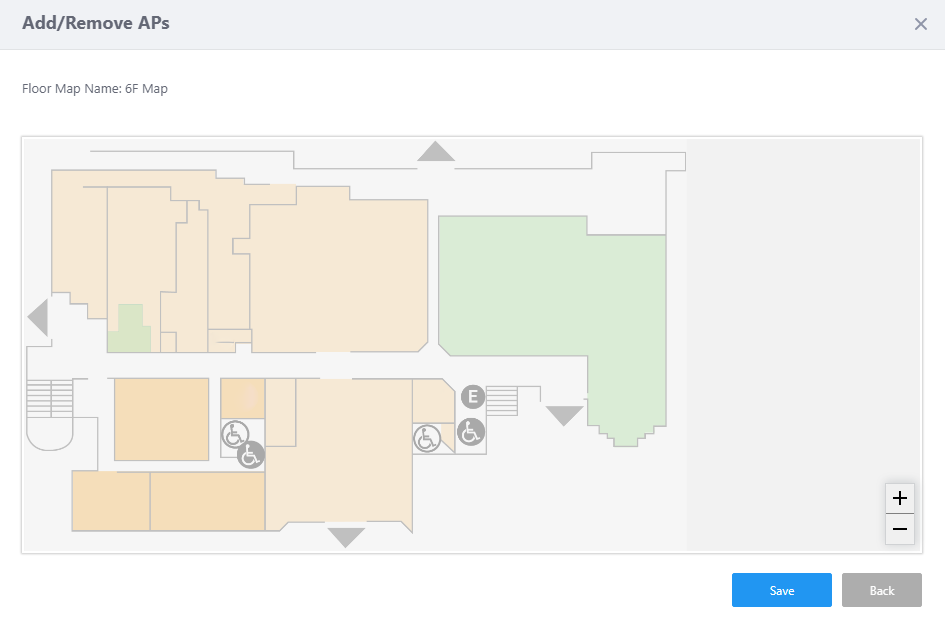
Floor Map Name Shows the floor map name. Floor Map The floor map and APs on the map are shown.
- When you hover over an AP, its IP address, MAC address and model name will pop up.
- When you click an AP icon, a blue circle will appear around the AP and show that it is selected. You can select multiple APs.
- Clicking an AP icon again deselects it.
- An AP Icon in dark gray shows that the AP already belongs to another DCN group.
Save Saves the member AP information. Back Goes back to the "Floor Map List" page without saving the member AP information. - When you hover over an AP, its IP address, MAC address and model name will pop up.
- Select APs to add to the DCN group, then click "Save".
The selected wireless AP will appear in the "AP List" on the DCN Profile configuration screen.
- Click "Save" at the top right of the DCN Profile configuration screen.
The "DCN Profile Details" page will appear.
You have to apply a DCN Profile to APs so that any changes to the DCN Profile (including newly created profiles) become effective.
11 Jul 2024 13:42