Floor Map History Mode
If AT-VST-APL exists on the same subnet as Vista Manager EX with the "AWC-VAS" application is running on it, it can be used as "Vista Appliance Storage" (hereinafter referred to as "VAS"). VAS is designed to record the management status of APs and the status of connected clients as an expanded storage for the AWC Plug-in.
To use VAS in the AWC Plug-in, you need to register AT-VST-APL in the Vista Appliance Storage screen. Refer to Vista Appliance Storage for more details.
When the VAS is configured, the "History Mode" button at the top of the Floor Map List screen will be enabled.

History Period Settings
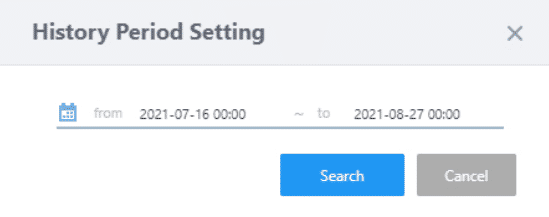
Click the "History Mode" button at the top of the Floor Map List screen to display the Floor Map Detail History Mode screen. The History Mode screen will appear in a new tab, a new window, or the same window (or tab) of your web browser according to the settings in the System Settings screen.When you open the history mode screen, you will first see the History Period Setting dialog box.
| Item Name | Description |
|---|---|
| Period | Specify the period (start and end date and time) for recalling the history of wireless APs and clients on the floor map manually or using the calendar control. |
| "Search" button | Recalls the history information for the specified period and displays it on the Floor Map Detail screen. |
Floor Map Details
Displays the status of wireless APs and clients recorded in the specified period.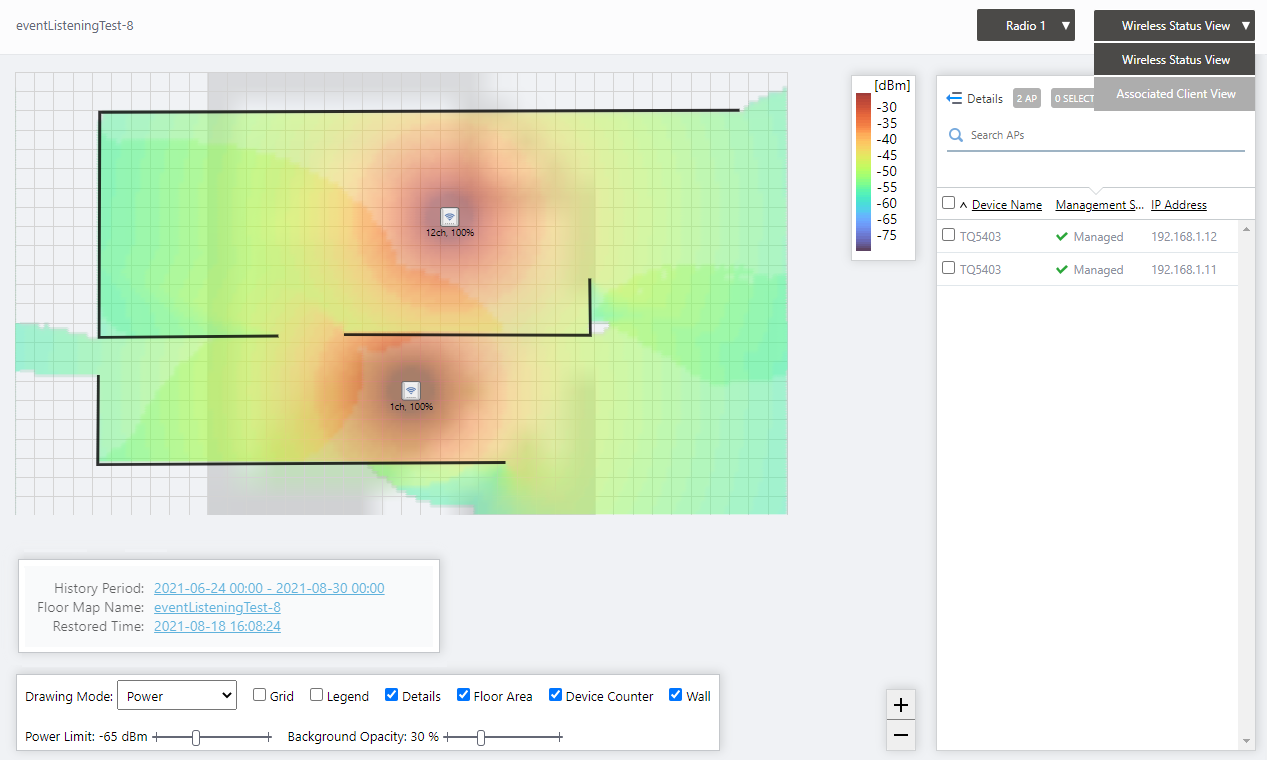
The floor map shows the status of the wireless APs and clients in the same format as Floor Map [Wireless Status View], Floor Map [Associated Client View] of Floor Map.
The Wireless Status View also supports heatmap display of Comfort Level, Power (signal strength) and Channel modes.
NoteThe Wireless Client View shows the status of wireless clients across all radio bands. The heat map display, together with the display of wireless clients by radio band, is not yet supported.
NoteThe current History Period, Map Name, and Restore Points are displayed in the lower left corner of the Contents section. By clicking on each item, you can re-specify the history period, or select the map currently displayed on the view or the restore points of the status.The status of the wireless clients can be viewed as the Associated Client Roaming History. Client Location Estimation History is not supported.
| Item Name | Description |
|---|---|
| History Period | Displays the period selected in the History Period Setting dialog box. Click to display the History Period Setting dialog box again. |
| Map Name | Displays the floor map name currently displayed in the floor map details among the history of the specified history period. Click to display the Floor Map List dialog box. |
| Restore Point | Displays the recorded time of the history currently being displayed in the floor map details among the history of the specified history period. Click to display the Restore Point List dialog box. |
Floor Map List
Select the floor map to be reflected in the detailed view of the floor map history mode.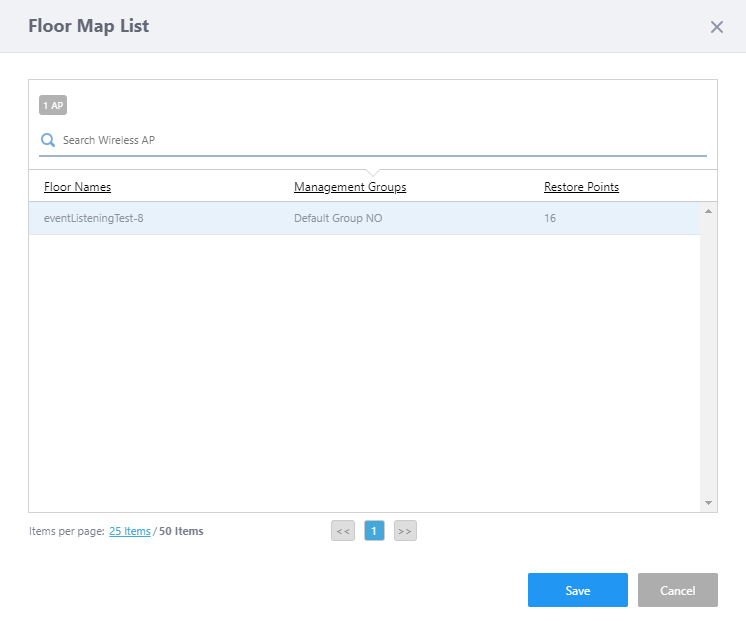
| Item Name | Description |
|---|---|
| X Deployment Map | Displays the total number of floor maps that have been recorded in the history for the selected period. |
| Search Floor Map | Filter entries in the list by entering a partial string in the search box. The search field lets you enter a partial string to match. The screen displays entries with that string in the "Floor Names" field. To remove the filter, delete the string from the Search field and press Enter. NoteThe search is case-sensitive. |
| Floor Names | Displays the name of the floor map whose history was recorded during the selected period. |
| Management Group | Displays the name of the management group which the floor map belongs to. |
| Restore Point | Displays the number of history entries recorded within the selected period for the corresponding floor map. |
| "Save" button | Saves the floor map selection and shows it in the floor map detail view. |
| "Cancel" button | Discards any changes made to the floor map detail view, and closes the dialog. |
Restore Point List
Select the Restore Point (date and time of the history recorded) that you want to show in the detailed view of the Floor Map History Mode.
| Item Name | Description |
|---|---|
| X Restore Point | Displays the total number of histories recorded for the corresponding floor map during the selected period. |
| Search Restore Point | Filter entries in the list by entering a partial string in the search box. Displays the items among the current display targets that contain the string entered in this field in the "Restore Points" field. To remove the filter, delete the string from the Search field and press Enter. NoteThe search is case-sensitive. |
| Restore Point | Displays the date and time of the history recorded during the selected period. |
| "Save" button | Saves the selection of the restore point and shows it in the floor map detail view. |
| "Cancel" button | Cancels changing the restore point time to the floor map detail view and closes the dialog. |
11 Jul 2024 13:42