Configure CB Profile
This section describes how to create, edit and delete a CB Profile.
Create CB Profile
- Select "Wireless Configuration" > "CB Profile" from the AWC Plug-in menu.
The CB Profile list will appear.
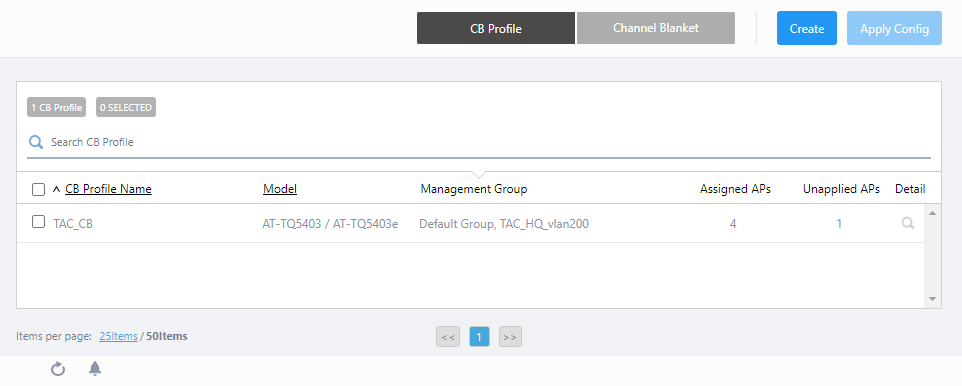
- Click "Create" at the top right corner.
- The "Select an AP model that uses AWC-CB" dialog box will appear.
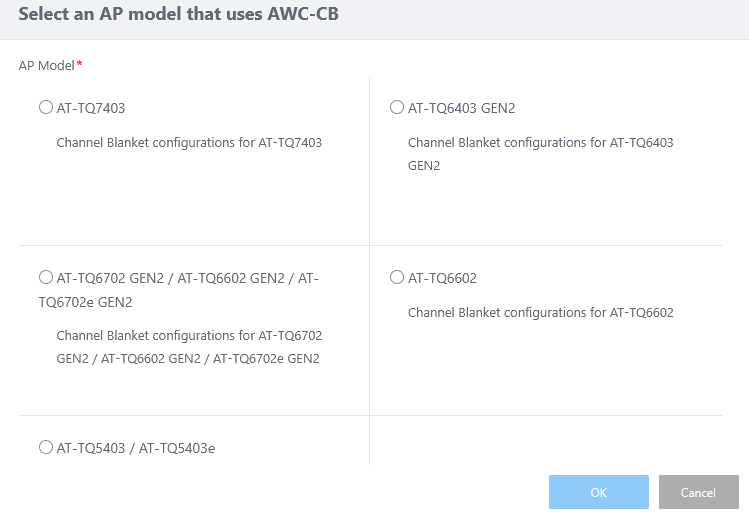
Table 1: "Select an AP model that users AWC-CB" dialog box Item Name Description AP Model Select an AP model.
- TQ7403
Select this for TQ7403.
- TQ6403 GEN2:
Select this for TQ6403 GEN2.
- TQ6702 GEN2 / AT-TQ6602 GEN2 / AT-TQ6702e GEN2:
Select this for TQ6602 GEN2, TQ6702 GEN2, and TQ6702e GEN2.
Note
The following firmware must be applied when mixing TQ6602 GEN2, TQ6702 GEN2, and TQ6702e GEN2.
- TQ6602 GEN2 / TQ6702 GEN2 firmware version 8.0.5-0.1 or later
- TQ6702e GEN2 Firmware Version 9.0.5-0.1 or later
- TQ6602 GEN2 / TQ6702 GEN2 firmware version 8.0.5-0.1 or later
- TQ6602:
Select this for TQ6602.
- TQ5403 / TQ5403e:
Select this for TQ5403 and TQ5403e.
- TQ7403
- Select an AP model.
- Click "OK".
- The "Create CB Profile" screen will appear.
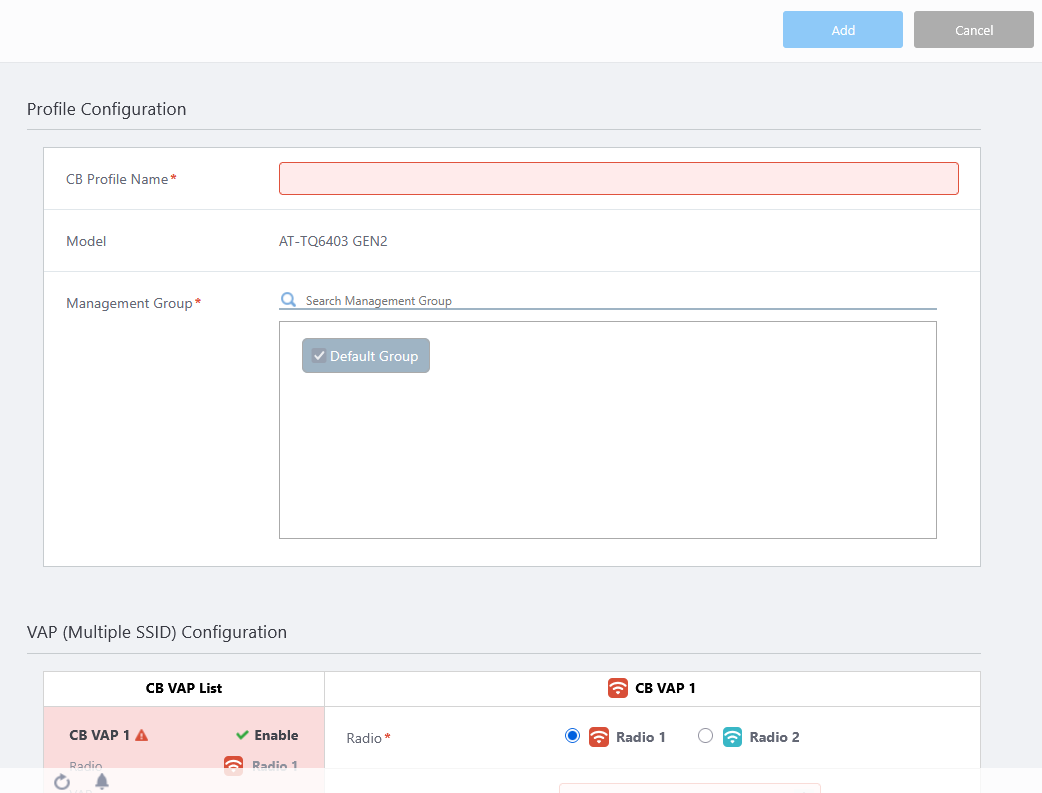
- Configure items in the Profile Configuration and VAP (Multiple SSID) Configuration sections as required.
- Click "Save" at the top right of the Content section to save the configuration.
After saving the CB Profile, create a channel blanket, starting from step 4 of Operation Reference > Channel Blanket > Create Channel Blanket.
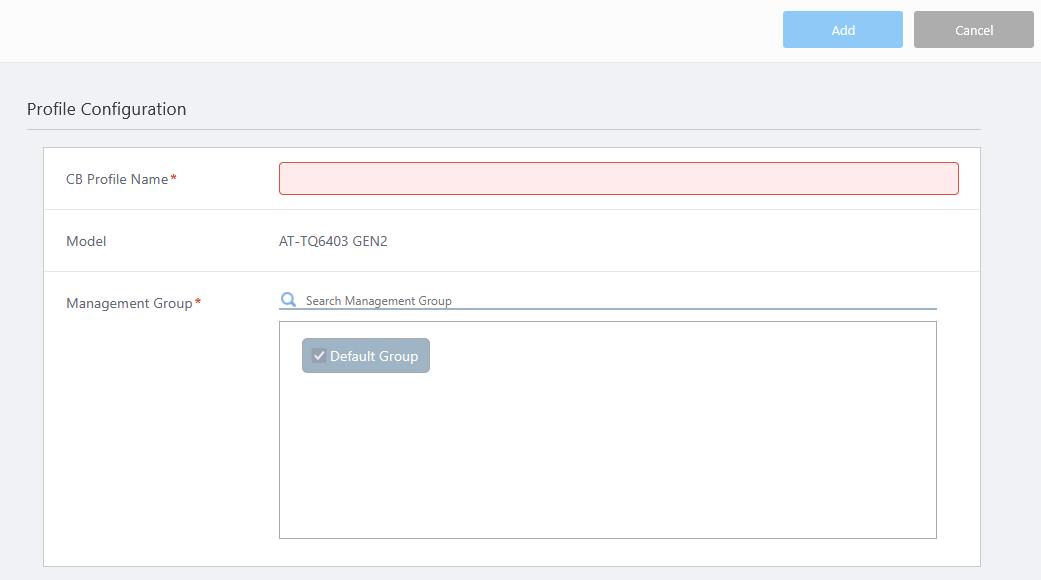
Profile Configuration
| Item Name | Description |
|---|---|
|
|
| CB Profile Name | Enter a name for the CB Profile. Should be 1 to 100 characters in length, with alphabets, numbers and symbols (including spaces). (required) |
| Models | Displays the AP model selected in the "Select an AP model that uses AWC-CB" dialog box. |
| Management Group | Select a Management Group that you want to apply this CB Profile to. You cannot uncheck "Default Wireless Group" (required)
|
VAP (Multiple SSID) Configuration
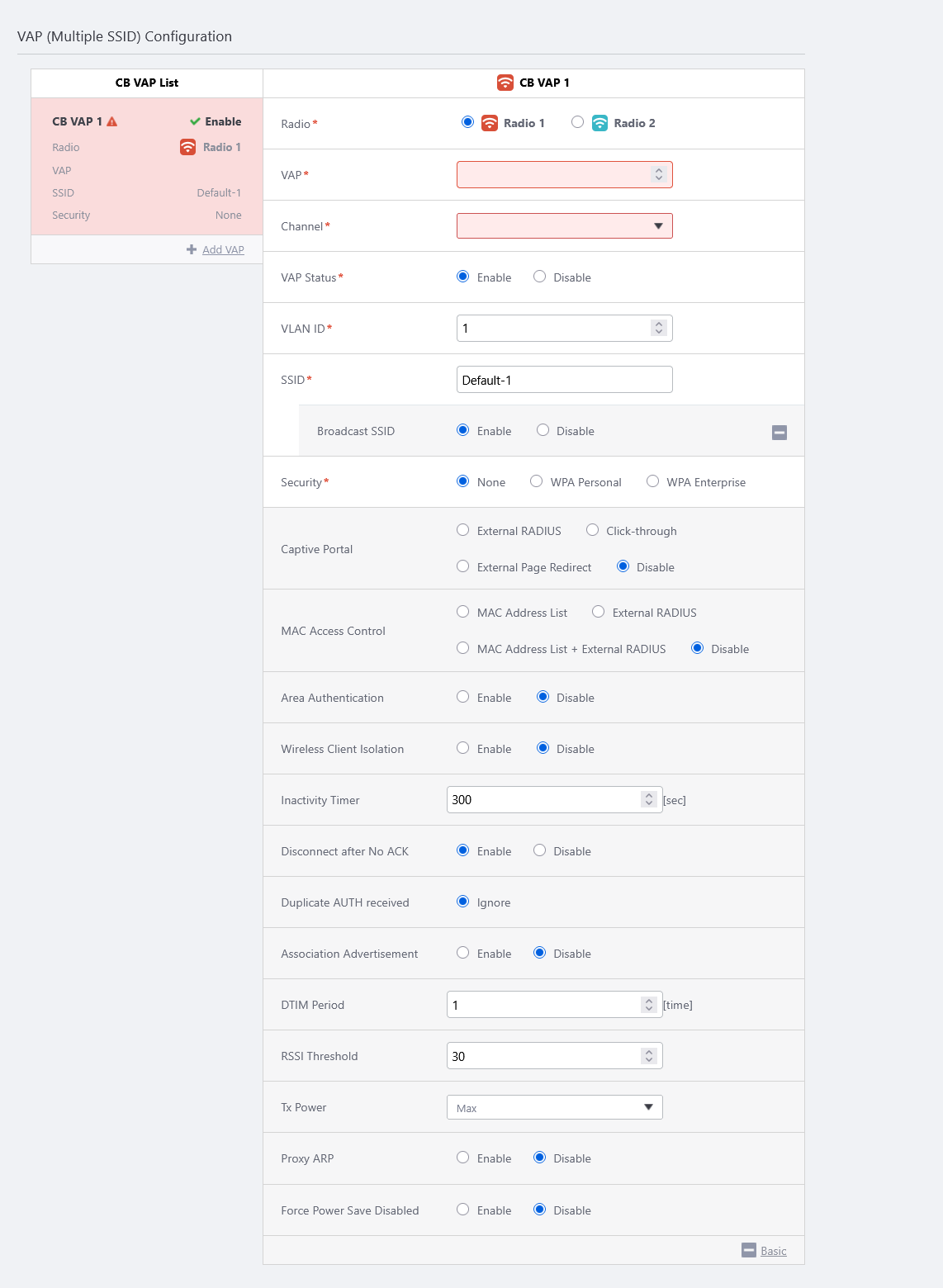
| Item Name | Description |
|---|---|
| CB VAP List | Shows a list of configured CB VAPs. This includes the status, radio band, VAP number, SSID and security setting of the CB VAP. |
| + Add VAP | Creates a new CB VAP. A CB VAP name is assigned a number sequentially from 1. Note that the number in the CB VAP Name has nothing to do with the "VAP Number" (described later) for the CB VAP. The number of VAPs that can be created depends on the AP model you select.
NoteIt is recommended to use 5 or less VAPs per radio band in total, including both multi-channel and blanket VAPs. |
| Radio | Select a radio band to use for this CB VAP.
Note"Radio 2 - 5GHz W53" and "Radio 3 - W56" cannot be used for CB VAPs. NoteWhen applying a CB profile to TQ6602, TQ6602 GEN2, TQ6702 GEN2, and TQ7403, if the bandwidth is set to 80+80MHz in Radio 2 of the AP profile, only W52 is used, because W53 cannot be used for CB VAP. The APs will operate with the 80 MHz bandwidth in that radio band. |
| VAP | Specify a CB VAP Number (mandatory). This can be specified as a number between 1 to 8 for TQ5403 and TQ5403e, and 1 to 16 for TQQ6403 GEN2, TQ6602, TQ6602 GEN2, TQ6702 GEN2, and TQ7403. If you specify the same number for a CB Profile as an existing AP Profile, the CB VAP is used for the number (the AP Profile's VAP with the number is not used because it is overriden by the CB VAP with the same number). NoteIf you do not use multi-channel networks, create a dummy multi-channel VAP 1 in an AP Profile, then create a CB VAP with the "VAP number" of 1 to override the dummy multi-channel VAP. We recommend you configure security on the dummy VAP too. |
| Channel | Select a channel to use for this CB VAP (required)
NoteSelect a channel according to the bandwidth used for the corresponding band set in the AP Profile. NoteSelecting a channel that is disabled in "Auto Channel Selection" in the AP Profile is not supported. |
| VAP Status | Enable or disable the CB VAP.
|
| VLAN ID | Specify a VLAN ID used for communication between the CB VAP and associated clients (required)NoteSpecify a VLAN ID that is different from the AP's management VLAN. When the AP is detected as a guest device, a parent AMF device is configured to collect the guest device information automatically ("dynamic discovery"), and wireless clients get their IP addresses via DHCP. |
| SSID | Specify an SSID (network name) to use on the CB VAP. The SSID is mapped to the VLAN ID. Enter a name between 1 to 32 alphanumeric characters. The default is "Default-X" (where X is an automatically assigned CB VAP number) (required) |
| Broadcast SSID | Specify whether to broadcast the SSID on the CB VAP.
NoteAn "ANY" connection is a connection where a wireless client tries to connect to an AP by specifying a wildcard or null as the SSID. Even when an "ANY" connection is allowed, clients cannot connect to APs without knowing the correct security key. |
| Security | Select a security mechanism to use. The available options are "None", "Static WEP", "Enhanced Open", "Enhanced Open Transition Mode", "WPA Personal", and "WPA Enterprise". The default is "Enhanced Open" (if "TQ7403" is selected for Model and "Radio 3" for Radio) or "None". NoteIn addition, if the Security is set to Static WEP in the VAP Settings of CB Profile, do not use a "Mode" that contains IEEE 802.11n in the Radio Configuration of the AP Profile. Select IEEE 802.11b/g on Radio 1 or IEEE 802.11a on Radio 2 instead.
For more details, refer to Additional Options for Security. |
| Captive Portal | Specify whether to use Captive Portal on the VAP. Captive Portal displays an authentication page before granting web access. When either option is selected, wireless clients connected to the corresponding CB VAP will be directed to a page (Captive Portal) that contains text such as licensing and authentication dialogs when they attempt to access any web page with a Web browser. Wireless APs that have applied the CB profile will allow or deny wireless clients according to the options specified in this item. Once successfully authenticated, wireless clients can continue to communicate through the VAP until a certain amount of time has elapsed.
If you select "External RADIUS", "Click-through", or "External Page Redirect", the following additional items are displayed: For more details, refer to Additional Options for Captive Portal. NoteThis setting is displayed when "AT-TQ7403", "AT-TQ6403 GEN2", "AT-TQ6702 GEN2 / AT-TQ6602 GEN2 / AT-TQ6702e GEN2", or "AT-TQ6602" is selected as AP Model. NoteDo not enable Captive Portal on the radio used for the WDS connection. |
| MAC Access Control | Select the MAC Access Control method to apply to the relevant VAPs.
When you select either "External RADIUS" or "MAC Address List + External RADIUS", additional items are also displayed. For more details, refer to Additional Options for MAC Access Control. NoteWhen using MAC Access Control with "External RADIUS" on CB VAP, one of the following firmware is required depending on your model. Note"MAC Address List" is only available if you have selected a "MAC Address List" in the "Basic Configuration" section in the AP profile. NoteThe option "MAC Address List + External RADIUS" is not displayed with selecting "AT-TQ6602" for AP model in "Select an AP model that uses AWC-CB" dialog box. |
| Area Authentication | Specify whether to use the Area Authentication function. When "Enable" is selected, the AWC Plug-in will make use of the Location Estimation function to find the wireless clients estimated to be in the specific area on the floor map and allow only these clients to connect to this VAP. Specify the area to permit the clients to connect to in the Floor Map screen separately. NoteTo use the Area Authentication on CB VAP, the following conditions must be met: NoteArea Authentication is not supported on TQ6602. NoteArea Authentication cannot be used in combination with MAC Access Control. |
| Fast Roaming | Specify whether to use Fast Roaming of wireless clients. The default is "Disable". When you select "Enable", you can configure various fast roaming functions.
NoteThis item is displayed only when "WPA Personal" or "WPA Enterprise" is selected for "Security". |
| Wireless Client Isolation | Specify whether to block communications between wireless clients connected to the same CB VAP. Select "Disable" to allow communications between wireless clients. Otherwise select "Enable". The default is "Disable". |
| Inactivity Timer | NoteSpecify the time, between 5 and 65535 seconds, after which a client will be disconnected if it disappears without disassociating from an AP.With this version, combining usage with Inactivity Timer is not supported on CB VAPs. Use the default setting. It should also be specified in multiples of 15. If you specify a value that is not a multiple of 15, it will be converted to the nearest multiple greater than the specified value. The default is 300 (seconds). |
| Disconnect after No ACK | Specify whether to disconnect the wireless client when there is no response from the wireless client to packets from the wireless AP. When "Enable" is selected, the wireless client is disconnected after a certain number of packets with no response from the wireless client, regardless of the setting of the Inactivity Timer. When "Disable" is selected, the wireless client will remain connected even if there is no response to packets from the AP until the Inactivity Timer setting time has elapsed. The default is "Enable". NoteThis setting is displayed when "AT-TQ7403", "AT-TQ6403 GEN2", or "AT-TQ6702 GEN2 / AT-TQ6602 GEN2 / AT-TQ6702e GEN2" is selected as AP Model. This item is not displayed for other models. The same operation as when set to "Enable" is performed. |
| Duplicate AUTH received | Select how to process connection requests from clients that have maintained a connection.
NoteThis option is not displayed with selecting "AT-TQ6602" for the AP model in "Select an AP model that uses AWC-CB" dialog box. |
| Association Advertisement | Specify whether to use Association Advertisement. When enabled, a notification broadcast frame is sent to the network configured in Control VLAN when a Wireless Client connects to the AP. The AP that receives this frame updates its wireless client connection information. The default is "Disable". NoteTo make this function take effect, APs on the same subnet must have "Roaming Notification" set to "Enable" for each other. |
| DTIM Period | Specify how frequently to insert a DTIM (Delivery Traffic Indication Map) in the AP's beacons (every 1 to 5 beacons). The default is 1. The value of 1 means that a DTIM is inserted in every beacon. For example, if you set the DTIM interval to 2, one in two beacons has a DTIM inserted (i.e. a beacon with a DTIM and one without a DTIM are transmitted in turn). When a wireless client operates in power-saving mode, DTIM notifies the client that there is a packet to send to the client. The AP will send the packet to the client once the client is ready to communicate. Increasing the DTIM interval reduces power consumption but also makes communication less responsive. NoteThis setting is used for support purposes. We do not recommend changing the value. |
| RSSI Threshold | Specify the numerical value of the parameter related to beacon control of CB VAP, in the range of 0 to 91. Adjusting this parameter may improve the connection / communication status in a Channel Blanket environment. The default is 30. NoteThis setting is used for support purposes. We do not recommend changing the value. |
| Tx Power | The AP's transmission power can be selected from five levels: "Min", "Low", "Middle", "High" and "Max". The default is "Max". NoteThis setting is used for support purposes. We do not recommend changing the value. NoteIf you change the Tx Power in the AP-specific configuration settings, the AP-specific setting has priority. |
| Proxy ARP | Specify whether to use Proxy ARP.
|
| Force Power Save Disabled | Specify whether to force the wireless client to disable the wireless power saving setting.
The default is "Disable". |
| Refuse RX ADDBA Requests | Specify whether to reject ADDBA (Add Block Acknowledgement) requests from wireless clients. When "Enable" is selected, it rejects the request for bulk response by Block ACK and suppresses the bulk transmission of packets from the wireless client. When using IEEE 802.11n or later, if the signal is stable and there are few wireless clients, the wait time for transmit/receive control can be reduced by receiving wireless packets in batches and then sending a Block ACK Packet. However, when many wireless clients are present or when the signal is unstable, the frequency of retransmissions increases, and the transmit/receive control load reduction by Block ACK may not function effectively. In such an environment, enabling this item rejects requests to allow batch transmission, and responds to them one by one for more robust and stable communication. The default is "Disable". NoteThis setting is displayed when "AT-TQ5403 / AT-TQ5403e" is selected as AP Model. |
Additional Options for Security
◼ Static WEP ConfigurationSelecting "Static WEP" for Security will show you the following additional items:
| Item Name | Description |
|---|---|
| Key Length | Select the WEP key length. The default is 128bit.
|
| Key Type | Select a generation method for the WEP key. The default is "Hex".
|
| Key Index | Specify a key to use. The default is 1. |
| Security Key (WEP Key) | Enter a WEP key (in hex) or a seed of a key (in ASCII) according to the selected "Key Length" and "Key Type". You have to enter the same WEP key as the one specified by "Key Index" on the wireless client. |
| WEP Authentication Method | "Open System" is the recommended option here. The default is "Open System". It is recommended to use the default "Open System" for security.
|
◼ Additional Options for Enhanced Open
Selecting "Enhanced Open" for Security will show the following additional items:
| Item Name | Description |
|---|---|
| OWE | Uses Opportunistic Wireless Encryption (OWE) protocol for encryption. After open authentication, data between the wireless client and the AP is encrypted with 128-bit CCMP/AES encryption. Only "Enable" can be selected. |
| Management Frame Protection | Protects IEEE 802.11 management frames. Only "Required" can be selected. |
◼ WPA Personal Configuration
Selecting "WPA Personal" for Security will show you the following additional items:
| Item Name | Description | |||||||||||
|---|---|---|---|---|---|---|---|---|---|---|---|---|
| Security Key (WPA-PSK) | Specify an encryption key for the VAP. The key should contain 8 to 63 alphanumeric and symbol characters. The key is case-sensitive. | |||||||||||
| WPA Versions | Select the WPA version(s) to use. Select both for a mixed environment. In that case, the security level of the wireless network is the same as the older version. The configurable options depend on the selection made in the "Select an AP model that uses AWC-CB" dialogue box.
|
|||||||||||
| Encryption Protocol | Select the encryption protocol to use. The configurable options depend on the selection made in the "Select an AP model that uses AWC-CB" dialogue box, and selected WPA version.
|
|||||||||||
| Management Frame Protection | Displays whether to protect management frames from eavesdropping and forging. This item changes depending on the selection made in the "Select an AP model that uses AWC-CB" dialogue box.
|
|||||||||||
| Broadcast Key Refresh Rate | Specify an interval, between 0 and 86400 seconds, at which to refresh the broadcast key that is sent to clients on the VAP. A value of 0 means that the key is never refreshed. The default is 0.NoteWhen you create multiple CB VAPs, the Broadcast Key Refresh Rate will be set to a single value common to all VAPs. NoteThis setting is displayed when "TQ5403 / TQ5403e" or "TQ6602" is selected as AP Model. |
◼ WPA Enterprise Configuration
Selecting "WPA Enterprise" for Security will show you the following additional items:
| Item Name | Description | |||||||||||||
|---|---|---|---|---|---|---|---|---|---|---|---|---|---|---|
| RADIUS Server Primary IP Address | Enter the IP address of the primary RADIUS server. (required) | |||||||||||||
| RADIUS Server Primary Secret | Enter the password to connect to the primary RADIUS server with 128 or less alphanumeric and symbol characters (including spaces). (required) | |||||||||||||
| RADIUS Server Secondary IP Address | Enter the IP address of the secondary RADIUS server. Leave it blank if you are not using a secondary RADIUS server. | |||||||||||||
| RADIUS Server Secondary Secret | Enter the password to connect to the secondary RADIUS server with 128 or less alphanumeric and symbol characters (including spaces). Leave it blank if you are not using a secondary RADIUS server. | |||||||||||||
| RADIUS Server Port Number | Enter a port number between 1 and 65535 on which the primary and secondary RADIUS server is listening. The default is 1812. | |||||||||||||
| WPA Versions | Select the WPA version(s) to use. Select both for a mixed environment. In that case, the security level of the wireless network is the same as the older version. The configurable options depend on the selection made in the "Select an AP model that uses AWC-CB" dialogue box.
|
|||||||||||||
| Encryption Protocol | Select the encryption protocol to use. The configurable options depend on the selection made in the "Select an AP model that uses AWC-CB" dialogue box, and selected WPA version.
|
|||||||||||||
| Management Frame Protection | Displays whether to protect management frames from eavesdropping and forging. This item changes depending on the selection made in the "Select an AP model that uses AWC-CB" dialogue box.
|
|||||||||||||
| Broadcast Key Refresh Rate | Specify an interval, between 0 and 86400 seconds, at which to refresh the broadcast key that is sent to clients on the VAP. A value of 0 means that the key is never refreshed. The default is 0.NoteChanging the Broadcast Key Refresh Interval is not supported with channel blanket. Do not change its value from the default "0". NoteThis setting is displayed when "AT-TQ6602" or "AT-TQ5403 / AT-TQ5403e" is selected as AP Model. |
|||||||||||||
| RADIUS Accounting | Specify whether to use RADIUS accounting server to record the resources (such as connection time) used by each user. Select "Enable" to perform accounting. Otherwise select "Disable". The default is "Disable".NoteThis setting is displayed when "AT-TQ6602" or "AT-TQ5403 / AT-TQ5403e" is selected as AP Model. |
|||||||||||||
| RADIUS Accounting Port Number | Specify a port number on which the RADIUS accounting server is listening. This is valid only when RADIUS Accounting is enabled. The default is 1813.NoteThis item is not supported. Do not enable it. NoteThis setting is displayed when "AT-TQ6602" or "AT-TQ5403 / AT-TQ5403e" is selected as AP Model. |
|||||||||||||
| Verify RADIUS packets | Specify whether RADIUS packet verification is performed.
NoteThis setting is displayed when "AT-TQ7403", "AT-TQ6403 GEN2", or "AT-TQ6702 GEN2 / AT-TQ6602 GEN2 / AT-TQ6702e GEN2" is selected as AP Model. |
|||||||||||||
| RADIUS Timeout | Specify the timeout period for a RADIUS Access-Request message with a value from 1 to 29 (unit: second). If no response is received after the packet is sent to the RADIUS server beyond the value of this setting, the access request is retransmitted or treated as an authentication failure. In this case, the total time for the transmission sequence of the specified number of times (first time + retransmission count) to the primary RADIUS server and secondary RADIUS server is set to 29 seconds or less. For example, the calculation is as follows:
NoteThis setting is displayed when "AT-TQ7403", "AT-TQ6403 GEN2", or "AT-TQ6702 GEN2 / AT-TQ6602 GEN2 / AT-TQ6702e GEN2" is selected as AP Model. |
|||||||||||||
| RADIUS Retransmit | Specify the number of retransmissions of Access-Request messages to the RADIUS server with a value from 0 to 8 (unit: times). Together with the first transmission, a maximum of this setting plus one authentication request will be made to the RADIUS server. If primary and secondary RADIUS servers are configured, the primary RADIUS server will be sent this configuration plus one authentication request, and then the secondary RADIUS server will be sent this configuration plus one authentication request in the same manner. If there is no response to any of these authentication requests, it is treated as an authentication failure. The default is 1 (time). This means that up to two authentication requests will be made to the primary/secondary RADIUS servers, respectively. NoteThis setting is displayed when "AT-TQ7403", "AT-TQ6403 GEN2", or "AT-TQ6702 GEN2 / AT-TQ6602 GEN2 / AT-TQ6702e GEN2" is selected as AP Model. |
|||||||||||||
| Retry Interval for Primary | Specify the time from 0 to 600 (in seconds) to return to the primary RADIUS server again after communication to the primary RADIUS server fails and the authentication destination falls back to the secondary RADIUS server.NoteThis setting is displayed when "AT-TQ7403", "AT-TQ6403 GEN2", or "AT-TQ6702 GEN2 / AT-TQ6602 GEN2 / AT-TQ6702e GEN2" is selected as AP Model. |
|||||||||||||
| Dynamic VLAN | When enabled, the VLAN included in RADIUS response is assigned to the user. When disabled, the VLAN configured for the VAP is always applied to the user regardless of the VLAN information in a RADIUS response. The default is "Disable". NoteThis setting is displayed when "AT-TQ7403", "AT-TQ6403 GEN2", or "AT-TQ6702 GEN2 / AT-TQ6602 GEN2 / AT-TQ6702e GEN2" is selected as AP Model. |
NoteThe RADIUS Session-Timeout attribute is not supported on a CB VAP (It is discarded by the APs).
Additional Options for Captive Portal
◼ External RADIUS ConfigurationIf you select "External RADIUS" for Captive Portal, configure the following items:
| Item Name | Description |
|---|---|
| Authentication Page Proxy | Specify whether to use an external authentication page or not.
|
| RADIUS Server Primary IP Address | Enter the IP address of the primary RADIUS server. (required) |
| RADIUS Server Primary Secret | Enter the password to connect to the primary RADIUS server with 128 or less alphanumeric and symbol characters (including spaces). (required) |
| RADIUS Server Secondary IP Address | Enter the IP address of the secondary RADIUS server. Leave it blank if you are not using a secondary RADIUS server. |
| RADIUS Server Secondary Secret | Enter the password to connect to the secondary RADIUS server with 128 or less alphanumeric and symbol characters (including spaces). Leave it blank if you are not using a secondary RADIUS server. |
| RADIUS Server Port Number | Enter a port number between 1 and 65535 on which the primary and secondary RADIUS server is listening. The default is 1812. |
| Verify RADIUS packets | Specify whether RADIUS packet verification is performed.
NoteThis setting is displayed when "AT-TQ7403", "AT-TQ6403 GEN2", or "AT-TQ6702 GEN2 / AT-TQ6602 GEN2 / AT-TQ6702e GEN2" is selected as AP Model. |
| Redirect type (after user is authenticated) | Specify a page to be shown after the user passes web authentication.
|
| Walled Garden | Shows the number of entries on the page that use the Walled Garden feature. The Walled Garden feature allows you to specify which pages can be viewed by users who have not yet completed the authentication or who have not yet been authenticated. If they try to view a page other than specified, the Captive Portal page will appear again. Clicking on this brings up the "Walled Garden List" dialog box.
|
| DNS Proxy for Walled Garden | Specifies whether DNS proxying is performed in the walled garden.
NoteThis setting is displayed when "AT-TQ7403", "AT-TQ6403 GEN2", or "AT-TQ6702 GEN2 / AT-TQ6602 GEN2 / AT-TQ6702e GEN2" is selected as AP Model. |
| Session Timeout | Specify the client's authentication session timeout; between 0 and 86400 (seconds). After the client is successfully authenticated, the session automatically terminates when the time set for timeout elapses. The default is 3600. |
| Session Timeout Action | Select the action to be taken when the session is timed out, from "Reauthentication" or "Disconnection". The default is "Reauthentication". |
◼ Click-through Configuration
If you select "Click-through" for Captive Portal, configure the following items:
| Item Name | Description |
|---|---|
| Authentication Page Proxy | Specify whether to use an external authentication page or not.
NoteThis setting is displayed when "AT-TQ7403", "AT-TQ6403 GEN2", "AT-TQ6702 GEN2 / AT-TQ6602 GEN2 / AT-TQ6702e GEN2", or "AT-TQ6602" is selected as AP Model. |
| Redirect type (after user is authenticated) | Specify a page to be shown after the user passes web authentication.
|
| Walled Garden | Shows the number of entries on the page that use the Walled Garden feature. The Walled Garden feature allows you to specify which pages can be viewed by users who have not yet completed the authentication or who have not yet been authenticated. If they try to view a page other than specified, the Captive Portal page will appear again. Clicking on this brings up the "Walled Garden List" dialog box.
|
| DNS Proxy for Walled Garden | Specifies whether DNS proxying is performed in the walled garden.
NoteThis setting is displayed when "AT-TQ7403", "AT-TQ6403 GEN2", or "AT-TQ6702 GEN2 / AT-TQ6602 GEN2 / AT-TQ6702e GEN2" is selected as AP Model. |
| Session Timeout | Specify the client's authentication session timeout; between 0 and 86400 (seconds). After the client is successfully authenticated, the session automatically terminates when the time set for timeout elapses. The default is 3600. |
| Session Timeout Action | Select the action to be taken when the session is timed out, from "Reauthentication" or "Disconnection". The default is "Reauthentication". |
◼ External Page Redirect Configuration
If you have selected "External Page Redirect" on the Captive Portal, you will need to configure the following items.
| Item Name | Description |
|---|---|
| External Page URL | Enter the URL to which the APs redirect the users with 1 to 128 alphanumeric characters. The default is empty. |
| RADIUS Server Primary IP Address | Enter the IP address of the primary RADIUS server. (required) |
| RADIUS Server Primary Secret | Enter the password to connect to the primary RADIUS server with 128 or less alphanumeric and symbol characters. (required) |
| RADIUS Server Secondary IP Address | Enter the IP address of the secondary RADIUS server. Leave it blank if you are not using a secondary RADIUS server. |
| RADIUS Server Secondary Secret | Enter the password to connect to the secondary RADIUS server with 128 or less alphanumeric and symbol characters. Leave it blank if you are not using a secondary RADIUS server. |
| RADIUS Server Port Number | Enter a port number between 1 and 65535 on which the primary and secondary RADIUS server is listening. The default is 1812. |
| Verify RADIUS packets | Specify whether RADIUS packet verification is performed.
NoteThis setting is displayed when "AT-TQ7403", "AT-TQ6403 GEN2", or "AT-TQ6702 GEN2 / AT-TQ6602 GEN2 / AT-TQ6702e GEN2" is selected as AP Model. |
| Redirect type (after user is authenticated) | Specify a page to be shown after the user passes web authentication.
|
| Walled Garden | Shows the number of entries on the page that use the Walled Garden feature. The Walled Garden feature allows you to specify which pages can be viewed by users who have not yet completed the authentication or who have not yet been authenticated. If they try to view a page other than specified, the Captive Portal page will appear again. Clicking on this brings up the "Walled Garden List" dialog box.
|
| DNS Proxy for Walled Garden | Specifies whether DNS proxying is performed in the walled garden.
NoteThis setting is displayed when "AT-TQ7403", "AT-TQ6403 GEN2", or "AT-TQ6702 GEN2 / AT-TQ6602 GEN2 / AT-TQ6702e GEN2" is selected as AP Model. |
| Session Timeout | Specify the client's authentication session timeout; between 0 and 86400 (seconds). After the client is successfully authenticated, the session automatically terminates when the time set for timeout elapses. The default is 3600. |
| Session Timeout Action | Select the action to be taken when the session is timed out, from "Reauthentication" or "Disconnection". The default is "Reauthentication". |
Additional Options for MAC Access Control
◼ When "MAC Address List" or "MAC Address List + External RADIUS" is selected
When you select the option including "MAC Address List", filtering is performed using the MAC address list specified in the AP Profile's "Basic Configuration" section.
The CB Profile screen does not display the name of the MAC Address List to be applied.
◼ When "External RADIUS" or "MAC Address List + External RADIUS" is selected
| Item Name | Description |
|---|---|
| RADIUS Server Primary IP Address | Enter the IP address of the primary RADIUS server. (required) |
| RADIUS Server Primary Secret | Enter the password to connect to the primary RADIUS server with 128 or less alphanumeric and symbol characters. |
| RADIUS Server Secondary IP Address | Enter the IP address of the secondary RADIUS server. Leave it blank if you are not using a secondary RADIUS server. |
| RADIUS Server Secondary Secret | Enter the password to connect to the secondary RADIUS server with 128 or less alphanumeric and symbol characters. Leave it blank if you are not using a secondary RADIUS server. |
| RADIUS Server Port Number | Enter a port number between 1 and 65535 on which the primary and secondary RADIUS server is listening. The default is 1812. |
| Verify RADIUS packets | Specify whether RADIUS packet verification is performed.
NoteThis setting is displayed when "AT-TQ7403", "AT-TQ6403 GEN2", or "AT-TQ6702 GEN2 / AT-TQ6602 GEN2 / AT-TQ6702e GEN2" is selected as AP Model. |
| User-Name Format Separator | A client's MAC address is sent to the RADIUS server as a User-Name attribute. Specify an octet delimiter to use in a User-Name attribute from "Hyphen", "Colon" and "None". The default is "Hyphen". |
| User-Name Format Letter Case | Specify which case to use in a User-Name attribute from "Upper" and "Lower". The default is "Lower". |
| User-Password Format | Specify what is used for a User-Password attribute when a client MAC address is sent to the RADIUS server for authentication. The default is "User Name".
|
| User-Password Format Password | Specify a fixed password string which is used when "User-Password Format Type" is set to "Fixed Password". |
| Dynamic VLAN | When enabled, the VLAN included in RADIUS response is assigned to the user. When disabled, the VLAN configured for the VAP is always applied to the user regardless of the VLAN information in a RADIUS response. The default is "Disable". NoteThis setting is displayed when "AT-TQ7403", "AT-TQ6403 GEN2", or "AT-TQ6702 GEN2 / AT-TQ6602 GEN2 / AT-TQ6702e GEN2" is selected as AP Model. |
| Two-step auth with Captive Portal | When any authentication method except "None" is selected for Captive Portal, the authentication will be performed in two steps: Captive Portal and MAC Access Control.
NoteThis option is displayed with selecting "AT-TQ6702 GEN2 / AT-TQ6602 GEN2 / AT-TQ6702e GEN2" for AP model in the "Select an AP model that uses AWC-CB" dialog box. |
- User-Name ab-cd-ef-12-34-56
- User-Password ab-cd-ef-12-34-56
Additional Options for Fast Roaming
| Item Name | Description |
|---|---|
| 802.11r FT | Specify whether to use IEEE 802.11r (Fast Basic Service Set Transition). When enabled, wireless clients can do IEEE 802.11r fast transition when roaming from one AP to another. The default is "Disable". |
| FT over DS | Specify whether to request authentication via distributed system (DS). When enabled, wireless clients send an authentication request to the destination AP via the current (source) AP. (Over The DS.) When disabled, wireless clients send an authentication request to the destination AP directly over the radio. (Over The Air) The default is "Disable". NoteFast roaming with FT over DS enabled is not supported on TQ7403 Radio 3. When "AT-TQ7403" is selected for AP Model, set this item to "Disable" when using the Fast Roaming function on Radio 3. |
| Mobility Domain | Specify a mobility domain with 4 hexadecimal digits (0 to 9, A to F, a to f). This is not case-sensitive. A wireless client can perform IEEE 802.11r fast transition between the APs in the same mobility domain. The default is "a1b2". |
| R0 key Lifetime | Specify a PMK-R0 lifetime, between 1 and 65535 minutes. Once the lifetime expires, IEEE 802.11r fast transition is not performed. The default is 10000. |
| AES Key | Specify an AES key that is used to exchange PMK-R1 between APs with 32 hexadecimal digits (0 to 9, A to F, a to f). This is not case-sensitive. The default is empty.NoteThis is mandatory for every function in the "Fast Roaming" section. Configure this item even if you only use IEEE 802.11k or IEEE 802.11v and you are not going to use IEEE 802.11r fast transition. |
| IEEE 802.11k RRM | Specify whether to use IEEE 802.11k RRM (Radio Resource Management). The default is "Disable". NoteThis setting is displayed when "AT-TQ6602" or "AT-TQ5403 / AT-TQ5403e" is selected as AP Model. |
| IEEE 802.11v WNM | Specify whether to use IEEE 802.11v WNM (Wireless Network Management). The default is "Disable". NoteThis setting is displayed when "AT-TQ6602" or "AT-TQ5403 / AT-TQ5403e" is selected as AP Model. |
Additional Options for Proxy ARP
| Item Name | Description |
|---|---|
| Transmit Unlearned ARP Packet | Specify whether to transmit unlearned ARP Packet. The default is "Disable", which discards ARP requests addressed to wireless clients not connected to the AP and does not flood the wireless output. For the Proxy ARP to work, an AP must learn IP information of connected wireless clients, and learning is performed by one of the following frames. Wireless clients that do not send the these frames will not be learned in the AP's ARP table and will not be able to communicate.
*2 When the relevant frame from the wireless client is sent. When set to "Enable", an ARP request addressed to an IP address not learned in the AP's ARP table will be flooded to the wireless output to attempt address resolution. It can prevent some wireless clients from missing learning, but instead consumes wireless bandwidth as more queries for unlearned IP addresses are made. |
Edit CB Profile
- Select "Wireless Configuration" > "CB Profile" from the AWC Plug-in menu.
- Click "Details" (magnifying glass icon) to the right of the CB Profile you want to edit.
- Configuration information for the CB Profile is displayed. Click "Edit" at the top right corner.
- Change the information as needed.
- Click "Save" at the top right of the Content section.
Delete CB Profile
- Select "Wireless Configuration" > "CB Profile" from the AWC Plug-in menu.
- Click "Details" (magnifying glass icon) to the right of the CB Profile you want to edit.
- Configuration information for the CB Profile is displayed. Click "Delete" at the top right of the Content section.
- The "Confirm" dialog box will appear.
- Click "Delete".
10 Nov 2025 11:49