Management Log
This page allows you to review log messages about the wireless APs and devices you manage.
To view the latest logs, reload your browser after manually polling the logs.
NoteOnce you have deleted an AP from the management database, device name and IP address information is no longer available for log entries about the AP. If you add the AP again, that information will become available again. If you export logs to a CSV file after an AP is deleted from the management database, the device name and IP address columns of the log entries for the AP are empty.
NoteThe AWC Plug-in supports storing up to 5 million log entries. When the number of stored log entries exceeds 5 million, the oldest entries will be deleted at the next polling.
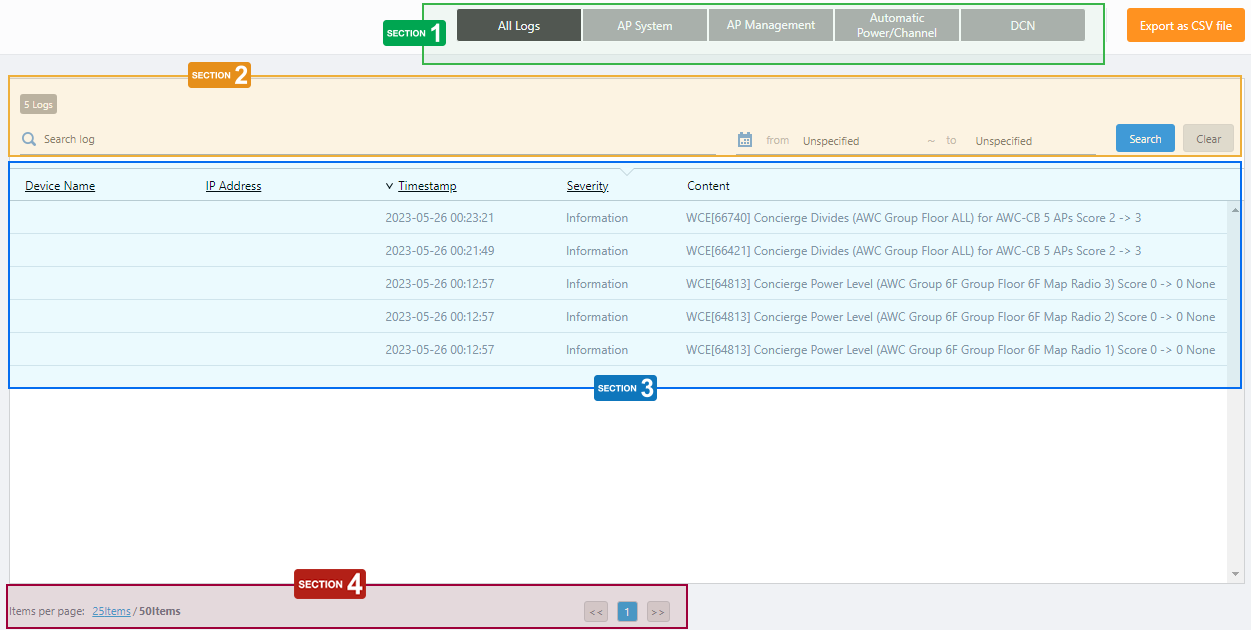
Section 1
| Item Name | Description |
|---|---|
| "All Logs" button | Shows all logs including the ones for AP system, AP management and automatic power/channel adjustment. |
| "AP System" button | Shows only logs to do with the AP system. |
| "AP Management" button | Shows only logs to do with AP management. |
| "Automatic Power/Channel" button | Shows only logs to do with automatic channel/power adjustment.NoteThe device name and IP address columns are empty for the logs to do with automatic channel/power adjustment because those logs are recorded per Management Group. NoteOnly Admins can view logs on automatic channel/power adjustment. |
| "DCN" button | Shows AWC-DCN logs. |
| "Export as CSV file" button | Lets you export all the displayed log entries to a CSV file. |
Section 2
| Item Name | Description |
|---|---|
| X Logs | Shows the number of log entries. |
| Search Log | Lets you filter the list of log entries. Filter entries in the list by entering a partial string in the search box. The Search field lets you enter a partial string to match. The screen displays entries with that string in one of the following fields: "Device Name", "IP Address", "Severity" or "Content". To remove the filter, delete the string from the search field and press enter. NoteThe search is case-sensitive. |
| from ... to | Lets you filter log entries by specifying a range of dates and times. |
| "Search" button | To filter log entries, click this button after entering a keyword or "from ... to" dates. |
| "Clear" button | Clears the search keyword and from ... to dates and shows all logs again. |
Section 3
| Item Name | Description |
|---|---|
| Device Name | Shows the name given to the AP. |
| IP Address | Shows the AP's IP address. |
| Timestamp | Shows the date and time when the log entry was received. |
| Severity | Shows the severity of the log entry. For "AP System" logs, this is the syslog severity (Emergency, Alert, Critical, Error, Warning, Notice, Information and Debug). Other types of logs have two severity levels: "Information" and "Notice". |
| Content | Shows the content of the log entry. Some entries have a number in square brackets. This is an internal ID managed by the system. |
Section 4
| Item Name | Description |
|---|---|
| Items per page | Specifies the number of items per page. |
| << | Goes to the first page of the list. |
| (Page Number) | Shows the current page number in the list. |
| >> | Goes to the last page of the list. |
- AP Management Logs
* [PID] is an internal ID managed by the AWC Plug-in.Table 5: Example AP Management Logs Message When the message is generated APMgr[PID]: AP xx:xx:xx:xx:xx:xx Discovered AWC Plug-in discovered the AP. APMgr[PID]: AP xx:xx:xx:xx:xx:xx Joined AWC Plug-in has started applying configuration to the AP. APMgr[PID]: AP xx:xx:xx:xx:xx:xx Managed AWC Plug-in has started managing the AP. APMgr[PID]: AP xx:xx:xx:xx:xx:xx Configuration Failed due to "FAILED_REASON" The AWC Plug-in failed to configure the AP for the reason described in "FAILED_REASON". APMgr[PID]: AP xx:xx:xx:xx:xx:xx Left AWC Plug-in has stopped managing the AP. APMgr[PID]: AP xx:xx:xx:xx:xx:xx Requested Reboot AWC Plug-in has requested the AP to reboot.
Note
In case of the TQ Series.
For the TQR Series, the following log message is output to the AP System log.
fastboot: rebooted by ghost: Rebooting at user request
APMgr[PID]: AP xx:xx:xx:xx:xx:xx Requested Firmware Upgrade AWC Plug-in has requested the AP to update its firmware.
Note
In case of the TQ Series.
For the TQR Series, the following log message is output to the AP System log.
hostd[xxxx]: Release file successfully set
fastboot: rebooted by ghost: Rebooting at user request
APMgr[PID]: AP xx:xx:xx:xx:xx:xx Requested Configuration Apply AWC Plug-in has requested the AP to apply a configuration update. APMgr[PID]: AP xx:xx:xx:xx:xx:xx Config Applied Successfully The configuration update requested by AWC Plug-in has been successfully applied to the AP. APMgr[PID]: AP xx:xx:xx:xx:xx:xx request tech support download AWC Plug-in requested the AP to update its tech support information.
Note
In case of the TQ Series.
For the TQR Series, the following log message is output to the AP System log.
IMISH[xxxxx]: [SCRIPT]show tech-support
IMISH[xxxxx]: [SCRIPT]show atmf tech
- Automatic Power/Channel Adjustment Logs
* [PID] is an internal ID managed by the AWC Plug-in.Table 6: Example Automatic Power/Channel Adjustment Logs Message When the message is generated APCA[PID]: Assigned new Power/Channel set to APs for xx AWC Plug-in has successfully applied new channel or power settings to the AP. APCA[PID]: Failed to assign new Power/Channel set to APs (for xx) AWC Plug-in has failed to apply new channel or power settings to the AP. APCA[PID]: Failed to assign new Power/Channel set to AP xx:xx:xx:xx:xx:xx AWC Plug-in has failed to apply new channel or power settings to the AP identified by xx:xx:xx:xx:xx:xx. APCA[PID]: AWC calculation will start due to Event Trigger. An event trigger in Wireless Maintenance > Task Scheduling has started a new AWC calculation.
- Client Packet Analysis Related Logs
* [PID] is an internal ID managed by the AWC Plug-in.Table 7: Client Packet Analysis Related Logs Message When the message is generated stamon[PID]:athX: STA yy:yy:yy:yy:yy:yy obtained lease of xxx.xxx.xxx.xxx by DHCP server zzz.zzz.zzz.zzz lease time TTTT The AP received a DHCP Ack packet with the same transaction ID as the DHCP Discover/DHCP Request packet sent by the wireless client earlier. stamon[PID]:athX: STA yy:yy:yy:yy:yy:yy sent DHCP Discover The AP received a DHCP Discover packet sent from the wireless client. stamon[PID]:athX: STA yy:yy:yy:yy:yy:yy obtained no lease by DHCP The DHCP Ack packet with the same transaction ID as the DHCP Discover/DHCP Request packet sent to the wireless client earlier is not found within 4 seconds. stamon[PID]:athX: STA yy:yy:yy:yy:yy:yy reached to default gateway xxx.xxx.xxx.xxx The AP received the first ARP response packet sent from the default gateway to the wireless client. stamon[PID]:athX: STA yy:yy:yy:yy:yy:yy got response from DNS server xxx.xxx.xxx.xxx RTT TTTT rcode RC Wireless AP received the first successful/failed DNS response packet sent from the DNS server to the wireless client. RC: 0 (NOERROR), 2 (SERVFAIL), or 5 (REFUSED)
10 Nov 2025 11:49