View AP Information
This section describes how to view AP information.
NoteThe status displayed for an unreachable AP is the status that was last collected.
Wireless AP Status Detail
This page shows detailed information about an AP's management.The page can be accessed by the following methods:
- Select "Wireless Monitoring" > "AP Status" > "Detail" (magnifying glass icon) in the rightmost column of the target AP.
- Select "Wireless Monitoring" > "Floor Map" > a Floor Map > an AP icon
- Select "Wireless Configuration" > "AP Settings" > "Detail" (magnifying glass icon) in the rightmost column of the target AP > "Wireless AP Status Detail" at the top of the Content section.
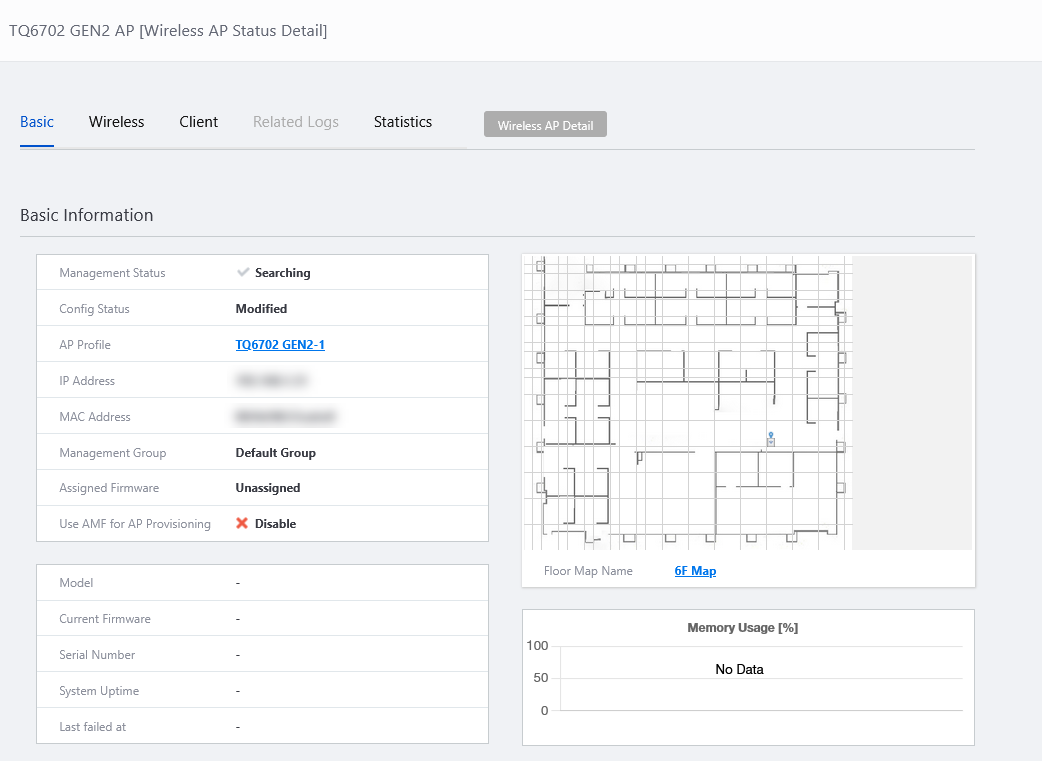
| Item Name | Description |
|---|---|
| Wireless AP Name | Shows "(AP name) [Wireless AP Status Detail]". |
| "Gear" icon | When you move your cursor over the "Gear" icon, "Get Technical Support Information" will pop up.
|
| Tab | Selects the type of information to display in the Wireless AP Status Detail screen.
|
| "Wireless AP Detail" button | Opens the "Wireless AP Detail" page. This page shows you the detailed configuration applied to the AP. Refer to Wireless AP Detail for more information. |
Basic

| Item Name | Description |
|---|---|
| Management Status | Shows the management status of the AP. |
| Config Status | Shows the configuration status of the AP. |
| AP Profile | Shows the AP Profile for the AP. Clicking the link takes you to the "AP Profile Details" screen. |
| IP Address | Shows the AP's IP address. |
| MAC Address | Shows the device's MAC address. |
| Management Group | Shows the management group which the AP belongs to. |
| Assigned Firmware | Shows a target model name and version of the assigned firmware file.NoteThis is not necessarily the same as the "Current Firmware". |
| Use AMF for AP Provisioning | Shows whether the AWC Plug-in uses AMF guest device information to identify the AP. |
| Network Name | Shows the AMF network name to which the guest device AP belongs when "Use AMF for AP Provisioning" is enabled. |
| Area Name | Shows the AMF area name to which the guest device AP belongs when "Use AMF for AP Provisioning" is enabled. |
| Device Name | Shows the AMF parent device name to which the guest device AP is connected when "Use AMF for AP Provisioning" is enabled. |
| Port Number | Shows the port number on the AMF parent device that the guest device AP is connected to when "Use AMF for AP Provisioning" is enabled. |
| Model | Shows the device type of the AP. |
| Current Firmware | Shows the currently running firmware version of the AP.NoteThis is not necessarily the same as the "Assigned Firmware". |
| Serial Number | NoteThis item is not supported. |
| System Uptime | Shows the uptime of the AP. |
| Last failed at | Displays the date and time when the wireless AP was most recently moved out of AWC Plug-in's control. |
| Floor Map image | Shows the configured floor map image. |
| Floor Map Name | Shows the name of the configured floor map. Clicking the link takes you to the Floor Map Detail page. |
| Memory Usage | Displays a graph of memory usage (in %) of the wireless AP for up to 2 days at 30 minute intervals. |
Radio info
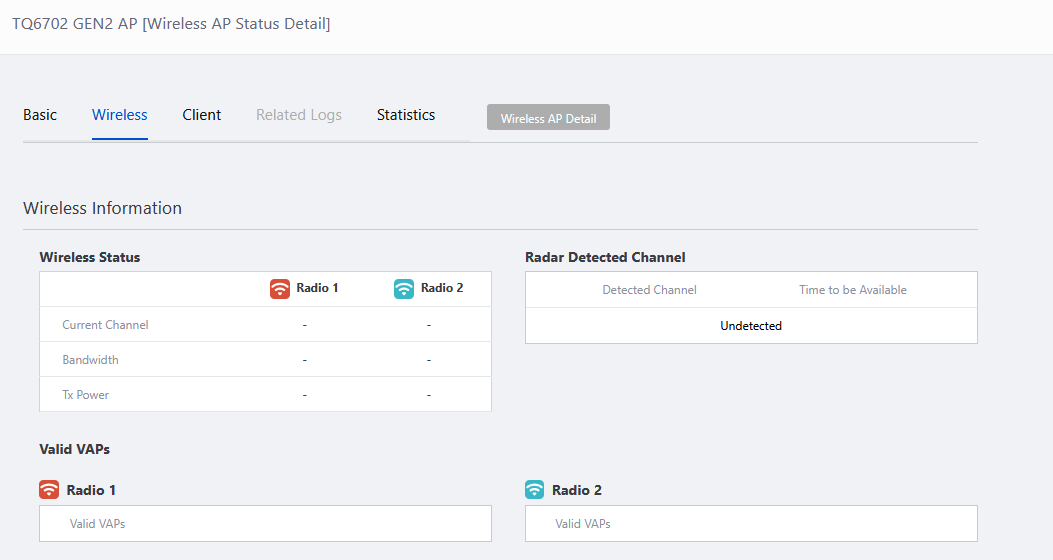
| Item Name | Description |
|---|---|
| Wireless Status | |
| Current Channel | Shows the channels used on Radio1, 2 and 3. |
| Bandwidth | Displays the bandwidth of Radio1, 2 and 3. |
| Tx Power | Shows the transmit powers of Radio1, 2 and 3. |
| Radar Detected Channel | |
| Detected Channel | If a weather or military radar has been detected on a channel, displays that channel. |
| Time to be Available | Shows the time for the channel where rader is detected to be available again. |
| Valid VAPs | |
| Displays the number of valid VAP for each radio. The +/- symbol in the right side of the table toggles between a detailed and a collapsed view. | |
| Collapsed View | |
| Valid VAPS | Displays the number of valid VAPs for Radio 1, Radio 2, and Radio 3. |
| Detailed Information | |
| VAP | Shows the VAP number. |
| SSID | Displays the names of valid VAPs. |
Wireless Client Information
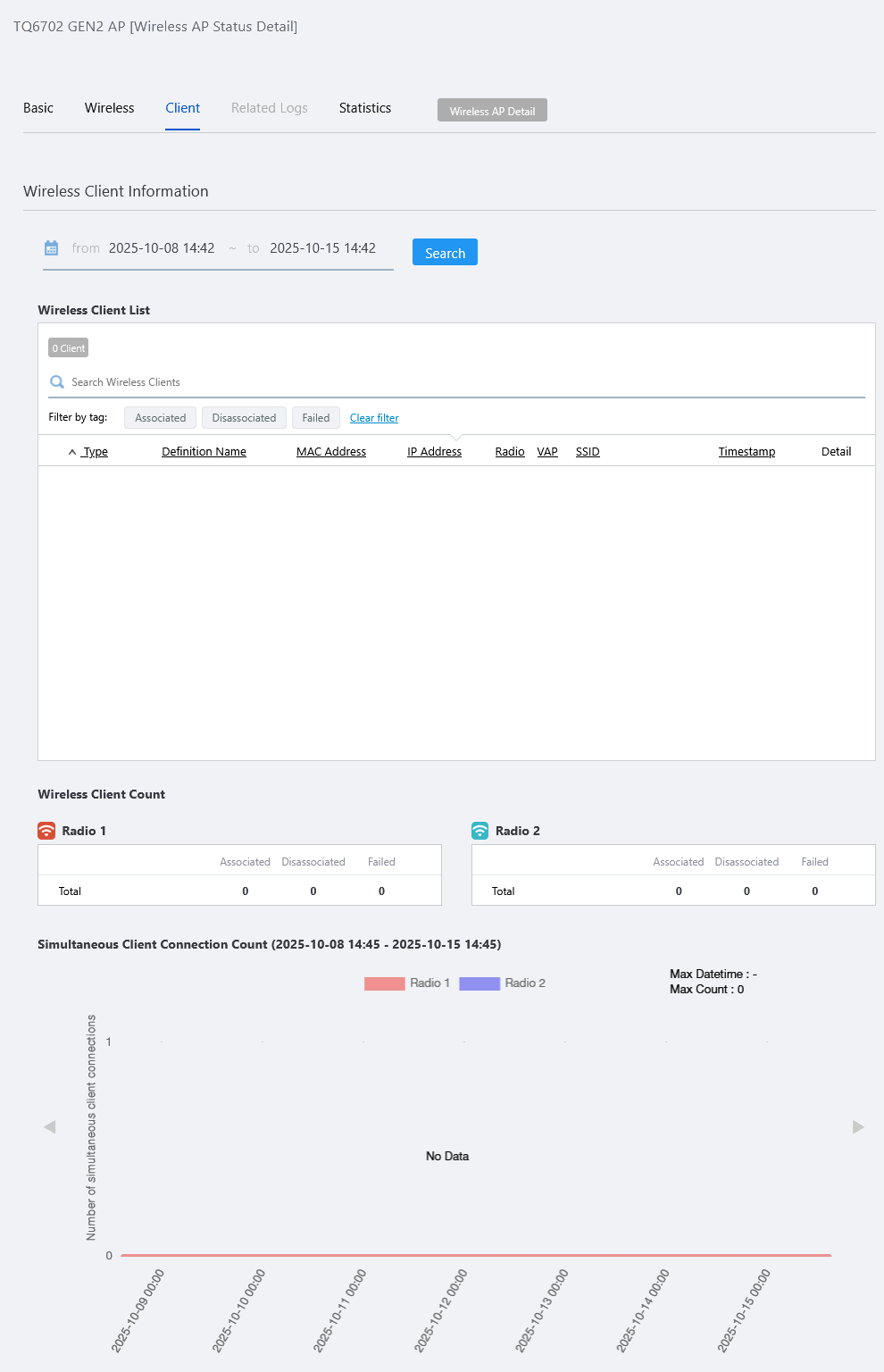
| Item Name | Description |
|---|---|
| Specified period | Specify the start and end date and time of the period in the wireless client's history to be displayed, either by calendar control or by manually entering the date and time. Specify the period and click the "Search" button to reflect it in the list. By default, the clients detected within the last 7 days prior to the screen display are shown. |
| Wireless Client List | |
| X Client | Displays the current number of wireless clients related to the AP in question that are available for viewing. |
| Search Wireless Clients | Filter entries in the list by entering a partial string in the search box. The Search field lets you enter a partial string to match. The screen displays entries with that string in one of the following fields: "Definition Name", "MAC Address", "IP Address", "Radio", "VAP", "SSID" or "Timestamp". To remove the filter, delete the string from the Search field and press Enter. |
| "Search" button | Searches the history of wireless clients that match the criteria for the "Specified Period". |
| Filter by tag | Lets you narrow down the wireless clients by their status, "Associated" "Dissasociated" or "Failed". If multiple items are specified, wireless client information matching any of the filters will be displayed (OR search). By clicking "Clear filter", the filter will be back to unspecified. |
| Type | The current status of the wireless client is represented by "Associated", "Disassociated", and "Failed". |
| Definition Name | Displays the client names set in the "Client Definition List" in "Floor Map Detail [Wirelss Client View]". |
| MAC Address | Shows the MAC address of the wireless client. |
| IP Address | Shows the IP address of the wireless client. |
| Radio | Displays Radio 1/2/3. |
| VAP | Shows the VAP number. |
| SSID | Shows the SSID for the VAP. |
| Timestamp | Displays the date and time the signal was received from the wireless client. |
| Details | The "Wireless Client Detail" screen will appear in a new tab or window in your web browser. |
| Wireless clients | |
| Lists the number of associated/disassociated/failed clients per band and VAP. The +/- symbol in the right side of the table toggles between a detailed and a collapsed view. |
|
| Collapsed View | |
| Total | The total number of Associated/Disassociated/Failed clients is displayed. |
| Detailed Information | |
| VAP | Shows the VAP number. |
| SSID | The number of Associated/Disassociated/Failed clients for each SSID is displayed. |
| Total | The total number of Associated/Disassociated/Failed clients is displayed. |
| Simultaneous Client Connection Count | |
| Represents the number of simultaneous client connections by radio band in a stacked bar chart. To the right of the title, the period counted in the list is displayed. |
|
Related Logs
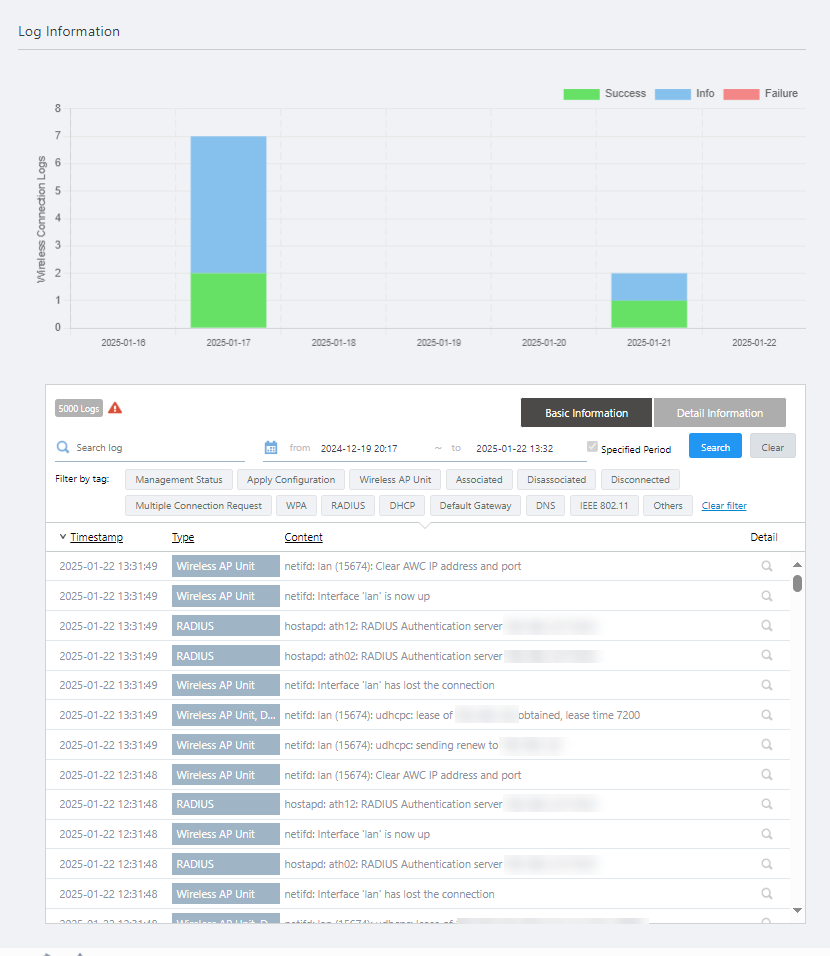
| Item Name | Description |
|---|---|
| Log Informations | |
| Wireless Connection Logs Graph | The number of wireless connection-related logs associated with the relevant wireless AP is represented by a stacked bar graph of Associated, Disassociated, and Failed clients. By hovering the mouse pointer over the bars in the graph, the number of logs related to the wireless connection at the corresponding point in time will pop up. By default, the period displays daily graphs for the last 7 days. Clicking on any of the date bars in the graph will display an hourly graph for that day, and clicking on any of the hour bars in the graph will display a five-minute basis graph for that hour. To return to a graph with a longer time period than the one currently displayed, click on the time period in the upper left corner of the graph. |
| Log List | |
| X Logs | Displays the current number of relevant logs for the AP in question to be displayed. |
| Search Log | Filter entries in the list by entering a partial string in the search box. The search field lets you enter a partial string to match. The screen displays entries with that string in one of the following fields: "Timestamp", "Type" or "Content". To remove the filter, delete the string from the Search field and press Enter. |
| Specified period | Check this box if you want to specify a specific period in the log history to be displayed in the list. When checked, you can specify the start and end date and time of a specified period manully or using the calendar control. Specify the period and click the "Search" button to reflect it in the list. |
| "Search" button | Searches the history of logs that match the criteria for the "Specified Period". |
| "Clear" button | Clears the filtering criteria entered in "Search log" or by "Specified Period". |
| Filter by tag | Lets you narrow down the logs by their types, "Management Status", "Apply Configuration", "Maintenance", "Report", "Wireless AP Unit", "Failed", "Associated", or "Disassociated". Filter tags are added according to the type of logs actually recorded. If multiple items are specified, logs matching any of the filters will be displayed (OR search). By clicking "Clear filter", the filter will be back to unspecified. |
| Related Logs: Basic Information | |
| Timestamp | Shows the date and time when the event occured. |
| Type | Shows the event type. |
| Content | Shows the content of the log entry. |
| Details | Wireless AP Log Detail dialog box will be displayed. |
| Related Logs : Detail Information | |
| Timestamp | Shows the date and time when the event occured. |
| Type | Shows the event type. |
| Related Information | May display information related to the event. |
| Details | Wireless AP Log Detail dialog box will be displayed. |
Wireless AP Log Detail
Displays the selected log details for wireless AP.| Item Name | Description |
|---|---|
| Log Information | |
| Timestamp | Shows the date and time when the log entry was received. |
| Importance | Shows the importance of the log. |
| Type | Shows the event type. |
| Content | Shows the content of the log. |
| Device Information | |
| Wireless AP Icon | Displays the icon used to represent the AP on the floor map. |
| MAC Address | Shows the MAC address of the AP. |
| Device Name | Shows the name of the AP. |
| Related Information | |
| Floor Map Name | Shows the floor map name. |
| Floor Map Detail button | Displays the relevant floor map. |
| Radio / VAP / BSSID | Displays the Radio, VAP number, and BSSID of the relevant VAP for which the wireless client has associated, disassociated, or failed. |
| SSID | Displays SSIDs of VAP to which the corresponding wireless client has associated, disassociated, or failed. |
Statistics Information
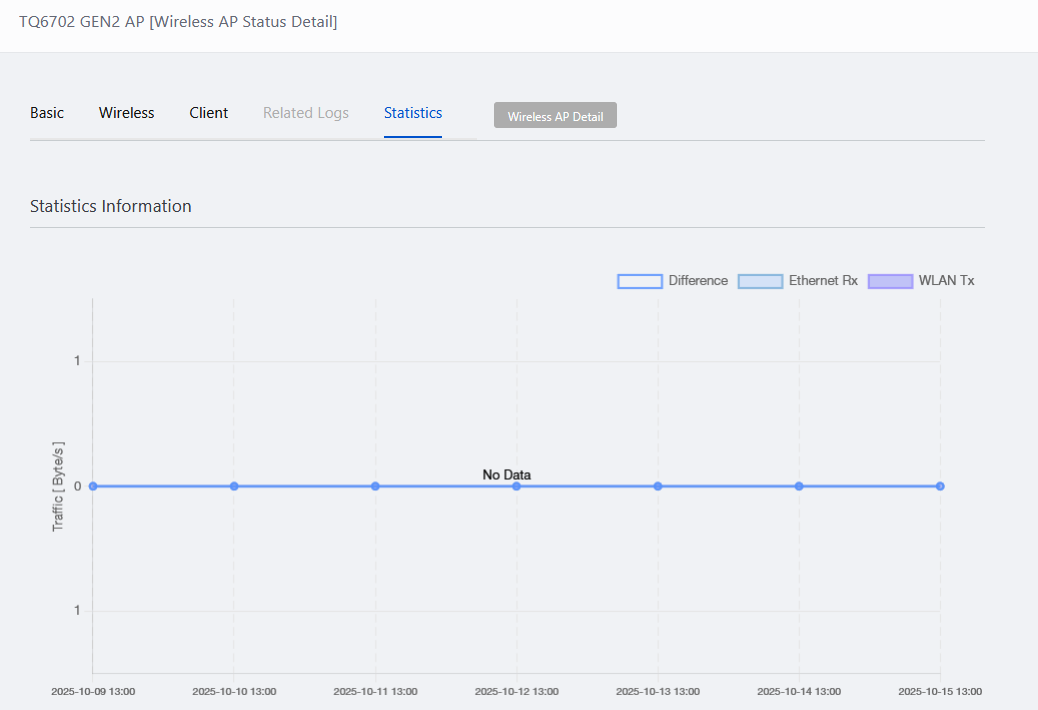
| Item Name | Description |
|---|---|
| Traffic Graph | The number of bytes received by wired connection (upper vertical axis), the number of bytes sent by wireless connection (lower vertical axis), and the difference between the two are displayed in a line graph. Move the mouse pointer over a plot in the graph to see a pop-up display of the amount of traffic at that point in time. By default, the period displays daily graphs for the last 7 days. Clicking on any of the plots in the graph will display an hourly graph for the relevant day, and further clicking on any of the plots in the graph will display a five-minute graph for the relevant hour. To return to a graph with a longer time period than the one currently displayed, click on the time period in the upper left corner of the graph. |
Wireless AP Detail
This page shows details of the configuration applied to the AP.The page can be accessed by the following methods:
- Select "Wireless Configuration" > "AP Settings" > "Detail" (magnifying glass icon) (the rightmost column)
- Select "Wireless Monitoring" > "AP Status" > "Detail" (magnifying glass icon) (the rightmost column) > "Wireless AP Detail" (at the top of the page).
NoteWDS Configuration is displayed only if you configured WDS on the AP-specific configuration page.
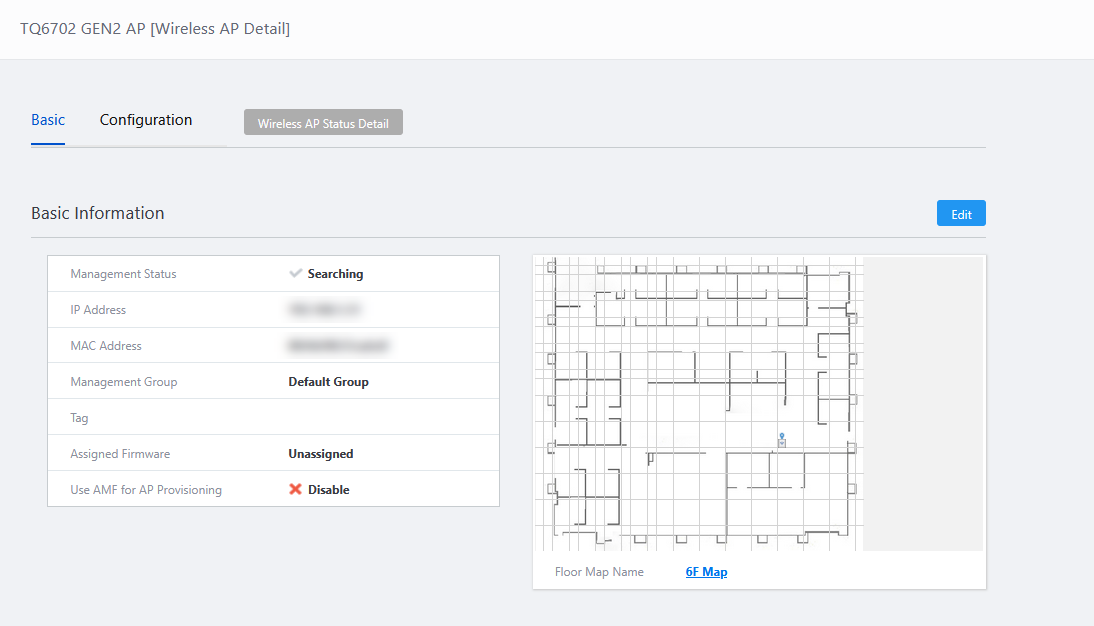
| Item Name | Description |
|---|---|
| Wireless AP Name | Shows "(AP name) [Wireless AP Detail]". |
| Tab | Selects the type of information to display in the Wireless AP Detail screen.
|
| "Wireless AP Status Detail" button | Opens the "Wireless AP Status Detail" page. This page shows you the operational status of the AP, and the information of associated clients of the AP in details. Refer to Wireless AP Status Detail for more information. |
Basic
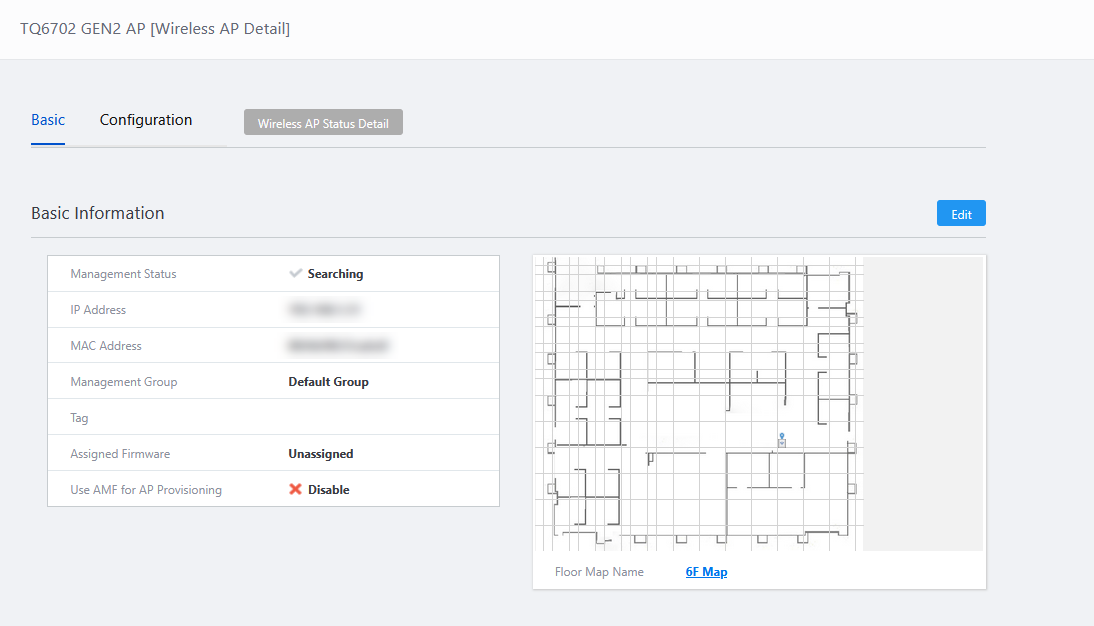
| Item Name | Description |
|---|---|
| "Edit" button | Opens the "Wireless AP Edit" dialog box. |
| Management Status | Shows the management status of the AP. |
| IP Address | Shows the AP's IP address. |
| MAC Address | Shows the device's MAC address. |
| Management Group | Shows the management group of which the AP belongs to. |
| Tag | Shows tags added to the AP when registered. |
| Assigned Firmware | Shows a target model name and version of the assigned firmware file.NoteThis is not necessarily the same as the current firmware. It may be different from the firmware that is currently running on the AP. |
| Use AMF for AP Provisioning | Shows whether the AWC Plug-in uses AMF guest device information to identify the AP. |
| Network Name | Shows the AMF network name to which the guest device AP belongs when "Use AMF for AP Provisioning" is enabled. |
| Area Name | Shows the AMF area name to which the guest device AP belongs when "Use AMF for AP Provisioning" is enabled. |
| Device Name | Shows the AMF parent device name to which the guest device AP is connected when "Use AMF for AP Provisioning" is enabled. |
| Port Number | Shows the port number on the AMF parent device that the guest device AP is connected to when "Use AMF for AP Provisioning" is enabled. |
| Floor Map image | Shows the configured floor map image. |
| Floor Map Name | Shows the name of the configured floor map. Clicking the link takes you to the Floor Map Detail page. |
Configuration Information
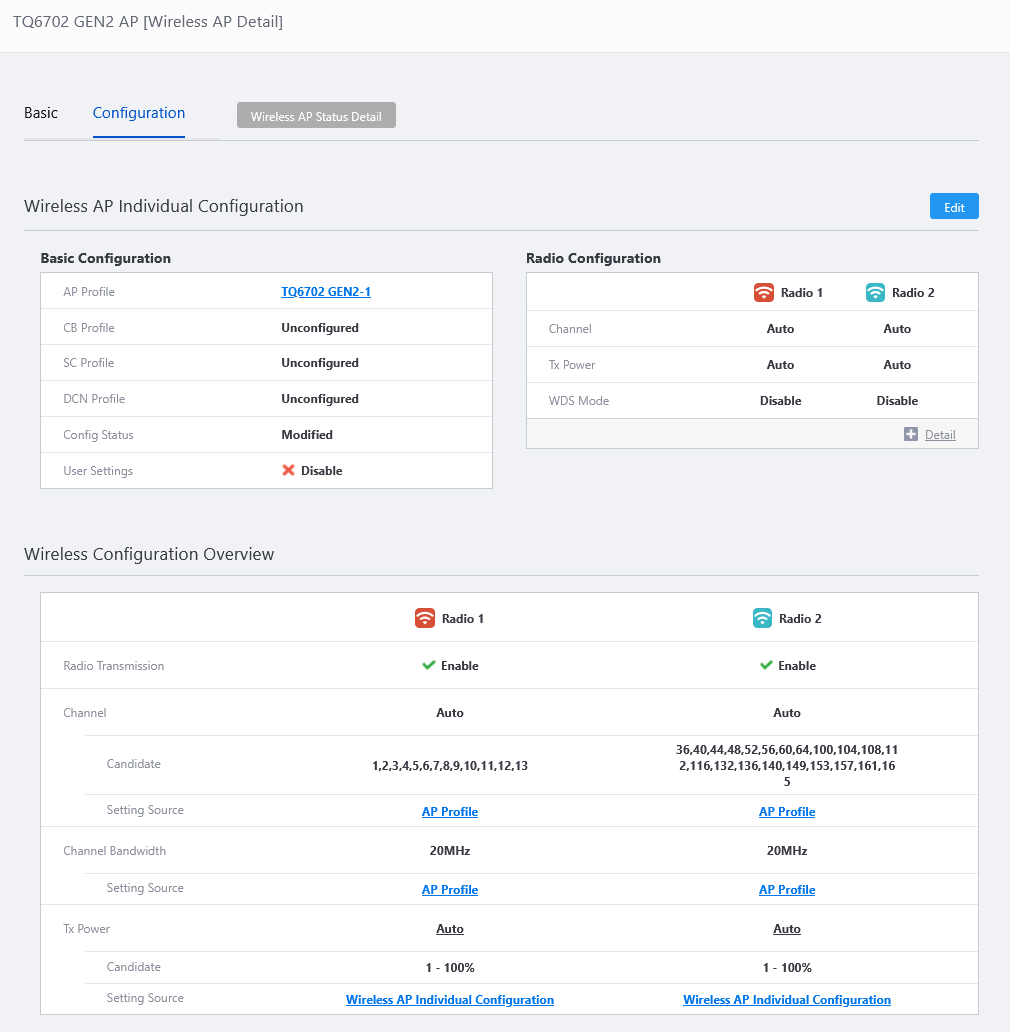
| Item Name | Description |
|---|---|
| Configure AP-Specific Configuration | |
| "Edit" button | Moves to the Wireless AP Individual Configuration page. |
| Basic Configuration | |
| AP Profile | Shows the AP Profile for the AP. Clicking the link takes you to the "AP Profile Details" screen. |
| CB Profile | Shows the CB Profile for the AP. Clicking the link takes you to the "CB Profile Details" screen. |
| SC Profile | Shows the SC Profile for the AP. Clicking the link takes you to the "SC Profile Details" screen. |
| DCN Profile | Shows the DCN Profile for the AP. Clicking the link takes you to the "DCN Profile Details" screen. |
| Emergency VAP | Shows whether the AP is using the emergency VAP when it's configured in the AP Profile. |
| Config Status | Shows the configuration status of the AP. |
| Username | Shows the username used to logon to the AP's management web interface. |
| Password | Shows the configuration status of the password used to logon to the AP's management web interface. |
| Wireless Configuration | |
| Radio | Shows the configuration for each radio band. The radio bands are displayed depending on the Model of the AP Profile.
|
| Channel | Shows the configured channel. |
| Tx Power | Shows the configured transmit power. |
| WDS Mode | Shows the WDS configuration as either "Disable", "WDS Parent" (WDS Root AP) or "WDS Child" (WDS Satellite AP). |
| AWC Tx Power Lower Limitation | Shows the minimum transmit power which can be configured by AWC functionality. This is in effect only when "Tx Power" is set to "Auto". |
| Stop Radio Transmission | When the radio is disabled, this item is shown as "Stop". |
| Interface Configuration (only for TQ7403-R and TQ6702 GEN2-R) | |
| X Interfaces | Shows the number of configured interfaces. |
| Interface Name | Displays the configured interface name. |
| IP Address | Shows the IP address configured for the interface. |
| WDS Configuration | |
| WDS List | Shows a list of configured WDSs. You can view WDS parameters such as status (enabled/disabled), WDS interface, and security here. |
| Radio Transmission | Shows the status (Enabled/Disabled) of the WDS. |
| Radio Interface | Shows the radio band for use with the WDS.
|
| WDS Mode | Shows the AP's WDS mode (role) as either "WDS Parent" (WDS Root AP) or "WDS Child" (WDS Satellite AP). |
| SSID | Shows the SSID (Network name) used for the WDS connection. |
| Security | Shows the security mechanism used for WDS connection. This is the security configured on the AP-specific configuration page's WDS Configuration section. When the security is "WPA Personal", the following items are also displayed.
|
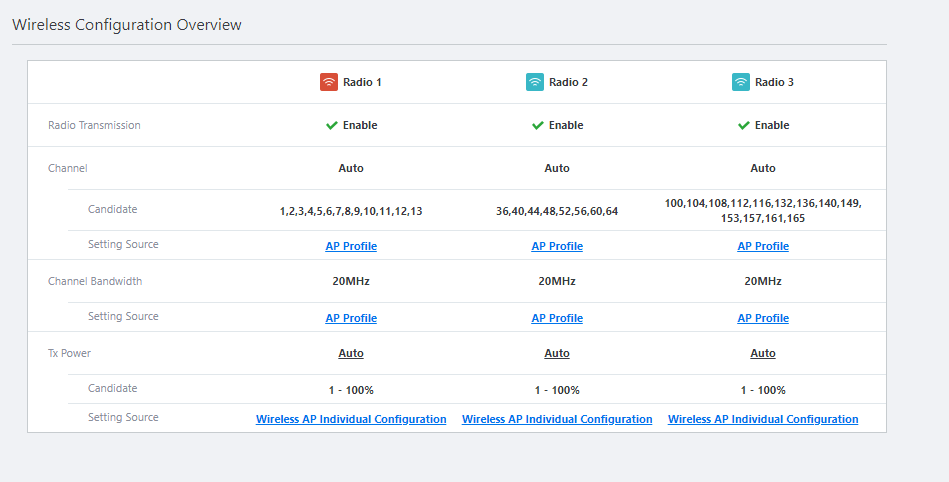
| Wireless Configuration Overview | |
|
|
| Radio Transmission | Displays the status of radio transmission for each radio as either Enable or Disable. |
| Channel | Shows the channel setting for use on the radio. |
| Bandwidth | Displays the bandwidth for each radio. |
| Tx Power | Displays the transmission power for each radio. |
| Candidate | Displays the candidates on the settings for each of the Channel and Tx Power. |
| Setting Source | Displays the type of profiles or AP individual configuration from which the current settings originated for each of the Channel and Tx Power. |
10 Nov 2025 11:46