DCN Profile
The DCN Profile is a pile of settings that are commonly applied to the APs used in AWC-DCN (AWC-Dynamic Client Navigation), including configurations for communicating management information among the APs belonging to the DCN group, DCN VAPs, and other settings.
This page allows you to create, edit, and delete DCN profiles, and apply configurations to the APs selected as the targets of an DCN profile.
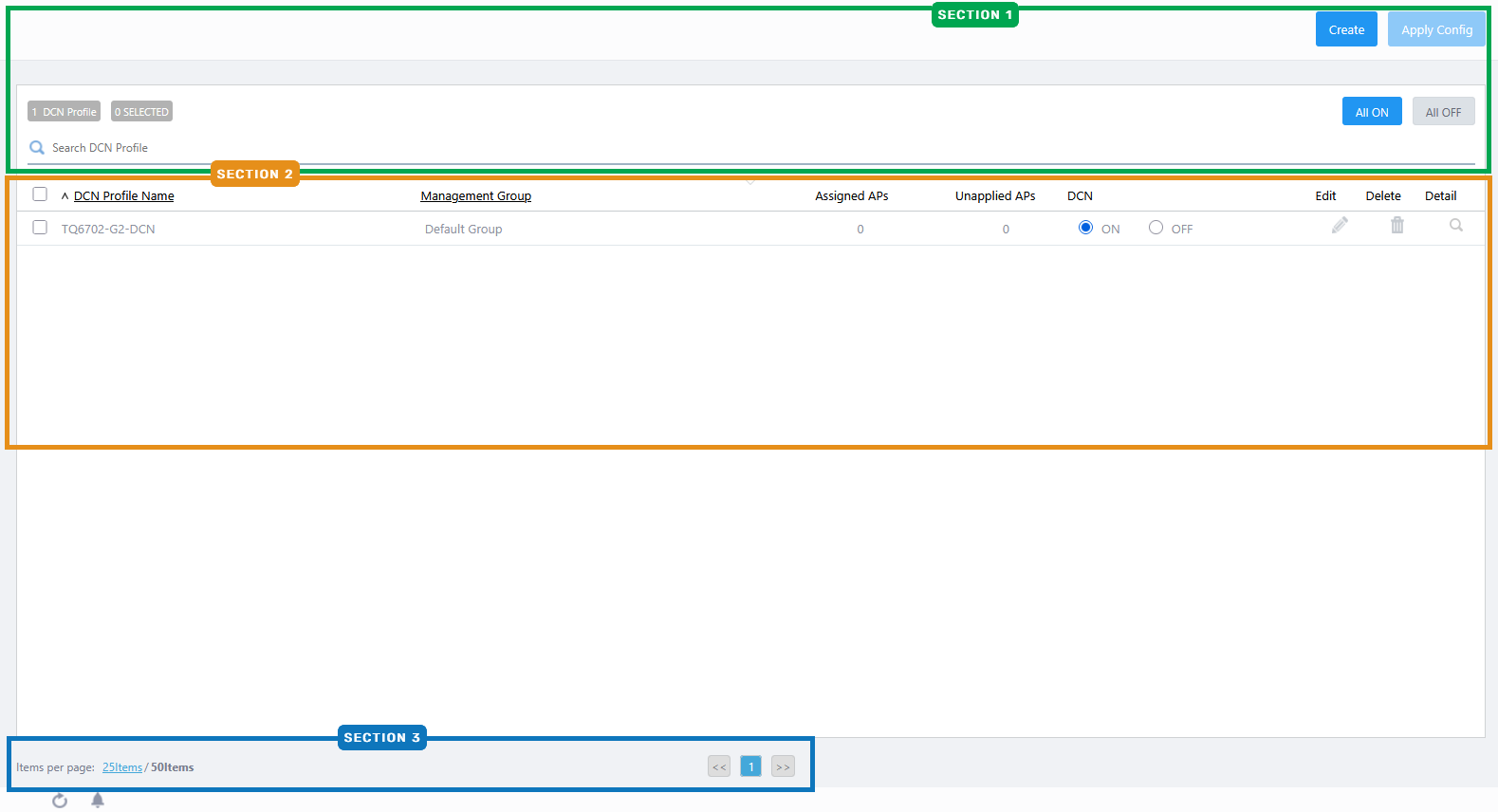
Section 1
| Item Name | Description |
|---|---|
| "Create" button | Shows the DCN Profile configuration screen. Refer to Operation Reference > AWC-DCN > Configure DCN Profile for more details. |
| "Apply Config" button | Opens the "Apply Configuration" dialog box. It allows you to apply changes to the selected SC profile to APs that have been assigned to the DCN profile.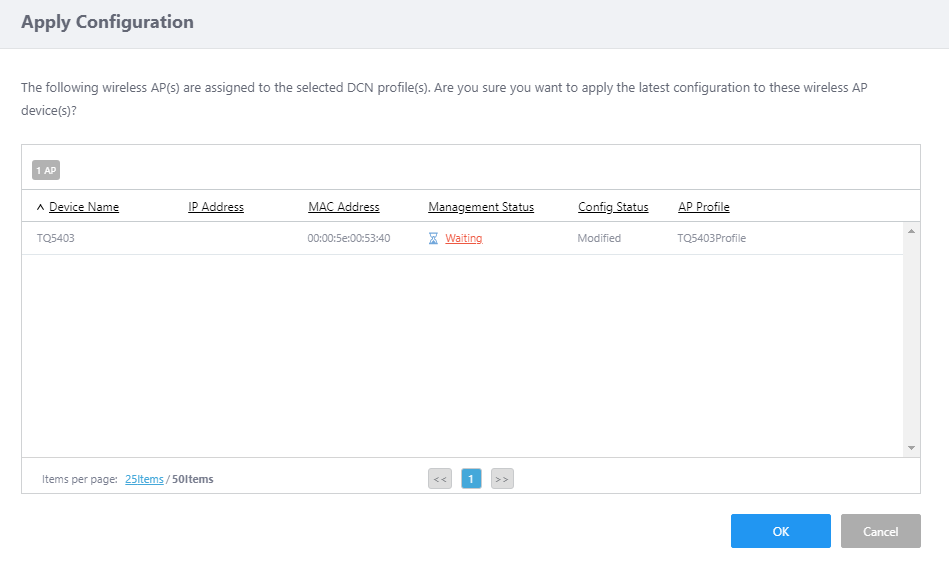
|
Section 2
| Item Name | Description |
|---|---|
| X DCN Profiles | Shows the number of DCN Profiles. |
| X SELECTED | Shows the number of selected DCN Profiles. |
| All ON/All OFF buttons | Turn all DCN profiles ON or OFF. To apply the changes, you must tick the checkbox for the target DCN profile and then "Apply Config". |
| Search DCN Profile | Lets you search and filter DCN Profiles in the list. The Search field lets you enter a partial string to match. The screen displays entries with that string in one of the following fields: "DCN Profile Name" or "Management Group". To remove the filter, delete the string from the Search field and press Enter. NoteThe search is case-sensitive. |
| DCN Profile List | |
| Checkbox | Lets you select or deselect DCN Profiles. A checkbox in the header row can be used to check or uncheck all DCN Profiles. Unchecking the box in the heading row deselects all entries in the list. |
| DCN Profile Name | Shows the DCN Profile name. |
| Management Group | Shows the list of management groups for the DCN Profile. |
| Assigned APs | Shows the number of APs to which the DCN Profile is assigned. |
| Unapplied APs | Shows the number of APs, for which some pending configurations (AP Profile, CB Profile, SC Profile, DCN Profile or AP-specific configurations) exist, and which belong to the DCN group.NoteAWC-DCN is not supported mixed with AWC-SC or AWC-CB. |
| DCN ON/OFF | Can select the radio button to enable (ON) or disable (OFF) the relevant DCN. To apply the changes, you must tick the checkbox for the target DCN profile and then "Apply Config". |
| Edit (pencil icon) | The DCN Profile configuration screen will appear. Refer to Operation Reference > AWC-DCN > Configure DCN Profile for more details. |
| Delete (trashbin icon) | Deletes the DCN Profile. Refer to Operation Reference > AWC-DCN > Configure DCN Profile for more details. |
| Detail (magnifying glass icon) | The "DCN Profile Detail" page will appear. The items displayed on the DCN profile detail screen are almost the same as those on the edit screen. Refer to Operation Reference > AWC-DCN > Configure DCN Profile for descriptions. |
Section 3
| Item Name | Description |
|---|---|
| Items per page | Specifies the number of items per page. |
| << | Goes to the first page of the list. |
| (Page Number) | Shows the current page number in the list. |
| >> | Goes to the last page of the list. |
10 Nov 2025 11:46