Configure IDS/IPS Settings
This section deals with the configuration of IDS (Intrusion Detection System) and IPS (Intrusion Prevention System).
IDS is a set of features that helps administrators protect their network against unmanaged wireless devices. It identifies rogue devices by scanning radio signals and analyzing detected wireless devices for each management group.
IPS can lower the risk of the rogue APs by performing a type of DoS attack on them.
Refer to Supported Functions per AP Model > Wireless Configuration" > "IDS/IPS Settings for APs that support this function.
Configure IDS
To configure IDS/IPS, perform the following steps.- Select "Wireless Configuration" > "IDS/IPS Settings" from the AWC Plug-in menu. The IDS/IPS Settings list will appear and show IDS/IPS configuration for each management group.
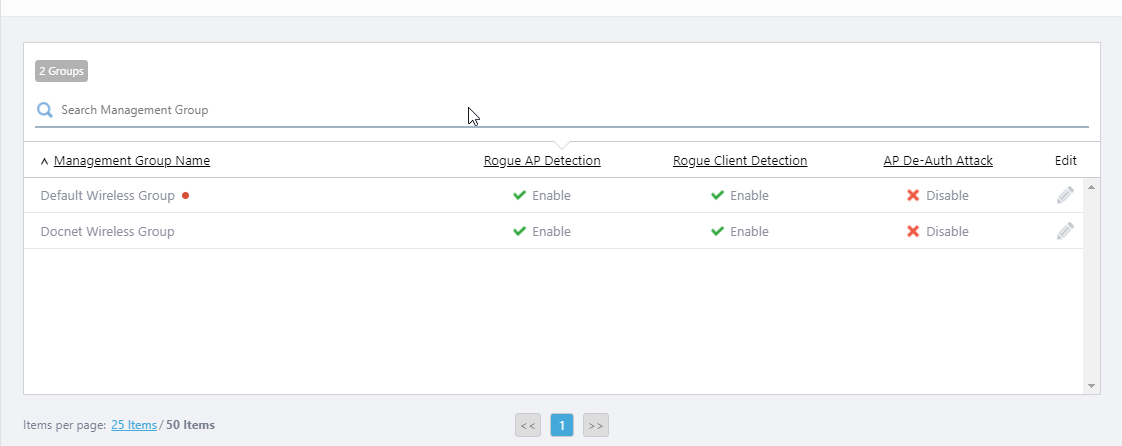
The settings include whether to detect rogue APs, whether to detect rogue clients, and whether to attack rogue APs.
- Click the "Edit" (pencil icon) button for the management group you want to configure IDS/IPS for.
The "Wireless IDS/IPS Settings" dialog box will appear.
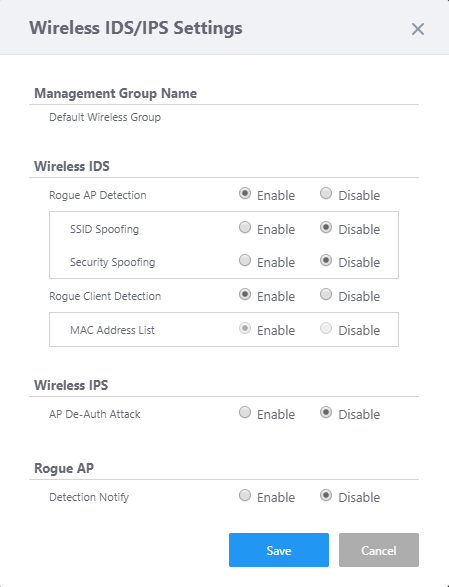
Table 1: "Wireless IDS/IPS Settings" dialog box Item Name Description Management Group Shows the management group for which IDS/IPS configuration can be edited through the dialog box. Wireless IDS Rogue AP Detection Specify whether to detect rogue APs.
When enabled, APs that are not managed by the AWC Plug-in are regarded as rogue APs.SSID Spoofing When enabled, APs that are transmitting the same SSID configured on a managed AP are regarded as rogue APs and recorded in IDS/IPS Report. Security Spoofing When enabled, APs that are transmitting a SSID configured with the AWC Plug-in but using a security method different from the one configured with the plug-in are regarded as rogue APs and recorded in the IDS/IPS Report. Rogue Client Detection Specify whether to detect rogue wireless clients. MAC Address List When enabled, clients that are not allowed by a MAC Address List are regarded as rogue clients.
It uses the MAC Address List configured in the AP Profile.
- When the AP Profile's MAC Address List has the action of "Allow" (white listing), clients not in the list are presumed rogue.
- When the AP Profile's MAC Address List has the action of "Deny" (black listing), clients in the list are presumed rogue.
Wireless IPS AP De-Auth Attack Specify whether to attack rogue APs.
When enabled, IPS tries to disconnect wireless clients from the rogue APs by periodically sending IEEE 802.11 "De-authentication" management frames to the rogue APs.
Therefore, it prevents network access via the rogue APs and protects users and data on the managed network.Rouge AP Detection Notify When enabled, it shows a notification message in the AWC Plug-in's Notification area whenever it detects a rogue AP. Threshold Specify a minimum received signal strength for a rogue AP to be notified.
Notification messages on a rogue AP are only shown if the received signal strength of the rogue AP is greater than the specified minimum value.
It is set to -30dBm by default."Save" button Saves the IDS/IPS settings for the management group. "Cancel" button Close the dialog box without saving IDS/IPS settings for the management group. - When the AP Profile's MAC Address List has the action of "Allow" (white listing), clients not in the list are presumed rogue.
- Configure IDS and IPS options as required.
- Click "Save" to save the changes.
View IDS Results
View Report
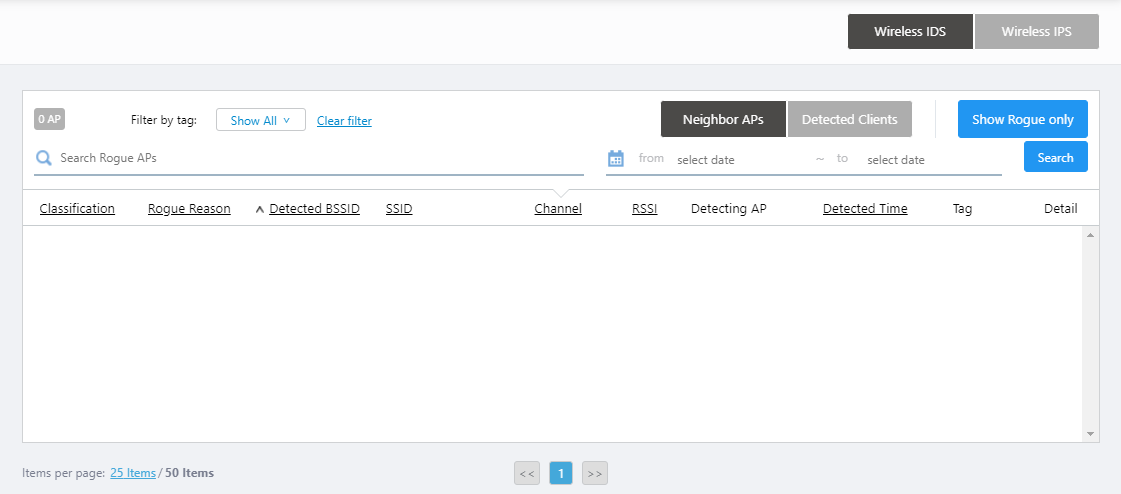
This page lists the APs and clients detected by the managed APs in the last 5 minutes. It also shows whether each AP or client is a rogue. A history of IPS action (attacks against rogue APs) can also be viewed.Refer to Supported Functions per AP Model > Wireless Monitoring" > "IDS/IPS Report for APs that support this function.
Refer to Screen Reference > Wireless Monitoring > IDS/IPS Report for detailed descriptions.
View Floor Map
This page shows rogue APs detected by the APs on a floor map.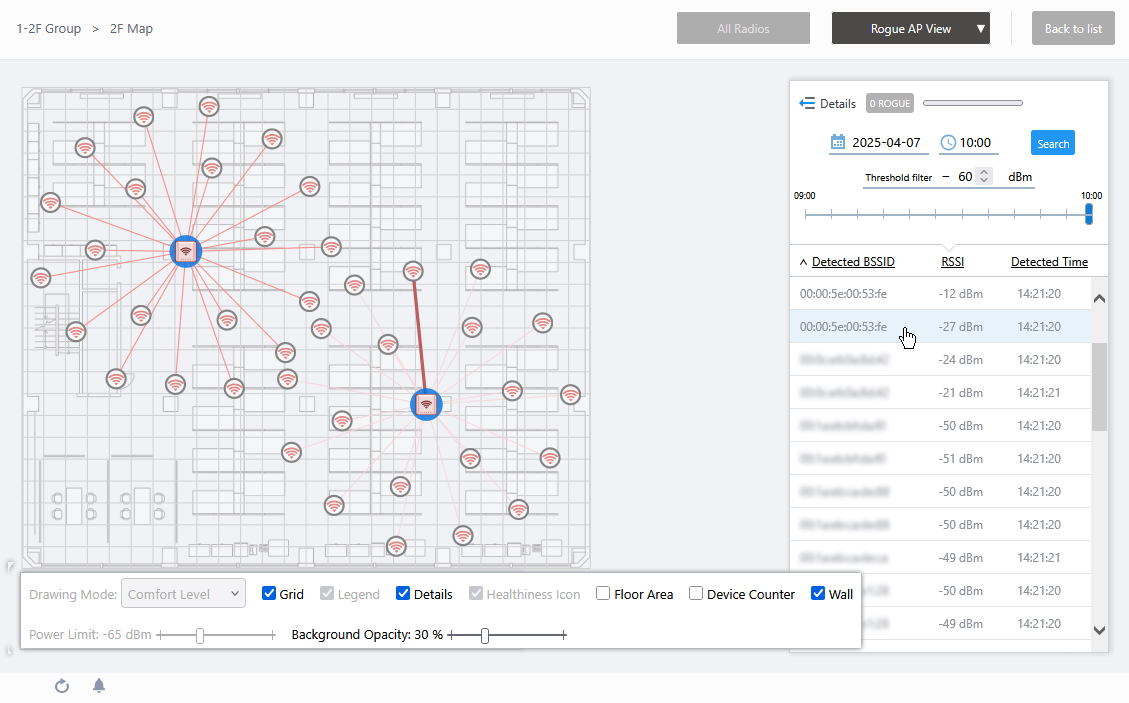
On the detail screen of the Floor Map, you can switch to the Floor Map Details [Rogue AP View] screen by selecting "Rogue AP View" from the dropdown menu on the top right.
The Rogue AP list on the right side of the screen shows the BSSID, RSSI and detection time of rogue APs. You can view and filter rogue APs by a time period, or by their signal strength received on the managed APs, by using the various controls at the top of the list.
If more than one managed AP detects the same rogue AP's BSSID, all of them are listed with the signal strength received by each managed AP.
When you click a managed AP icon on the floor map, the number of rogue APs detected by the selected managed AP is graphically represented.
When you click a rogue AP icon on the floor map, the corresponding entry in the rogue AP list is highlighted. Clicking a BSSID in the rogue AP list highlights its icon and the icons of managed APs that have detected it.
NoteYou can see more information such as reason, SSID, and detecting managed AP for each rogue AP by switching the list to extended format.The position of the rogue AP icon does not represent the exact location of the rogue AP at the time. Icons are placed to not overlap with other icons in the history.
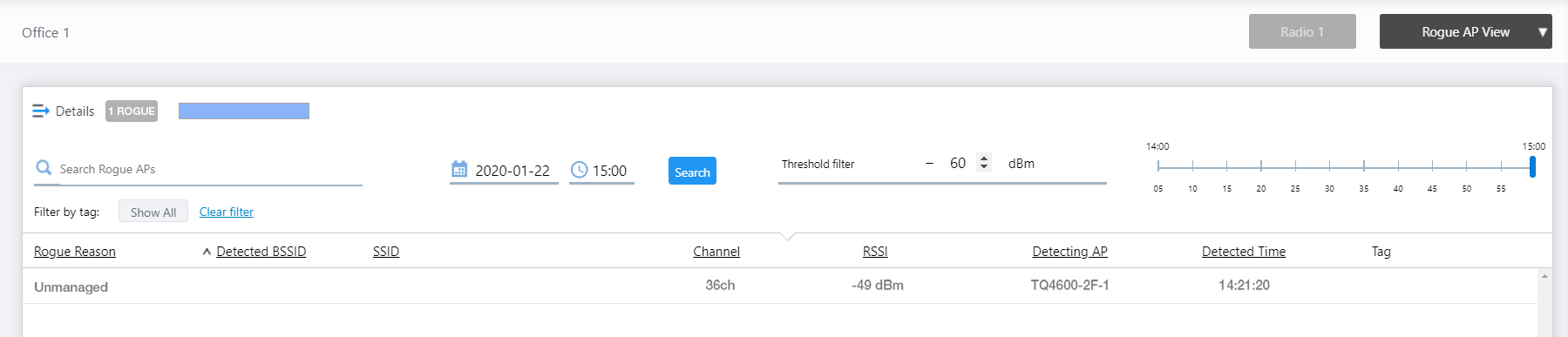
Refer to Screen Reference > Wireless Monitoring > Floor Map Details [Rogue AP View] for detailed descriptions.
10 Nov 2025 11:46