Floor Map Detail [Wireless Client View]
If you select "Wireless Client View" from the dropdown menu on Floor Map Details, the screen switches to the Wireless Client View screen.
This lists all connected/disconnected/failed clients for all wireless bands on the floor and shows the APs to which the connected wireless clients belong.
If an individual radio band is selected from the radio band drop-down list in the header, the heatmap can also be displayed in a format that matches the "drawing mode" of the floor map control.
For more information on the heatmap view format for each drawing mode, see "Floor map details [radio status view]".
NoteWhen the heat map view is enabled, screen rendering may take some time.
Adjust the update interval of the "Floor MAP (Wireless Client)" in the "User management" screen accordingly.
If AWC was able to estimate the location of the wireless clients, then this view shows the estimated locations of clients on the Floor Map. This is called the Wireless Client Location Estimation View. If AWC was not able to estimate the location of the associated clients, then this view shows the clients arranged near their associated AP, to show affiliation. This is called the Client Association View display. These display options may be mixed, so that the Wireless Client View screen shows a mix of location estimation and association view for connected clients.
Realtime Wireless Client View
Client Location Estimation View
The location estimated from the wireless client signals detected by the AP is reflected in the coordinates on the floor map.This can occur when all the following conditions are met:
- The wireless client has connected to a Channel Blanket VAP.
- "Location Estimation" in History Data Retention Period Setting is set effectively in the "<a0>System Setting</a0>" screen.
- Location information is calculated by the Client Location Estimation function.
NoteLocation Estimation is available on this version of the AWC Plug-in combined with TQ6602 GEN2/TQ6702 GEN2 firmware version 8.0.3-0.x or later, or TQ5403/TQ5403e firmware version 6.0.1-1.x or later.
NoteWhen using the Client Location Estimation View, set the floor map dimensions (vertical / horizontal) correctly and match AP placement with the actual environment.
NoteSystem clocks on all the managed APs and the server running the AWC Plug-in must be synchronized.
NoteThis feature is available when the Retention Period for Location Estimation in System Settings is set. If this feature is enabled, the maximum number of wireless APs that can have CB Profiles applied is 500 across the entire system.
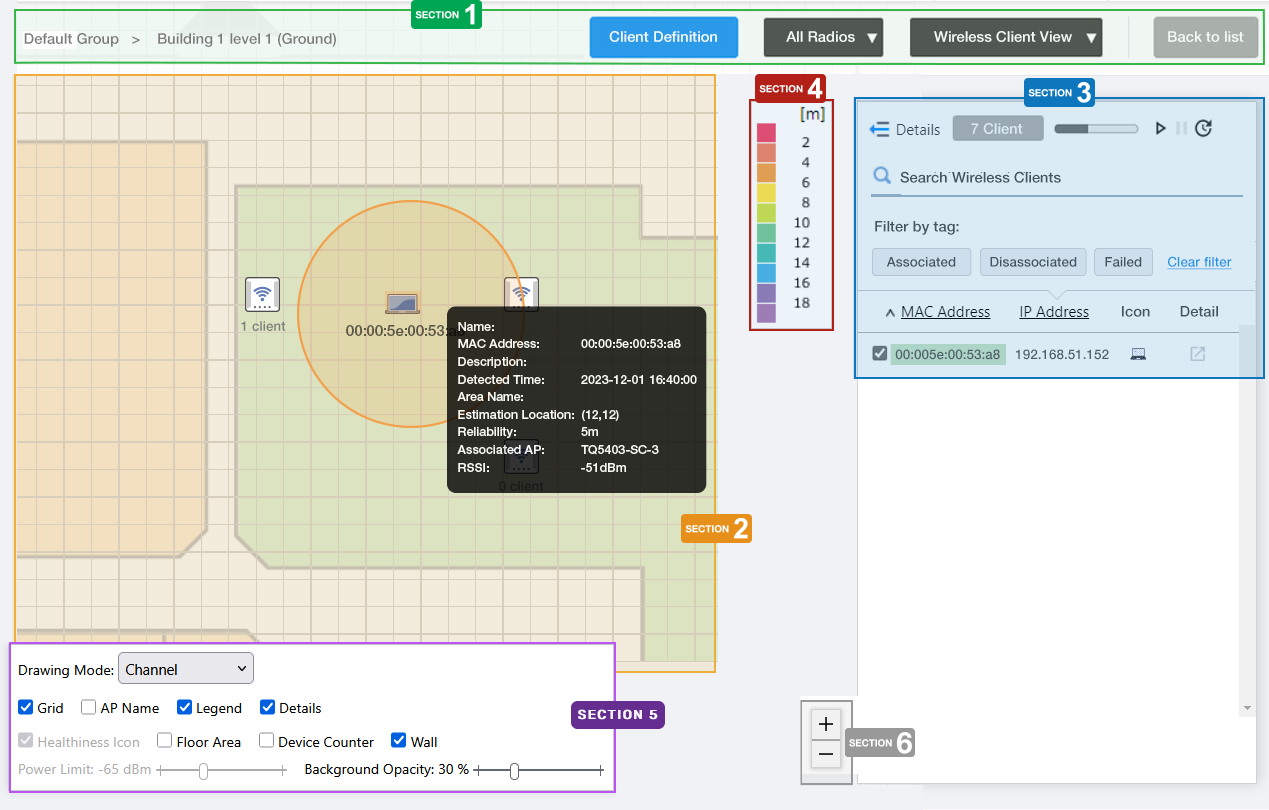
Section 1
| Item Name | Description |
|---|---|
| Management Group / Floor Map Group | The floor map name and the management group of the selected floor map will be displayed. |
| "Client Definition" button | Shows the Client Definition List dialog box. |
| "Spanner" icon | Hovering the mouse cursor over the Spanner icon shows a dropdown menu including some operations for managed APs. In the Wireless Client View, the options other than "Save Floor Map Display Settings" are irrelevant and disabled. 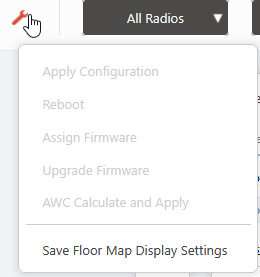
|
| Radio dropdown menu | Select which radio band information to display from Radio 1, Radio 2, Radio 3, or "All Radios". The default is "All Radios". If you select "All Radios", wireless client information for all bands (Radio 1, Radio 2, and Radio 3) will be displayed. |
| View Selection dropdown menu | Lets you change what information is displayed on the Floor Map Details screen.
|
| "Back to list" button | Click to return to the Floor Map List screen. |
Section 2
| Item Name | Description | ||||||||||||||||||||||||||||||||||
|---|---|---|---|---|---|---|---|---|---|---|---|---|---|---|---|---|---|---|---|---|---|---|---|---|---|---|---|---|---|---|---|---|---|---|---|
| Floor Map (Background) | The map image specified when you created the map is shown. | ||||||||||||||||||||||||||||||||||
| Wireless AP Icon | The AP icon placed on the floor map is displayed. If "AP Name" is checked in the floor map controls, the AP name is displayed above the AP icon. Below the icon, the number of wireless clients that are associated, have been disassociated within 5 minutes, and have failed to associate within 5 minutes are displayed in the "x/x/x client" format. When you click an AP icon, only clients associated to the AP are displayed in the associated client list. |
||||||||||||||||||||||||||||||||||
| Wireless Client icon | Displays the wireless clients that have been connected to the AP on the map. Each estimated location is represented by a client icon.
The confidence level of the estimated location is represented by the color of the circle superimposed on the wireless client icon, which is the hue of the spectrum, red to purple, as indicated in the legend. Clicking on the wireless client icon will display an estimated location circle based on the reliability of the location estimate. In addition, when you hover the mouse pointer over the wireless client icon, information about the wireless client pops up. Wireless clients with Location Estimation enabled .
|
Section 3
| Item Name | Description |
|---|---|
| Details | You can click here to see client details such as Hostname, Username (based on WPA Enterprise), Duration, Client Name, Notes, SSID, Associating AP, and RSSI, in addition to the items displayed by default (MAC and IP addresses). Clicking Details again returns you to the default non-detailed view. |
| X Client | Displays the total number of wireless clients that are associated or have disassociated/failed to associate within 5 minutes to the selected wireless AP in the floor map. |
| Refresh Timer | The elapsed time since the last auto-update in the list and the time remaining until the next auto-update are displayed in a gray progress bar. The list is updated at the interval set for "Floor Map (Wireless Client)" in the "Refresh Rates" in the User Management menu (default: 5 seconds). You can also specify whether to pause or resume automatic updates by clicking Resume/Pause automatic update button on the right, or force the wireless client list to be updated by clicking the Manual update button. |
| Search Wireless Clients | You can search for wireless clients that are associated with a wireless AP on the floor map or that have disassociated/failed to associate within the last 5 minutes. The Search field lets you enter a partial string to match. The screen displays entries with that string in one of the following fields: "MAC Address", "IP Address", "SSID" or "Associating AP". To remove the filter, delete the string from the Search field and press Enter. NoteThe search is case-sensitive. |
| Filter by tag | Narrow down the list of wireless clients by client status.
|
| "History View" checkbox | Switches the page to Wireless Client History. |
| Checkbox | Lets you select wireless clients to be shown on the floor map. When you select a client, an icon and the MAC address of the client are shown near the AP with which the client is associated. |
| MAC Address | Shows the MAC address of the wireless client. The background color of the MAC address also indicates the status of the wireless client.
|
| IP Address | Shows the IP address of the wireless client. |
| Icon | Displays the wireless client icon shown on the floor map. If the wireless client is currently associated:
|
| Details | The "Wireless Client Detail" screen will appear in a new tab or window in your web browser. |
Section 4
Shows the legend for the Associated Client View.
If "All Radios" is selected in the radio band drop-down in the header, The color of each cell in the legend represents the reliability of the location estimation of clients shown on the map.
The legend can be made invisible or visible by using the checkbox in the floor map control section at the bottom of the page.
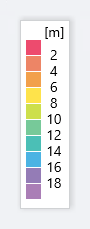
Section 5
In the Wireless Client Location Estimation View, "Healthiness Icon", and "Power Limit" are irrelevant and disabled.
The heatmap display in "Drawing Mode" is only reflected when an individual radio band is selected in the radio band drop-down list in the header.
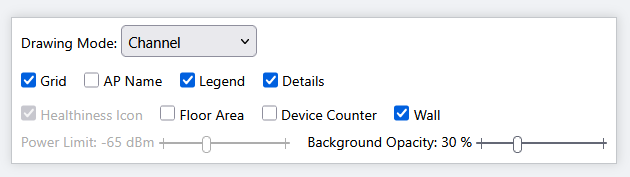
| Item Name | Description |
|---|---|
| Drawing Mode | Lets you select what to show on the heatmap. Options are Comfort Level, Power (signal strength) and Channel. The default is "Comfort Level". |
| Grid | Lets you enable or disable grid lines on the floor map. Checking this shows grid lines on the floor map. |
| AP Name | Whether to display the AP name above the AP icon. Check to display. |
| Legend | Lets you enable or disable the legend. Check to display. |
| Details | Whether to display the Wireless Client List. Check to display. |
| Floor Area | If areas have been created on the floor map (using the Edit Area page), this lets you choose whether to display the areas. Check to display. |
| Device Counter | In the top left of the area on the floor map, this indicates the number of wireless clients in the area. When the History Data Retention Period Setting for "Location Estimation" is set effectively in System Settings, this displays the number of clients associated to the APs in the area, the number of associated clients estimated to be in the area, and the number of detected (not associated) clients estimated to be in the area. |
| Wall | If walls have been created on the floor map (using the Edit Wall page), this lets you choose whether to display the walls. Check to display. |
| Opacity | Specify the opacity of the floor map background image. |
Section 6
Zoom In/Out buttons.
You can zoom in (+) or zoom out (-) of the floor map display. You can also use the mouse wheel scroll to zoom in or out.

Wireless Client Count
In Wireless Client View, when Floor Area and Device Counter on the floor map control are checked, the areas on the map show additional information. The number of clients associated to the APs in the area, as well as the number of associated and detected clients estimated to be in the area, are displayed in the device counter in the top left of the area.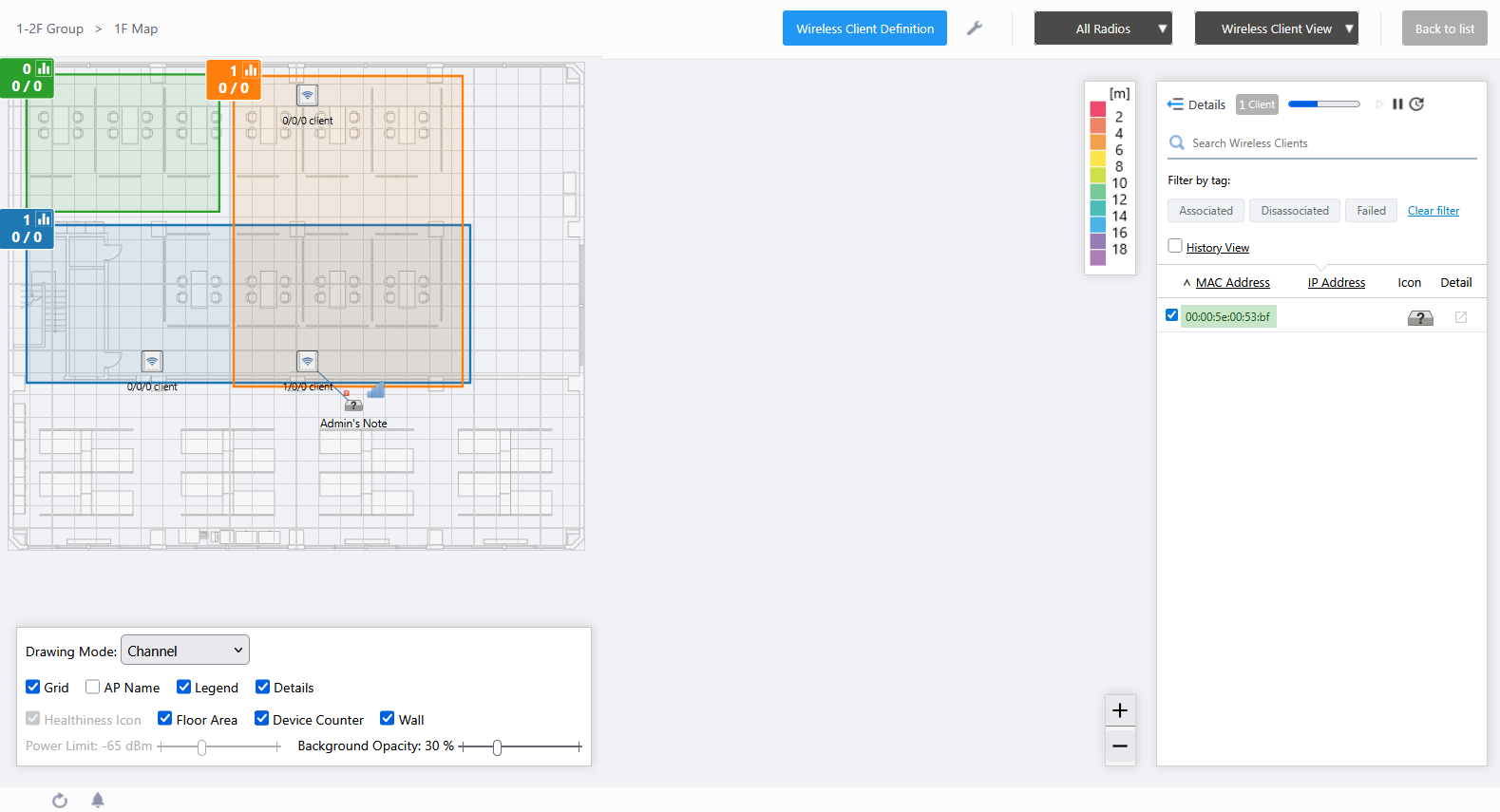
The device counter displays the following.
NoteAssociated/detected client estimation requires History Data Retention Period Setting for Location Estimation in System Setting to be set, and also requires channel blanket operating on the APs on the floor map.
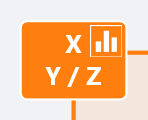
- X: Associated Clients
Displays the number of clients in this area.
The total number of wireless clients associated to APs in the area is displayed.
- Y: Associated Client Estimation
Displays the number of clients that are associated to the channel blanket, and estimated to be in the area by the Client Location Estimation feature.
- Z: Detected Client Estimation
Displays the number of clients that are detected and not associated to the channel blanket, and estimated to be in the area by the Client Location Estimation feature.
Note
Detected client estimation only counts the clients that have requested association to the channel blanket VAP provided by the managed APs; that is, the clients that have sent probe requests to the channel blanket SSID. Clients that have never requested association to the channel blanket VAP of the managed APs will not be counted.
Area Client History
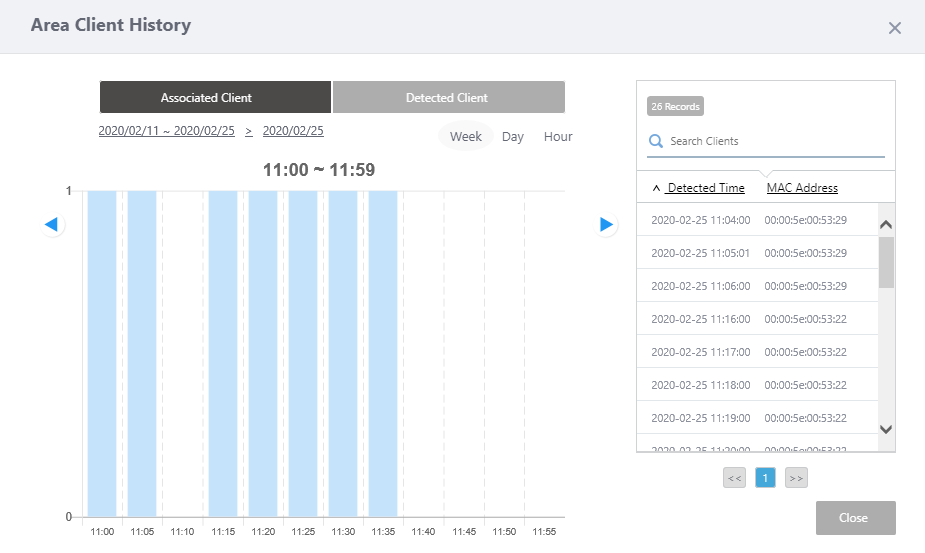
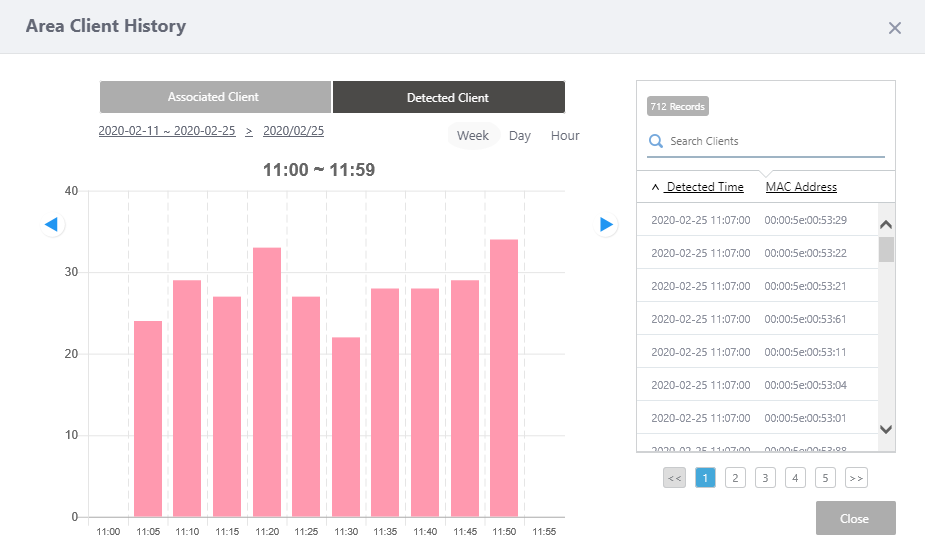
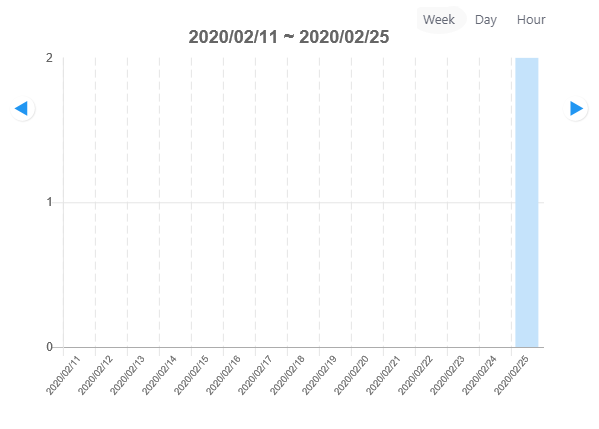
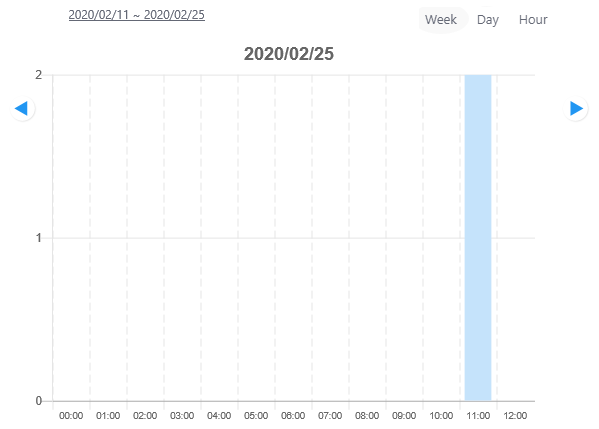
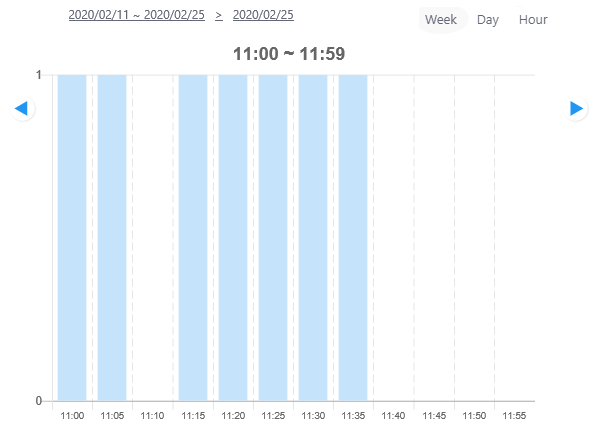
When you click on the device counter of an area in the Wireless Client View, the "Area Client History" dialog box will be displayed.You can see graphs of the number of estimated associated or detected clients over a period of two weeks, one day, or one hour. You can also see a list of recorded times of association or detection on a per client basis.
Note◼ Associated ClientClients associated or detected after displaying the "Area Client History" dialog box will not be shown in the counts. For a current count, close the dialog box and then display it again.
◼ Detected Client
| Item Name | Description |
|---|---|
| Associated Client/Detected Client button | Displays the current mode in dark gray. Click on the other button in light gray to change the mode.
|
| Display period | The current display period is shown above the graph, in YYYY/MM/DD ~ YYYY/MM/DD format for two-week, YYYY/MM/DD format for daily, or hh:mm ~ hh:mm format for hourly graph. The top right of the graph indicates the display periods as Week, Day, and Hour. The present period label is displayed with a light gray oval underlay. Also, when displaying a short-term (1 day or 1 hour) graph, a link to the long-term (2 weeks, 1 day) chart is displayed at the upper left of the graph. |
| Graph | Displays a bar chart that shows the change in number of associated/detected clients in the area over the selected display period. The interval of the bar graphs depends on the display period:
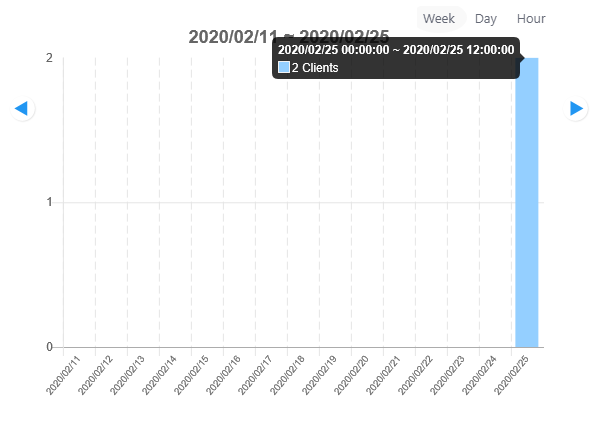 In addition, arrow heads on both sides of the chart let you switch the contents to the next or previous period. |
| Client detection history list | Displays the MAC addresses and the detected times of the clients estimated to be in the area within the period by the Client Location Estimation feature. Client detection is performed periodically, and when the same MAC address is detected more than once, a detection is recorded each time.
|
| "Exit" button | Closes the "Area Client History" dialog box and goes back to "Floor Map Details [Wireless Client View]". |
Wireless Client Association View
This view uses a link line to show an association between a client and an AP.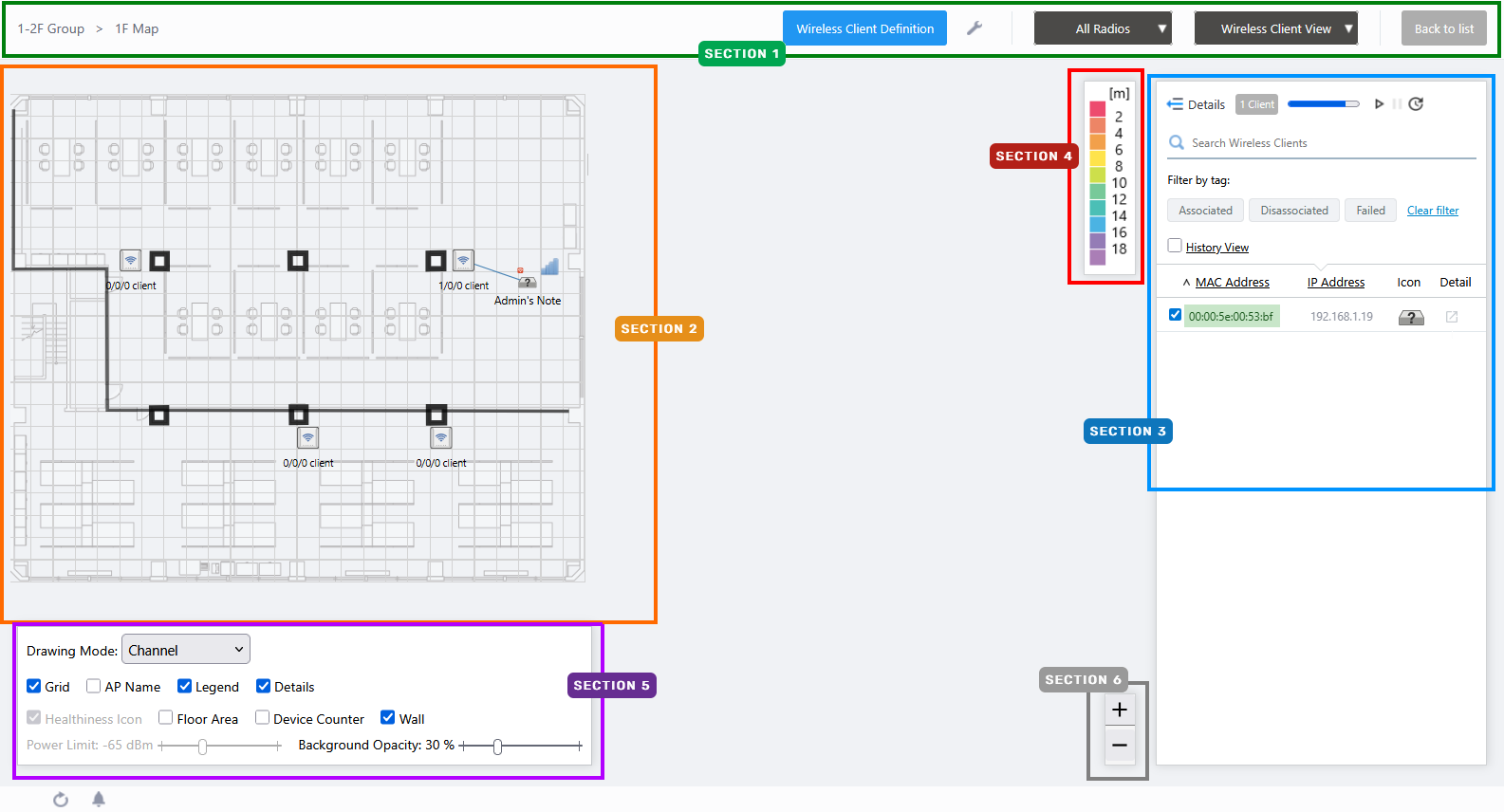
Section 1
| Item Name | Description |
|---|---|
| Management Group / Floor Map Group | The floor map name and the management group of the selected floor map will be displayed. |
| "Client Definition" button | Shows the Client Definition List dialog box. |
| "Spanner" icon | Hovering the mouse cursor over the Spanner icon shows a dropdown menu including some operations for managed APs. In the Wireless Client View, the options other than "Save Floor Map Display Settings" are irrelevant and disabled.
|
| Radio dropdown menu | Select which radio band information to display from Radio 1, Radio 2, Radio 3, or "All Radios". The default is "All Radios". If you select "All Radios", wireless client information for all bands (Radio 1, Radio 2, and Radio 3) will be displayed. |
| View Selection dropdown menu | Lets you change what information is displayed on the Floor Map Details screen.
|
| "Back to list" button | Click to return to the Floor Map List screen. |
Section 2
| Item Name | Description | ||||||||||||||||||||||||||
|---|---|---|---|---|---|---|---|---|---|---|---|---|---|---|---|---|---|---|---|---|---|---|---|---|---|---|---|
| Floor Map (Background) | The map image specified when you created the map is shown. | ||||||||||||||||||||||||||
| Wireless AP Icon | The AP icon placed on the floor map is displayed. If "AP Name" is checked in the floor map controls, the AP name is displayed above the AP icon. Below the icon, the number of wireless clients that are associated, have been disassociated within 5 minutes, and have failed to associate within 5 minutes are displayed in the "x/x/x client" format. When you click an AP icon, only clients associated to the AP are displayed in the associated client list. |
||||||||||||||||||||||||||
| Wireless Client icon | An icon representing an associated client. Clients checked on the list will be displayed on the floor map. The position the Client icon is displayed does not indicate the client's actual geographical location on the floor.
In addition, when the mouse pointer is hovered over the wireless client icon, the wireless client's location estimation information pops up.
|
Section 3
| Item Name | Description |
|---|---|
| Details | You can click here to see client details such as Hostname, Username (based on WPA Enterprise), Duration, Client Name, Notes, SSID, Associating AP, and RSSI, in addition to the items displayed by default (MAC and IP addresses). Clicking Details again returns you to the default non-detailed view. |
| X Client | Shows the number of clients connected to the AP that is selected on the floor map. |
| Refresh Timer | Shows the status of the timer that automatically refreshes the page with the blue progress bar. The list is updated at the interval set for "Floor Map (Wireless Client)" in the "Refresh Rates" in the User Management menu (default: 5 seconds). You can also specify whether to pause or resume automatic updates by clicking Resume/Pause automatic update button on the right, or force the wireless client list to be updated by clicking the Manual update button. |
| Search Wireless Clients | Filter entries in the list by entering a partial string in the search box. The Search field lets you enter a partial string to match. The screen displays entries with that string in one of the following fields: "MAC Address", "IP Address", "SSID" or "Associating AP". To remove the filter, delete the string from the Search field and press Enter. NoteThe search is case-sensitive. |
| Filter by tag | Narrow down the list of wireless clients by client status.
|
| "History View" checkbox | Switches the page to Wireless Client History. |
| Checkbox | Lets you select wireless clients to be shown on the floor map. When you select a client, an icon and the MAC address of the client are shown near the AP with which the client is associated. |
| MAC Address | Shows the MAC address of the wireless client. The background color of the MAC address also indicates the status of the wireless client.
|
| IP Address | Shows the IP address of the wireless client. |
| Icon | Displays the wireless client icon shown on the floor map. If the wireless client is currently associated:
|
| Details | The "Wireless Client Detail" screen will appear in a new tab or window in your web browser. |
Section 4
Shows the legend for the Associated Client View.
The color of each cell in the legend represents the reliability of the location estimation of clients shown on the map.
The legend can be made invisible or visible by using the checkbox in the floor map control section at the bottom of the page.
Section 5
In the Wireless Client View, "Healthiness Icon", and "Power Limit" are irrelevant and disabled.
The heatmap display in "Drawing Mode" is only reflected when an individual radio band is selected in the radio band drop-down list in the header.
| Item Name | Description |
|---|---|
| Drawing Mode | Lets you select what to show on the heatmap. Options are Comfort Level, Power (signal strength) and Channel. The default is "Comfort Level". |
| Grid | Lets you enable or disable grid lines on the floor map. Checking this shows grid lines on the floor map. |
| AP Name | Whether to display the AP name above the AP icon. Check to display. |
| Legend | Lets you enable or disable the legend. Check to display. |
| Details | Whether to display the Wireless Client List. Check to display. |
| Floor Area | If areas have been created on the floor map (using the Edit Area page), this lets you choose whether to display the areas. Check to display. |
| Device Counter | In the top left of the area on the floor map, this indicates the number of wireless clients in the area. When the History Data Retention Period Setting for "Location Estimation" is set effectively in System Settings, this displays the number of clients associated to the APs in the area, the number of associated clients estimated to be in the area, and the number of detected (not associated) clients estimated to be in the area. |
| Wall | If walls have been created on the floor map (using the Edit Wall page), this lets you choose whether to display the walls. Check to display. |
| Opacity | Specify the opacity of the floor map background image. |
Section 6
Zoom In/Out buttons.
You can zoom in (+) or zoom out (-) of the floor map display. You can also use the mouse wheel scroll to zoom in or out.
Wireless Client List (Detail)
Clicking "Details" at the top of the client list in the "Wireless Client View" extends the list to show additional information including system information, wireless information and statistics.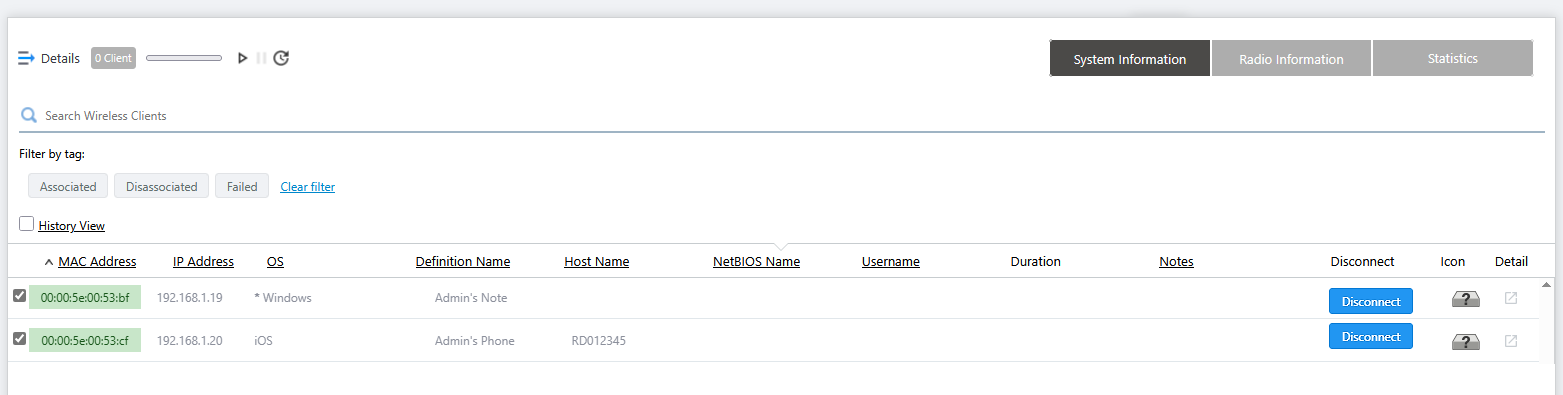
| Item Name | Description |
|---|---|
| Details | Clicking this shows extra data, including the SSID, Associated AP and connection Duration, in addition to the default items (IP and MAC addresses). Clicking Details again returns you to the default non-detailed view. |
| X Client | Shows the number of clients connected to the AP that is selected on the floor map. |
| Refresh Timer | Shows the status of the timer that automatically refreshes the page with the blue progress bar. The list is updated at the interval set for "Floor Map (Wireless Client)" in the "Refresh Rates" in the User Management menu (default: 5 seconds). You can also specify whether to pause or resume automatic updates by clicking Resume/Pause automatic update button on the right, or force the wireless client list to be updated by clicking the Manual update button. |
| "System Info" / "Wireless Info" / "Statistics" buttons | Switches the contents of the list. |
| System Info | |
| Search Wireless Clients | Filter entries in the list by entering a partial string in the search box. The Search field lets you enter a partial string to match. The screen displays entries with that string in one of the following fields: "MAC Address", "IP Address", "SSID" or "Associating AP". To remove the filter, delete the string from the Search field and press Enter. NoteThe search is case-sensitive. |
| Filter by tag | Narrow down the list of wireless clients by client status.
|
| "History View" checkbox | Switches the page to Wireless Client History View (Detail). |
| Checkbox | Lets you select wireless clients to be shown on the floor map. When you select a client, an icon and the MAC address of the client are shown near the AP with which the client is associated. A selection made through the detailed list view will remain when you go back to default (simpler) client list view. |
| MAC Address | Shows the MAC address of the wireless client. The background color of the MAC address also indicates the status of the wireless client.
|
| IP Address | Shows the IP address of the wireless client. |
| OS | Displays the name of the OS (operating system) running on the wireless client. If an OS is defined in "Client Definition", an asterisk (*) is followed by the name of the OS in the definition. If no OS is defined in "Client Definition" and Client Packet Analysis is enabled in the AP Profile applied to the currently connected AP, the OS name obtained from the analysis will be displayed. The AWC plug-in supports the identification of Windows, Mac OS, iOS, Android, and Chrome OS. If the wireless client is using a random MAC address, it is also displayed as RandomMAC. For operating systems other than these, "Unknown" will be displayed. |
| Definition Name | Shows the client's name if defined in the Client Definition List dialog box. |
| Host Name | Shows the host name of the wireless client. |
| NetBIOS Name | Shows the NetBIOS host name of the wireless client. |
| Full Name | Shows the RADIUS username when using WPA Enterprise. |
| Duration | Shows the time duration for which the client has been connected to the AP.NoteMake sure that the clock on the computer for browsing is set to the same date and time as the Vista Manager EX server settings. If a different time is set, the duration of wireless clients may not be displayed correctly. |
| Notes | Shows any comments entered in the "Client Definition List" dialog box. |
| Disconnect | Disassociates the wireless client connection. If the AP which the client is associated to supports instant disassociation, the "Disconnect" button will be shown. By clicking "Disconnect", you can immediately kick out the wireless client. NoteYou cannot select and disconnect multiple clients simultaneously. Please click the "Disconnect" button of each client. NoteThis function is supported by TQ1402 and TQm1402 firmware version 6.0.0-0.x or later; TQ5403, TQm5403, and TQ5403e firmware version 6.0.1-1.x or later; TQ6602 firmware version 7.0.0 or later, or supported by TQ3403, TQm3403, TQ6403 GEN2, TQm6403 GEN2, TQ6602 GEN2, TQm6602 GEN2, TQ6702 GEN2, TQm6702 GEN2, TQ6702e GEN2, TQ6702 GEN2-R, TQ7403, TQ7403-R, and TQ7613. NoteIf the client device is set to connect automatically to the SSID, the client will be associated soon again after the disassociation. If you want to deny a specific client device permanently, consider using another authentication method such as MAC Access Control. |
| Icon | Displays the wireless client icon shown on the floor map. If the wireless client is currently associated:
|
| Details | The "Wireless Client Detail" screen will appear in a new tab or window in your web browser. |
| Radio info | |
| MAC Address | Shows the MAC address of the wireless client. |
| SSID | Shows the SSID the client is associated with. |
| Associating AP | Shows the device name of the AP the client is associated with. |
| RSSI | Displays the Received Signal Strength Indicator (in dBm) from the wireless client. |
| Noise | Shows the strength of the noise that is interfering with the client communication. |
| SNR | Shows the Signal to Noise Ratio. A larger SNR means there is less noise influence. |
| Details | The "Wireless Client Detail" screen will appear in a new tab or window in your web browser. |
| Statistics | |
| MAC Address | Shows the MAC address of the wireless client. |
| Tx Packets | Shows the number of the packets sent to the client. |
| Tx Bytes | Shows the total size of the packets sent to the client. |
| Tx Drop Packets | Shows the number of discarded packets to be sent to the client. |
| Tx Drop Bytes | Shows the number of discarded bytes to be sent to the client. |
| Rx Packets | Shows the number of the packets received from the client. |
| Rx Bytes | Shows the total size of the packets received from the client. |
| Rx Drop Packets | Shows the number of received packets which were discarded. |
| Rx Drop Bytes | Shows the number of received bytes which were discarded. |
| Details | The "Wireless Client Detail" screen will appear in a new tab or window in your web browser. |
Note"Noise Level", "SNR", "Transmit Packets Discarded", "Transmit Bytes Discarded", "Received Packets Discarded" and "Received Bytes Discarded" are not supported in this version.
Wireless Client History View
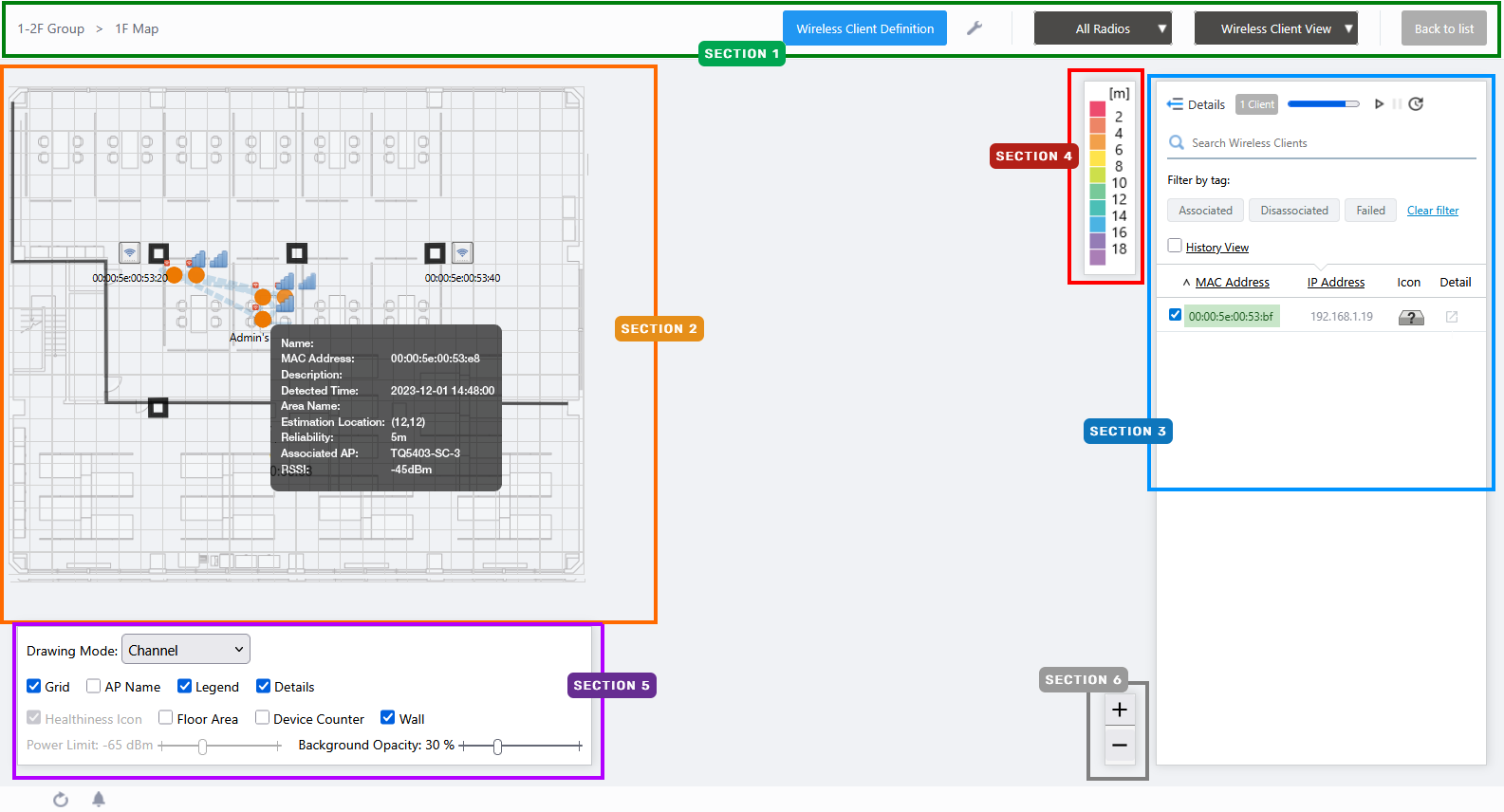
In the Wireless Client View, by checking "Wireless Client History View", you can view only clients that were associated with the APs on the floor map during the specified time period.If the wireless client has an estimated location history, the client is displayed using Client Location Estimation History described below. If AWC does not have past estimates of an wireless client's location, then this view shows the Associated Client Roaming History. These display options may be mixed, so that the screen shows a mix of location estimation and roaming for wireless clients.
NoteWhen you use Wireless Client History with the following wireless APs, please set the log severity of the wireless AP to "information(6)" or "debug(7)". If the log severity is set to higher (lesser value) than "notice(5)", this feature will not work.
The default value of the log severity of these wireless APs is "information(6)". If the wireless APs are not configured for logging, this function can still operate.
Affected AP models: TQ1402, TQm1402, TQ5403, TQ5403e, TQm5403, TQ6602, TQ6602 GEN2, TQm6602 GEN2, TQ6702 GEN2, TQm6702 GEN2
The log severity can be set in the severity of the Syslog client in the AP profile.
If you want to use the Wireless Client History View with the log function of the Syslog Client disabled, please change "Syslog Client" to "Enable" and "Severity" to "6 : informational" in the AP profile (the Syslog server IP address/host name can be a fictitious address). Apply this AP profile to the AP, and then set "Syslog Client" to "Disable" in the AP profile and apply it again.
Client Location Estimation History
The position is estimated every minute from the radio of the wireless client and displayed.This display appears when all of the following conditions are met in the time period specified:
- The wireless client has connected to a Channel Blanket VAP.
- Location Estimation in History Data Retention Period Setting is set effectively in the System Setting screen.
- Location information is calculated at least once by Location Estimation.
NoteWhen using the Client Location Estimation View, set the floor map dimensions (vertical / horizontal) correctly and match AP placement with the actual environment.
NoteSystem clocks on all the managed APs and the server running the AWC Plug-in must be synchronized.
Section 1
| Item Name | Description |
|---|---|
| Management Group / Floor Map Group | The floor map name and the management group of the selected floor map will be displayed. |
| "Client Definition" button | Shows the Client Definition List dialog box. |
| "Spanner" icon | Hovering the mouse cursor over the Spanner icon shows a dropdown menu including some operations for managed APs. In the Wireless Client View, the options other than "Save Floor Map Display Settings" are irrelevant and disabled.
|
| Radio dropdown menu | This item is grayed out on the Floor Map's client history screen. |
| View Selection dropdown menu | Lets you change what information is displayed on the Floor Map Details screen.
|
| "Back to list" button | Click to return to the Floor Map List screen. |
Section 2
Displays the wireless clients that have been connected to the AP on the map.
When you enter a maximum trace count and select a client from the list, the position of that client is drawn on the floor map.
The client's radio wave will be observed by the APs on the floor every minute, and if enough samples to calculate the location are obtained, the AWC plug-in will calculate the estimated location. The calculation may take several minutes after each observation.
Each estimated location is represented by a circle. The color of the circle represents the reliability of the location estimation (see the legend). Up to 100,000 clients can be handled at one time.
The order and direction of the movement are shown as a broken curve and an arrow head. The curve does not necessarily show the exact path the client moved.
In the upper right corner of the estimated location marker, the received signal strength (RSSI) from the wireless client is indicated by the number of bars.
| Number of Bars | Received Signal Strength (RSSI) |
|---|---|
 4 4
|
-52dBm ≤ RSSI |
 3 3
|
-62dBm ≤ RSSI < -52dBm |
 2 2
|
-72dBm ≤ RSSI < -62dBm |
 1 1
|
-82dBm ≤ RSSI < -72dBm |
 0 0
|
RSSI < -82dBm |
You can hover over each circle to see estimation information as a popup balloon.
| Item Name | Description |
|---|---|
| Definition Name | Shows the client's name if defined in the Client Definition List dialog box. |
| MAC Address | Shows the MAC address of the client. |
| Notes | Shows any comments entered in the "Client Definition List" dialog box. |
| Detected Time | Shows the time that client estimation location was detected. |
| Area Name | Shows the Area Name if the estimated client location is inside an area that has been defined on the "Edit Area" screen. |
| Estimation Location | Shows the coordinates on the grid of the floor map which the client is estimated to be in. The coordinates start with "(1,1)", based on the top left square. |
| Reliability | Shows the reliability of the possible difference between the estimation and actual location, in metres. |
| Associating AP | Shows the device name of the AP the client is associated with. |
| Frequency | Displays the frequency of the wireless band to which the wireless client is connected. |
| RSSI | Displays the Received Signal Strength Indicator (in dBm) from the wireless client. |
Section 3
In the Client History List, "Refresh Timer" is disabled.
| Item Name | Description |
|---|---|
| Details | You can click to see Client Name and Notes, in addition to the default items of MAC Address and Hops. Clicking Details again returns you to the default non-detailed view. |
| X Client | Shows the number of clients that had been connected to the AP on the floor map during the specified time period. |
| Search Wireless Clients | Filter entries in the list by entering a partial string in the search box. The Search field lets you enter a partial string to match. The screen displays entries with that string in the "MAC Address" field. To remove the filter, delete the string from the Search field and press Enter. NoteThe search is case-sensitive. |
| Filter by tag | Narrow down the list of wireless clients by client status.
|
| "History View" checkbox | When unchecked, switches to "Wireless Client Location Estimation View" or "Wireless Client Association View", which displays wireless clients that are currently associated or have disassociated/failed to associate within 5 minutes. |
| Time Search (Start/End) | Specify a time period with start and end date/time. You can enter a date in "YYYY-MM-DD hh:mm" format or select a day on the calendar that appears when you click the field. |
| Maximum Trace Count | Specify the maximum number of hops to show. Only the specified number of the most recent hops will be displayed for each client. |
| Search | Search for clients from the list of clients that were associated to the AP on the floor map during the specified time period. |
| Wireless Clients | |
| Checkbox | Lets you select wireless clients to be shown on the floor map. When you check a client, an icon, MAC address, and the position of the client are shown on the map. The latest estimated location is represented as the Client Icon (the laptop shape), and each older location estimation is drawn as a circle. The client's estimated trace is also depicted by a broken line. You can click on an icon on the floor map to see the probable circle based on the estimation reliability. You can hover over the icon to see the location estimation information. |
| MAC Address | Shows the MAC address of the wireless client. The background color of the MAC address also indicates the status of the wireless client.
|
| Hops | Shows how many times the client had its location estimated or had roamed between APs on the Map. Shows the maximum 1,000 hops per wireless client. If there is a disassociated/failed to associate log, the number of logs is displayed in parentheses after the hop count. For example, "10 (3)" represents 10 hops and 3 disassociated/failed to associate logs. Clicking on Hop Count shows the "Hops Detail" dialog box. |
| Icon | Displays the wireless client icon shown on the floor map. If the wireless client is currently associated:
|
| Details | The "Wireless Client Detail" screen will appear in a new tab or window in your web browser. |
Section 4
Shows the legend for the Associated Client View.
The color of each cell in the legend represents the reliability of the location estimation of clients shown on the map.
The legend can be made invisible or visible by using the checkbox in the floor map control section at the bottom of the page.
Section 5
In the Wireless Client View, "Healthiness Icon", and "Power Limit" are irrelevant and disabled.
In addition, the heatmap display in "Drawing Mode" is not reflected in the Wireless Client History View.
| Item Name | Description |
|---|---|
| Drawing Mode | Lets you select what to show on the heatmap. Options are Comfort Level, Power (signal strength) and Channel. The default is "Comfort Level". |
| Grid | Lets you enable or disable grid lines on the floor map. Checking this shows grid lines on the floor map. |
| AP Name | Whether to display the AP name above the AP icon. Check to display. |
| Legend | Lets you enable or disable the legend. Check to display. |
| Details | Whether to display the Wireless Client List. Check to display. |
| Floor Area | If areas have been created on the floor map (using the Edit Area page), this lets you choose whether to display the areas. Check to display. |
| Device Counter | On the top left of an area, indicates the number of registered APs that are arranged in the area. |
| Wall | If walls have been created on the floor map (using the Edit Wall page), this lets you choose whether to display the walls. Check to display. |
| Opacity | Specify the opacity of the floor map background image. |
Section 6
Zoom In/Out buttons.
You can zoom in (+) or zoom out (-) of the floor map display. You can also use the mouse wheel scroll to zoom in or out.
Wireless Client Roaming History
If the wireless client has never met the conditions for showing Client Location Estimation History, and therefore has no location estimation history entries, the Wireless Client Roaming History will be displayed instead.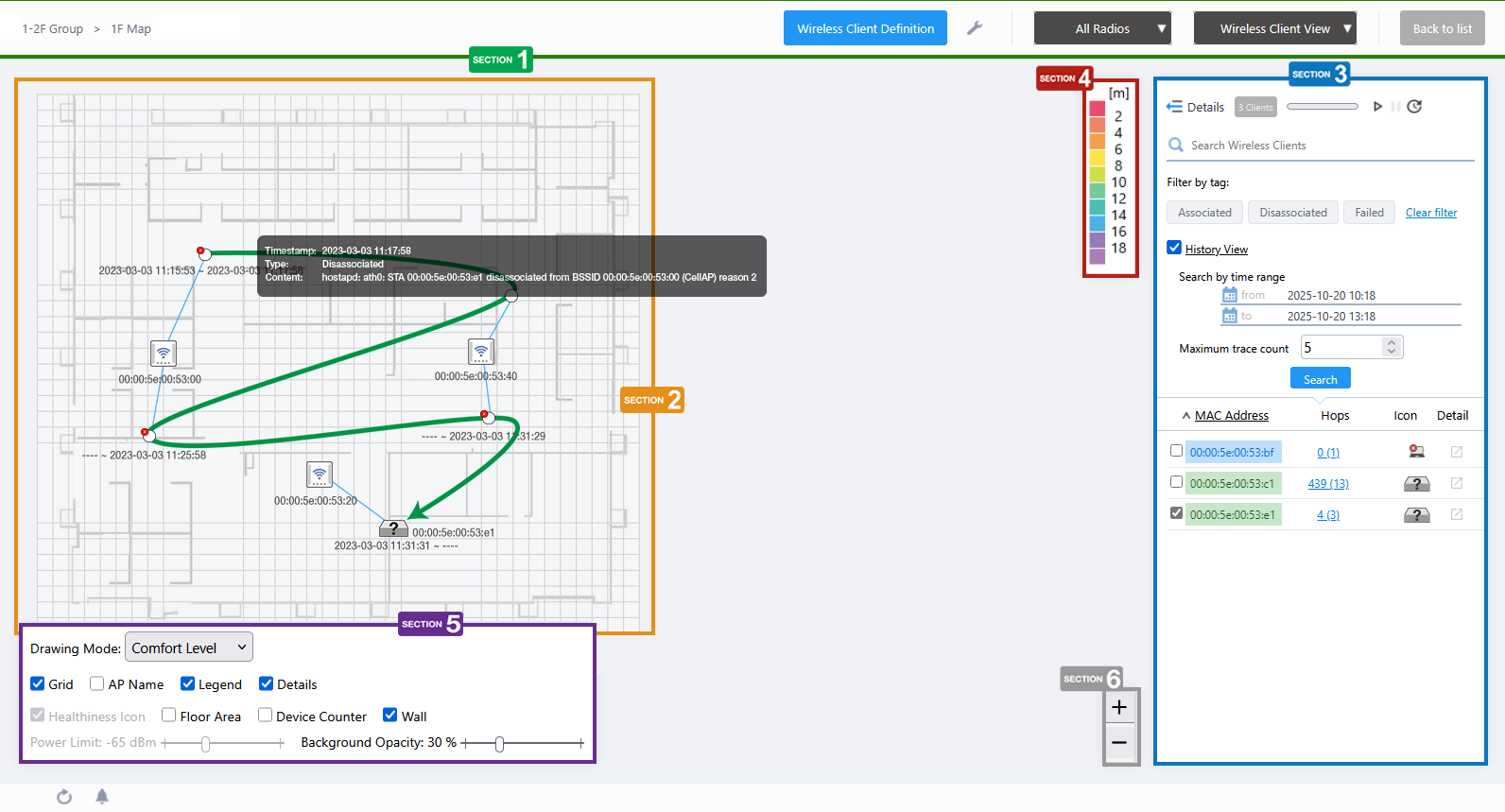
Section 1
| Item Name | Description |
|---|---|
| Management Group / Floor Map Group | The floor map name and the management group of the selected floor map will be displayed. |
| "Client Definition" button | Shows the Client Definition List dialog box. |
| "Spanner" icon | Hovering the mouse cursor over the Spanner icon shows a dropdown menu including some operations for managed APs. In the Wireless Client View, the options other than "Save Floor Map Display Settings" are irrelevant and disabled.
|
| Radio dropdown menu | This item is grayed out on the Floor Map's client history screen. |
| View Selection dropdown menu | Lets you change what information is displayed on the Floor Map Details screen.
|
| "Back to list" button | Click to return to the Floor Map List screen. |
Section 2
Displays the wireless clients that have been connected to the AP on the map.
When you check a client in the list, the floor map shows the history of the APs the selected client had connected to in the past.
The final status of each hop is reflected on the floor map. When roaming a AP, a Disassociated log is always recorded for the AP before the move, so the disassociation history for each hop is displayed on the map.
If there is a Disassociated or Failed log at each hop, hover the mouse pointer over the circle representing the association to the AP and information about the wireless client's Disassociated or Failed log will pop up.
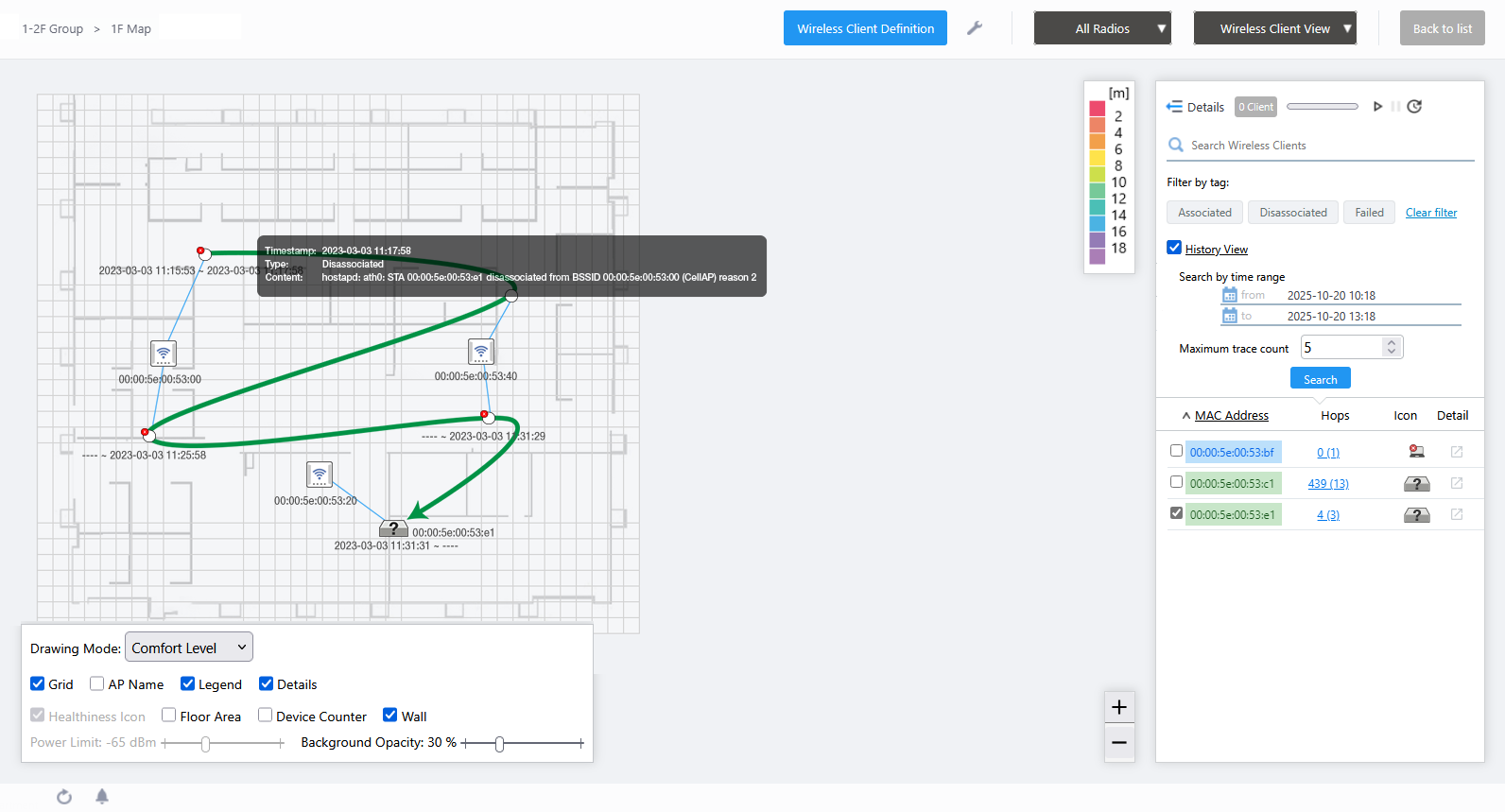
| Item Name | Description |
|---|---|
| Timestamp | Displays the time the wireless client Disassociated log was received. |
| Type | Displays Disassociated or Failed to associate. |
| Content | Shows the content of the log entry. |
To view the Associated log information for each hop, use the filters in the wireless client list to show only the connection history. Up to 100,000 clients can be handled at one time.
If there is an Associated log at each hop, hover the mouse pointer over the circle representing the association to the AP and information about the wireless client's Associated log will pop up.
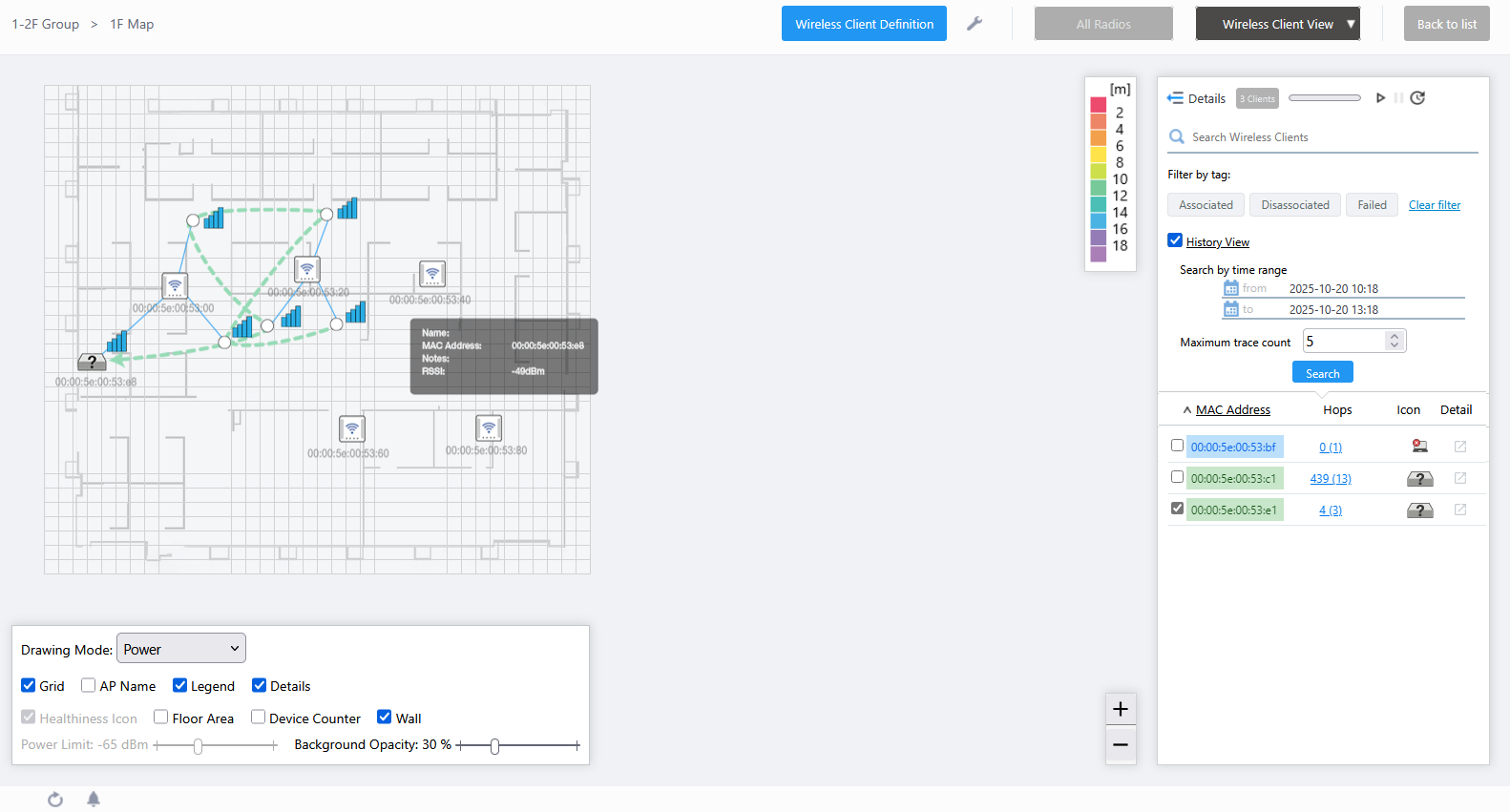
| Item Name | Description |
|---|---|
| Definition Name | Shows the client's name if defined in the Client Definition List dialog box. |
| MAC Address | Shows the MAC address of the client. |
| Notes | Shows any comments entered in the "Client Definition List" dialog box. |
| RSSI | Displays the Received Signal Strength Indicator (in dBm) from the wireless client. |
Section 3
In the Wireless Client Roaming History list, the "Refresh Timer" is disabled.
| Item Name | Description |
|---|---|
| Details | You can click to see Client Name and Notes, in addition to the default items of MAC Address and Hops. Clicking Details again returns you to the default non-detailed view. |
| X Client | Shows the number of clients that had been connected to the AP on the floor map during the specified time period. |
| Search Wireless Clients | Filter entries in the list by entering a partial string in the search box. The Search field lets you enter a partial string to match. The screen displays entries with that string in the "MAC Address" field. To remove the filter, delete the string from the Search field and press Enter. NoteThe search is case-sensitive. |
| Filter by tag | Narrow down the list of wireless clients by client status.
|
| "History View" checkbox | When unchecked, switches to "Wireless Client Location Estimation View" or "Wireless Client Association View", which displays wireless clients that are currently associated or have disassociated/failed to associate within 5 minutes. |
| Time Search (Start/End) | Specify a time period with start and end date/time. You can enter a date in "YYYY-MM-DD hh:mm" format or select a day on the calendar that appears when you click the field. |
| Maximum Trace Count | Specify a maximum hop counts for each client to show on the map. When you specify the limit, only the specified number of the latest hops will be displayed for each client. |
| Search | Search for clients from the list of clients that roamed between the APs on the floor map during the specified time period. |
| Wireless Clients | |
| Checkbox | Lets you select wireless clients to be shown on the floor map. When you check a client, an icon and the MAC address of the client are shown near the AP to which the client is associated. If the selected client roamed mutiple times between the APs on the map during the specifed time period, its most recent hop in the roaming history will be shown by the client icon. Earlier positions will be shown by circles. The client's roaming trace will be also depicted by a broken line. You can also see when the client was connected to the AP at the position by clicking a client icon or circles. NoteThe position of the icon does not represent the exact location of the client at the time. Icons are placed so they do not overlap with other icons in the history. |
| MAC Address | Shows the MAC address of the wireless client. The background color of the MAC address also indicates the status of the wireless client.
|
| Hops | Shows how many times the client had its location estimated or had roamed between APs on the Map. Shows the maximum 1,000 hops per wireless client. If there is a disassociated/failed to associate log, the number of logs is displayed in parentheses after the hop count. For example, "10 (3)" represents 10 hops and 3 disassociated/failed to associate logs. Clicking on Hop Count shows the "Hops Detail" dialog box. |
| Icon | Displays the wireless client icon shown on the floor map. If the wireless client is currently associated:
|
| Details | The "Wireless Client Detail" screen will appear in a new tab or window in your web browser. |
Section 4
Shows the legend for the Associated Client View.
Not used in the Wireless Client Roaming History View.
Section 5
In the Wireless Client View, "Healthiness Icon", and "Power Limit" are irrelevant and disabled.
In addition, the heatmap display in "Drawing Mode" is not reflected in the Wireless Client History View.
| Item Name | Description |
|---|---|
| Drawing Mode | Lets you select what to show on the heatmap. Options are Comfort Level, Power (signal strength) and Channel. The default is "Comfort Level". |
| Grid | Lets you enable or disable grid lines on the floor map. Checking this shows grid lines on the floor map. |
| AP Name | Whether to display the AP name above the AP icon. Check to display. |
| Legend | Lets you enable or disable the legend. Check to display. |
| Details | Whether to display the Wireless Client List. Check to display. |
| Floor Area | If areas have been created on the floor map (using the Edit Area page), this lets you choose whether to display the areas. Check to display. |
| Device Counter | On the top left of an area, indicates the number of registered APs that are arranged in the area. |
| Wall | If walls have been created on the floor map (using the Edit Wall page), this lets you choose whether to display the walls. Check to display. |
| Opacity | Specify the opacity of the floor map background image. |
Section 6
Zoom In/Out buttons.
You can zoom in (+) or zoom out (-) of the floor map display. You can also use the mouse wheel scroll to zoom in or out.
Wireless Client History (Detail)
Clicking "Details" at the top of the client list in "Client Location Estimation History" or "Wireless Client Roaming History" extends the list and shows additional information of the histories, if that information has been collected from the APs on the map.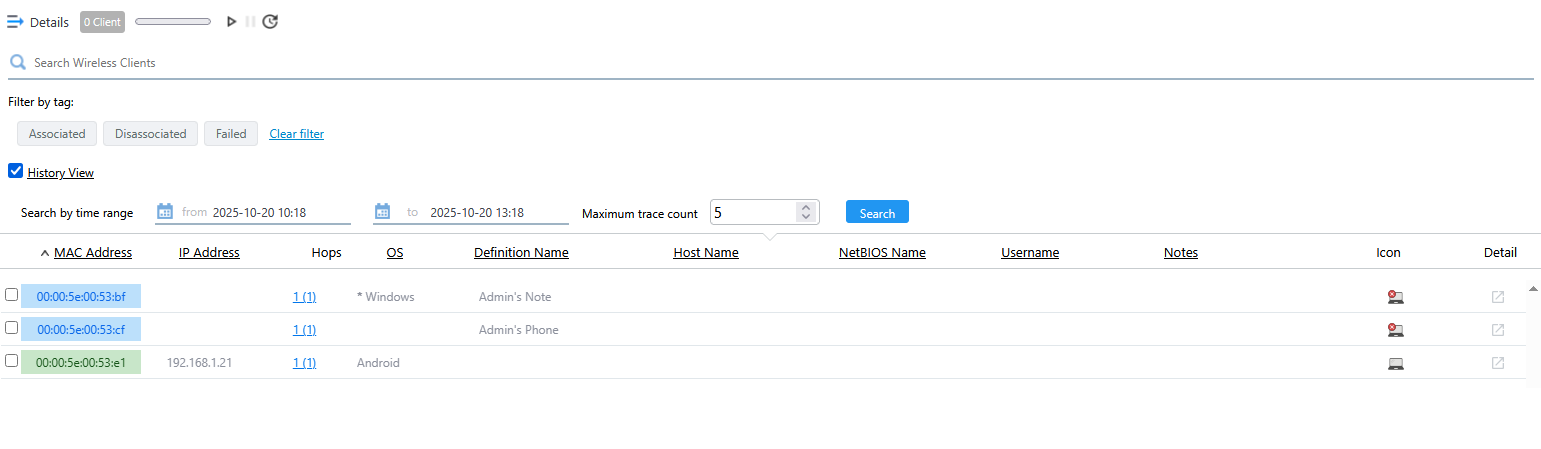
In Wireless Client History List, the "Refresh Timer" is disabled.
| Item Name | Description |
|---|---|
| Details | You can click to see Client Name and Notes, in addition to the default items of MAC Address and Hops. Clicking Details again returns you to the default non-detailed view. |
| X Client | Shows the number of clients connected to the AP that is selected on the floor map. |
| Search Wireless Clients | Filter entries in the list by entering a partial string in the search box. The Search field lets you enter a partial string to match. The screen displays entries with that string in the "MAC Address" field. To remove the filter, delete the string from the Search field and press Enter. NoteThe search is case-sensitive. |
| Filter by tag | Narrow down the list of wireless clients by client status.
|
| "History View" checkbox | When unchecked, switches to "Wireless Client List (Detail)", which displays wireless clients that are currently associated or have disassociated/failed to associate within 5 minutes. |
| Time Search (Start/End) | Specify a time period with start and end date/time. You can enter a date in "YYYY-MM-DD hh:mm" format or select a day on the calendar that appears when you click the field. |
| Maximum Trace Count | Specify the maximum hop count (location estimation or roaming counts) to show on the map for each client. When you specify the hop limit, only the specified number of the latest hops will be displayed for each client. |
| Search | Search for clients from the list of clients that were associated to the AP on the floor map during the specified time period. |
| Checkbox | Lets you select wireless clients to be shown on the floor map. When you check a client, an icon and the MAC address of the client are shown near the AP to which the client is associated. If the selected client roamed mutiple times between the APs on the map during the specifed time period, its most recent hop in the roaming history will be shown by the client icon. Earlier positions will be shown by circles. The client's roaming trace will be also depicted by a broken line. You can also see when the client was connected to the AP at the position by clicking a client icon or circles. NoteThe position of the icon does not represent the exact location of the client at the time. Icons are placed so they do not overlap with other icons in the history. |
| MAC Address | Shows the MAC address of the wireless client. The background color of the MAC address also indicates the status of the wireless client.
|
| IP Address | Shows the IP address of the wireless client. |
| Hops | Shows how many times the client had its location estimated or had roamed between APs on the Map. Shows the maximum 1,000 hops per wireless client. If there is a disassociated/failed to associate log, the number of logs is displayed in parentheses after the hop count. For example, "10 (3)" represents 10 hops and 3 disassociated/failed to associate logs. Clicking on Hop Count shows the "Hops Detail" dialog box. |
| OS | Displays the name of the OS (operating system) running on the wireless client. If an OS is defined in "Client Definition", an asterisk (*) is followed by the name of the OS in the definition. If no OS is defined in "Client Definition", and "Client Packet Analysis" is enabled in the AP Profile applied to the currently connected AP, the OS name obtained from the analysis will be displayed. The AWC plug-in supports the identification of Windows, Mac OS, iOS, Android, and Chrome OS. If the wireless client is using a random MAC address, it is also displayed as RandomMAC. For operating systems other than these, "Unknown" will be displayed. |
| Definition Name | Shows the client's name if defined in the Client Definition List dialog box. |
| Host Name | Shows the host name of the wireless client. |
| NetBIOS Name | Shows the NetBIOS host name of the wireless client. |
| Full Name | Shows the RADIUS username when using WPA Enterprise. |
| Notes | Shows any comments entered in the "Client Definition List" dialog box. |
| Icon | Displays the wireless client icon shown on the floor map. If the wireless client is currently associated:
|
| Details | The "Wireless Client Detail" screen will appear in a new tab or window in your web browser. |
Hops Detail
Displays information on the number of hops for selected wireless clients in the client location estimation history or wireless client roaming history for the specified period.The title of the dialog will show the MAC address of the selected wireless client, as in "Hops Details [xx:xx:xx:xx:xx:xx]".
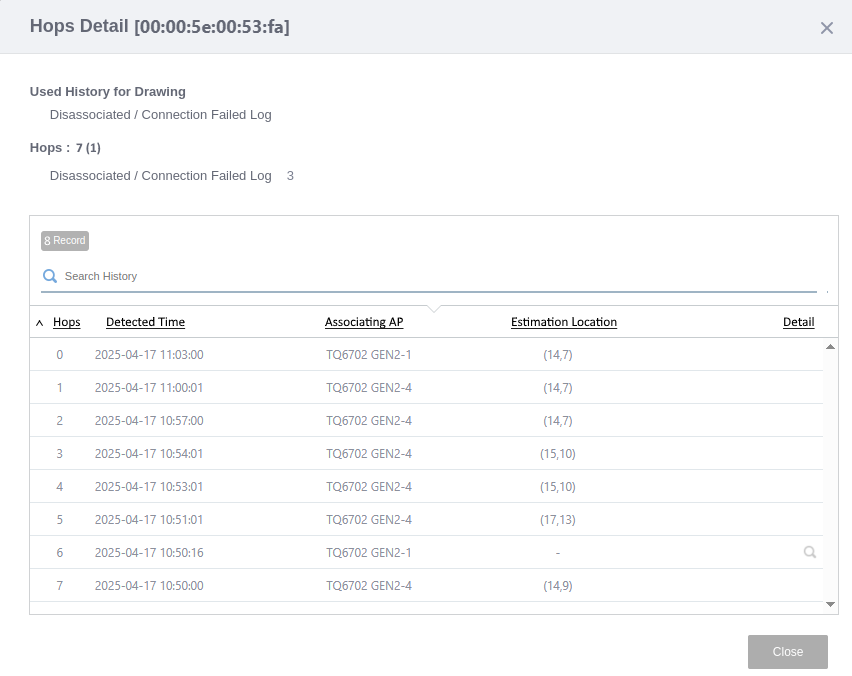
| Item Name | Description |
|---|---|
| Used history for drawing | Displays the source of the historical information used to draw the floor map. |
| Hops | Shows how many times the client had its location estimated or had roamed between APs on the Map. Up to 1,000 hops are displayed. If there is a disassociated/failed to associate log, the number of logs is displayed in parentheses after the hop count. For example, "10 (3)" represents 10 hops and 3 disassociated/failed to associate logs. |
| X Record | Displays the number of wireless client histories related to the wireless client in question. |
| Search History | You can search for the hop history. The Search field lets you enter a partial string to match. The screen displays entries with that string in one of the following fields: "Hop", "Detected Time", or "Estimation Location". To remove the filter, delete the string from the Search field and press Enter. NoteThe search is case-sensitive. |
| Hop | Displays the hop order during the period. |
| Detected Time | Displays the detected time at the corresponding hop. |
| Associating AP | Displays the associating ap of the Client. |
| Estimation Location | The coordinates of the estimated location on the floor map are expressed in the format "(X,Y)" (X: horizontal axis, Y: vertical axis). |
| Detail (magnifying glass icon) | Displays Wireless Client Log Detail of the events that occurred at the relevant time. |
| "Exit" button | Closes the Hops Detail dialog. |
Client Definition List
With this list, you can define display names and notes for specific clients to help with identification in the Wireless Client View.The client names will be used only in the Wireless Client View and Wireless Client History View. The IDS/IPS Report and Management Log screens will not be affected.
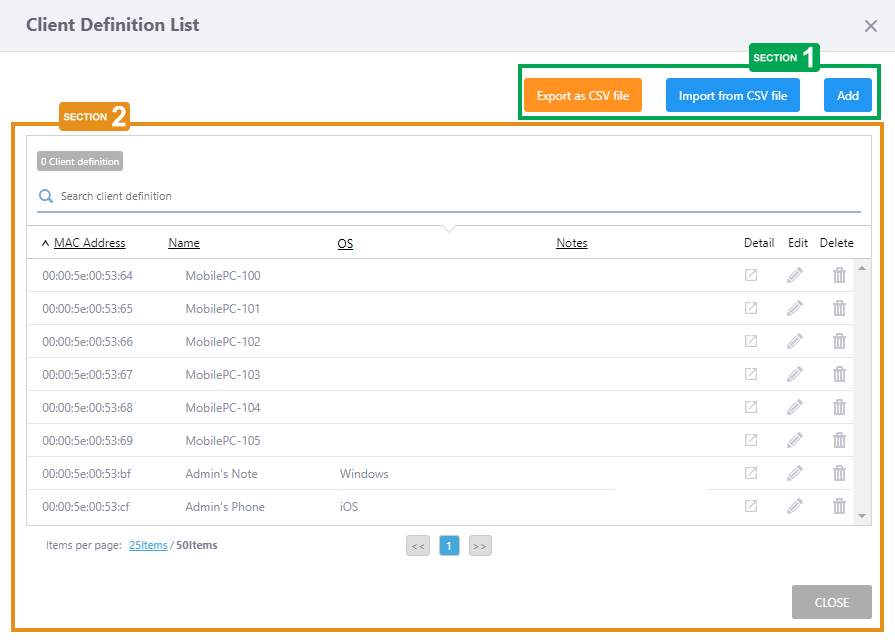
Section 1
| Item Name | Description |
|---|---|
| "Export as CSV file" button | Exports registered client definition to a CSV (Comma-Separated Values) format file. |
| "Import from CSV file" button | The "Import from CSV" dialog box will appear.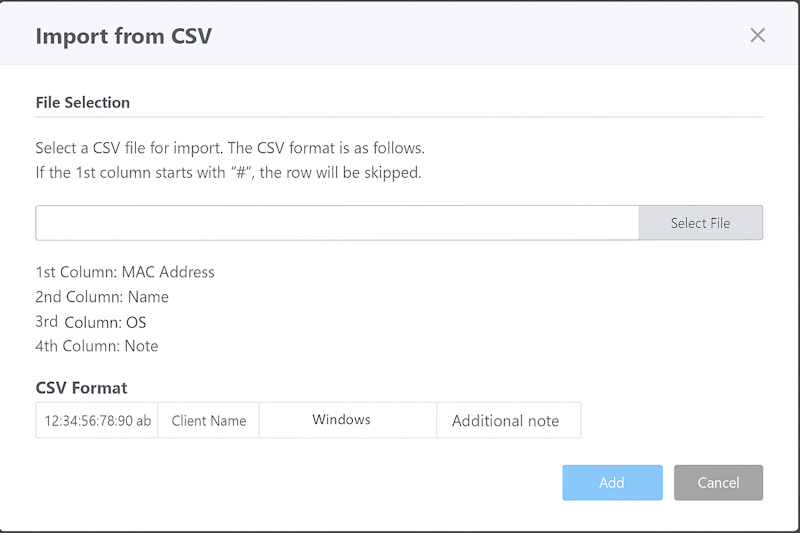
|
| "Add" button | Shows the "Add client definition" dialog box.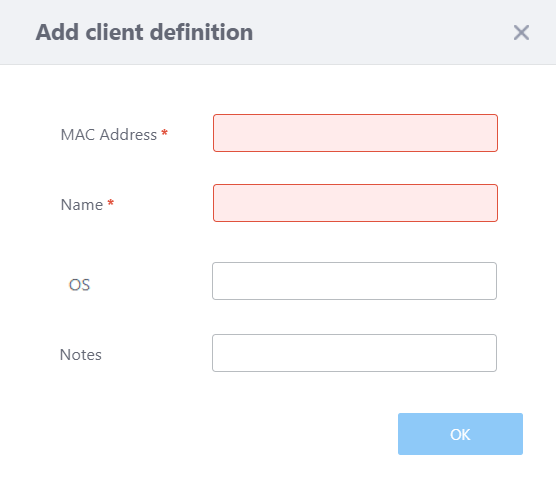
|
Section 2
| Item Name | Description |
|---|---|
| X Client definition | Shows the total number of client definition entries. |
| Search client definition | Lets you search client definition entries. The Search field lets you enter a partial string to match. The screen displays entries with that string in one of the following fields: "MAC Address", "Name", "OS", or "Notes". To remove the filter, delete the string from the Search field and press Enter. NoteThe search is case-sensitive. |
| MAC Address | Shows the defined MAC address. |
| Client Name | Shows the defined display name of the client. |
| OS | The name of the operating system (OS) defined to be used by the wireless client is displayed. It does not reflect the operating system running on the actual wireless client. |
| Notes | Shows any comments you entered about the client definition. |
| "Details" button | The "Wireless Client Detail" screen will appear in a new tab or window in your web browser. |
| Edit (pencil icon) | Shows the "Add client definition" dialog box.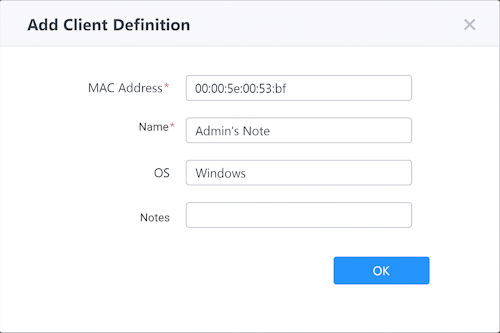
|
| Delete (trashbin icon) | Deletes the client definition. |
Wireless Client Detail
Displays information about wireless clients that have associated with the managed AP or failed to associate to the managed AP.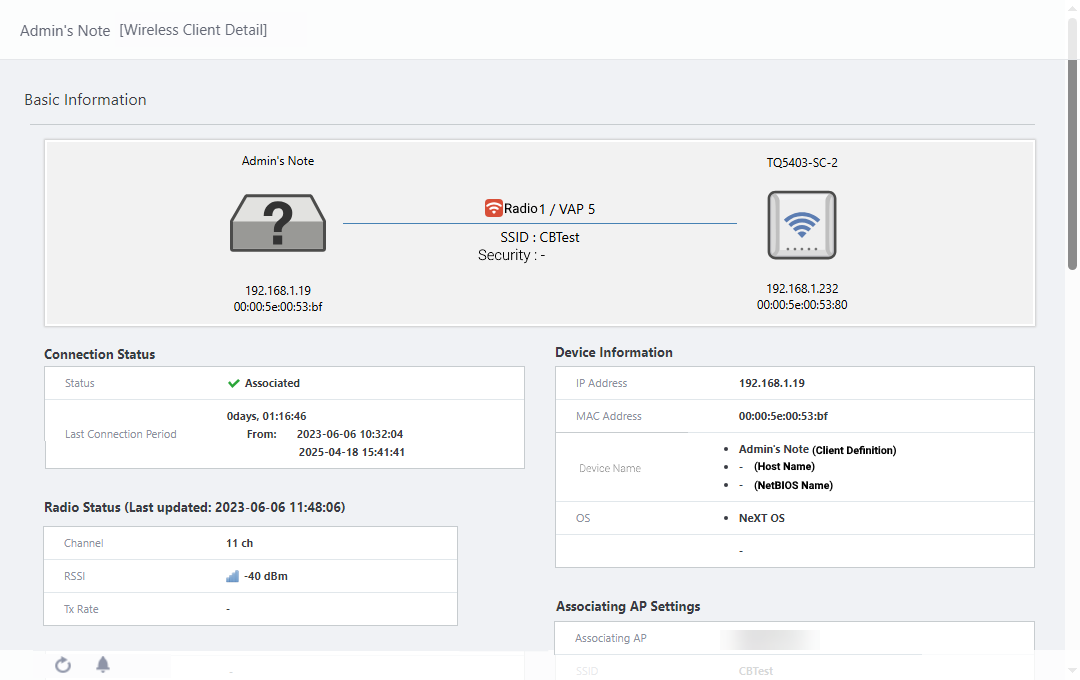
NoteItems of Basic Information, except for Connection Status, are displayed only when the wireless client is currently connected.
| Item Name | Description |
|---|---|
| Current Connection Information | |
|
|
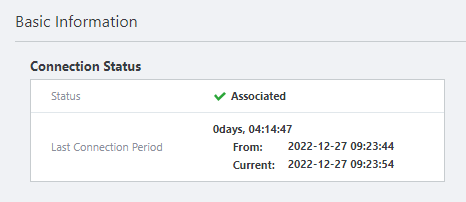
| Connection Status | |
| Status | Displays the current status (at the time the screen is displayed) of the wireless client in question. The wireless client is displayed on the left and the connected AP on the right. For each side, the wireless client definition name/wireless AP name, icon, IP address, and MAC address are displayed from the top respectively. The center shows the status of the link, connected radio band, VAP number, SSID, and security. |
| Last Connection Period | Displays the elapsed time for connection, connection start/end date and time when the wireless client was last connected to the managed AP. |
| Radio Status (Last updated: YYYY-MM-DD hh:mm:ss) | |
| Channel | Displays connected channel. |
| RSSI | Displays the Received Signal Strength Indicator (in dBm) from the wireless client. |
| Tx Rate | Displays the data transmission rate (in kbps or Mbps) of the wireless client. |
| Device/User Information | |
| IP Address | Shows the client's IP address. |
| MAC Address | Shows the device MAC address. |
| Device Name | The following information is displayed as the names of the wireless client
|
| OS | Displays the name of the OS (operating system) running on the wireless client. If an OS is defined in "Client Definition", an asterisk (*) is followed by the name of the OS in the definition. If no OS is defined in "Client Definition" and "Client Packet Analysis" is enabled in the AP Profile applied to the currently connected AP, the OS name obtained from the analysis will be displayed. The AWC plug-in supports the identification of Windows, Mac OS, iOS, Android, and Chrome OS. If the wireless client is using a random MAC address, it is also displayed as RandomMAC. For operating systems other than these, "Unknown" will be displayed. |
| Full Name | Shows the RADIUS username when using WPA Enterprise. |
| Associating AP Settings | |
| Associating AP | Shows the name of the AP that the wireless client is associating. |
| SSID | Shows the connected SSID. |
| Security | Shows the security method of the wireless connection. |
| Mode | Shows the radio mode of the wireless connection. |
| History Information | |
| Connection | |

|
|
| Specified period | Specify the start and end date and time of the period in the wireless client's history information to be displayed, either by calendar control or by manually entering the date and time. Specify the period and click the "Search" button to reflect it in the list. By default, the clients detected within the last one day prior to the screen display are shown. |
| X Record | Displays the number of Wireless Connection logs (Association, Info, and Failure) for the wireless client during the specified period. |
| "Details" button | Expands the Wireless Connection log list for wireless client during the specified period.
|
| Search History | Filter entries in the list by entering a partial string in the search box. The Search field lets you enter a partial string to match. The screen displays entries with that string in one of the following fields: "Start", "End", "Period", "Associating AP", "Radio", "Frequency", "VAP", "SSID", "Username", or "VLAN ID". To remove the filter, delete the string from the Search field and press Enter. |
| Start | The start date and time of events (e.g., connection) shown in the wireless connection log are displayed. |
| End | The end date and time of events (e.g., disconnection) shown in the wireless connection log are displayed. |
| Period | The duration of the event is displayed. |
| Associating AP | Shows the connected AP name. |
| Radio | Shows the connected radio band (Radio 1 / Radio 2 / Radio 3). |
| Frequency | Showsthe frequency of the connected radio band. |
| VAP | Shows the connected VAP number. |
| SSID | Shows the connected SSID. |
| Full Name | Shows the RADIUS username when using WPA Enterprise. |
| VLAN ID | Shows the VLAN ID which the client belongs. |
| "Details" button | Associated History Analysis dialog box will appear. |
| Wireless Connection Logs Graph | Displays the number of wireless connection logs (Association, Info, and Failure) for wireless clients during the displayed period in a stacked bar graph. Click on the name of the series (Association, Info, or Failure) in the legend in the upper right corner to toggle the display of the series. |
| RSSI / Noise Graph | Displays a line graph of the RSSI and Noise (in dBm) of the wireless client during the displayed period. Click on the name of the series (RSSI or Noise) in the legend in the upper right corner to toggle the display of the series. |
| Traffic Graph | Displays a stacked surface graph of the wireless client's traffic (bytes/packets) during the displayed period. By clicking "Bytes" or "Packets" buttons in the upper right corner, you can switch the basic unit of traffic displayed in the graph. By default, the traffic in Bytes is displayed. Also, click on the name of the series (Rx or Tx) in the legend to toggle the display of the series. |
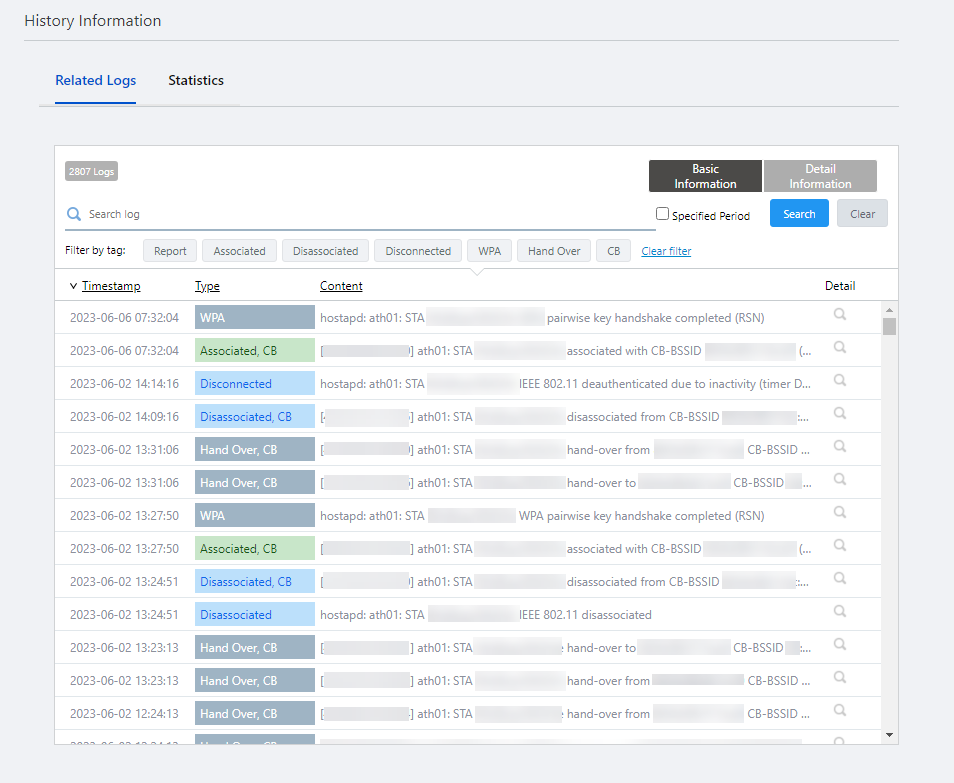
| Related Logs | |
|
|
| X Logs | Displays the current number of relevant logs for the AP in question to be displayed. |
| Basic Information / Detail Information | Switches the contents of the list. |
| Search Log | Filter entries in the list by entering a partial string in the search box. The search field lets you enter a partial string to match. The screen displays entries with that string in one of the following fields: "Timestamp", "Type" or "Content". To remove the filter, delete the string from the Search field and press Enter. |
| Specified period | Check this box if you want to specify a specific period in the log history to be displayed in the list. When checked, you can specify the start and end date and time of a specified period manully or using the calendar control. Specify the period and click the "Search" button to reflect it in the list. |
| "Search" button | Searches the history of logs that match the criteria for the "Specified Period". |
| "Clear" button | Clears the filtering criteria entered in "Search log" or by "Specified Period". |
| Filter by tag | Lets you narrow down the log events by their types, "Management Status", "Apply Configuration", "Maintenance", "AWC Calculation", "Report", "AWC System", "Wireless AP Unit", "Failed", "Associated", or "Disassociated". Filter tags are added according to the type of logs actually recorded. If multiple items are specified, logs matching any of the filters will be displayed (OR search). By clicking "Clear filter", the filter will be back to unspecified. |
| Related Logs: Basic Information | |
| Timestamp | Shows the date and time when the event occured. |
| Type | Shows the event type. |
| Content | Shows the content of the log entry. |
| Details | Wireless Client Log Detail dialog box will be displayed. |
| Related Logs : Detail Information | |
| Timestamp | Shows the date and time when the event occured. |
| Type | Shows the event type. |
| SSID | Displays the SSID of the VAP from which the association or disassociation took place. |
| BSSID | Displays the BSSID of the VAP from which the association or disassociation took place. |
| Model Name | Displays the model name of the managed AP that detected the event. |
| Floor Map | Displays the name of the floor map where the managed AP that detected the event is located. |
| Details | Wireless Client Log Detail dialog box will be displayed. |
NoteThe Related Logs narrow down the target logs from the management logs displayed on the Log Management screen.
Note that the maximum number of all management logs is 5 million, so if there are no target logs within this limit, the related logs will not be displayed.
NoteUp to 5,000 related logs can be displayed at one time.
If the number of logs exceeds 5,000, you can check logs older than the latest 5,000 by filtering by time period.
Associated History Analysis

Displays a history of connection status inferred from the logs for each event.
| Item Name | Description |
|---|---|
| Connection Status | |
| Floor Map Name | Displays the name of the floor map with the wireless APs to which the relevant wireless client has connected. Click on the external link icon to the right of the floor map name to view the corresponding floor map. |
| Status | The current (as of the event) status of the relevant wireless client is displayed. The wireless client is displayed on the left and the connected AP on the right. For each side, the wireless client definition name/wireless AP name, icon, IP address, and MAC address are displayed from the top respectively. The center shows the status of the link, connected radio band, VAP number, SSID, and security. |
| Associated Eevnt | |
| Type | Shows the event type recorded to the log. |
| Timestamp | Displays the date and time when the event log was received. |
| Description | |
| Description | Shows the brief description of the event. |
| "Exit" button | Closes the Associated History Analysis dialog box. |
Wireless Client Log Detail
Displays the selected log details for wireless client.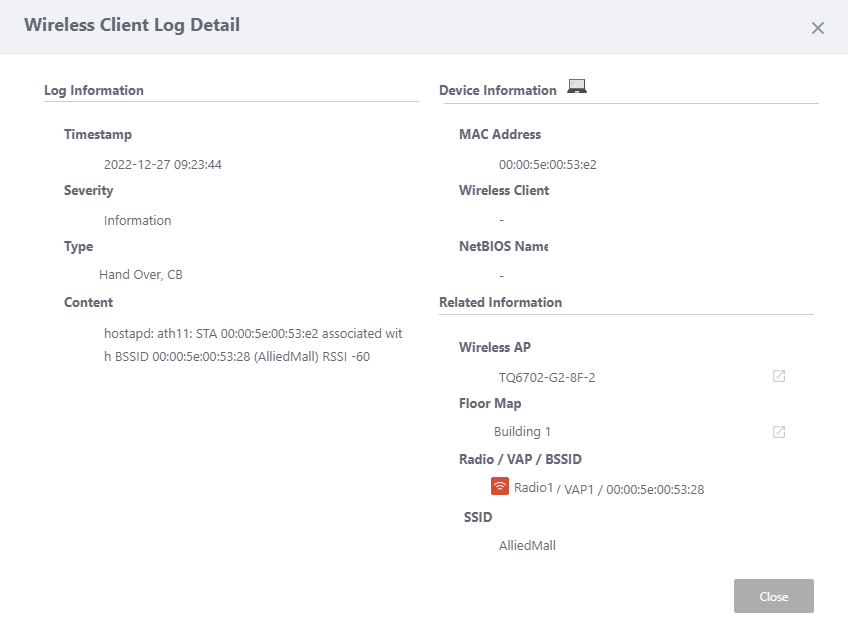
| Item Name | Description |
|---|---|
| Log Information | |
| Timestamp | Shows the date and time when the log entry was received. |
| Importance | Shows the importance of the log. |
| Type | Shows the event type. |
| Content | Shows the content of the log. |
| Device Information | |
| Wireless Client icon | Displays the icon used to represent the wireless client on the floor map. |
| MAC Address | Shows the MAC address of the wireless client. |
| Device Name | Shows the device name of the relevant wireless client, bulleted in the order of Client Definition name / Hostname / NetBIOS host name. |
| Related Information | |
| Wireless AP | Shows the name of the AP which recorded the Log. |
| "Wireless AP Detail" button | Display the Wireless AP Detail screen for the relevant AP in a new tab or window in your web browser. |
| Floor Map | Displays the name of the floor map where the AP is located. |
| Floor Map Detail button | Displays the Floor Map Details [Wireless Status View] screen of the floor map where the relevant AP is located in a new tab or window in your web browser. |
| Radio / VAP / BSSID | Displays the Radio, VAP number, and BSSID of the relevant VAP for which the wireless client has associated, disassociated, or failed. |
| SSID | Displays SSIDs of VAP to which the corresponding wireless client has associated, disassociated, or failed. |
10 Nov 2025 11:46