Before Adding Subnets and Devices
Dashboard is the page you see just after logging in to the SNMP Plug-in.
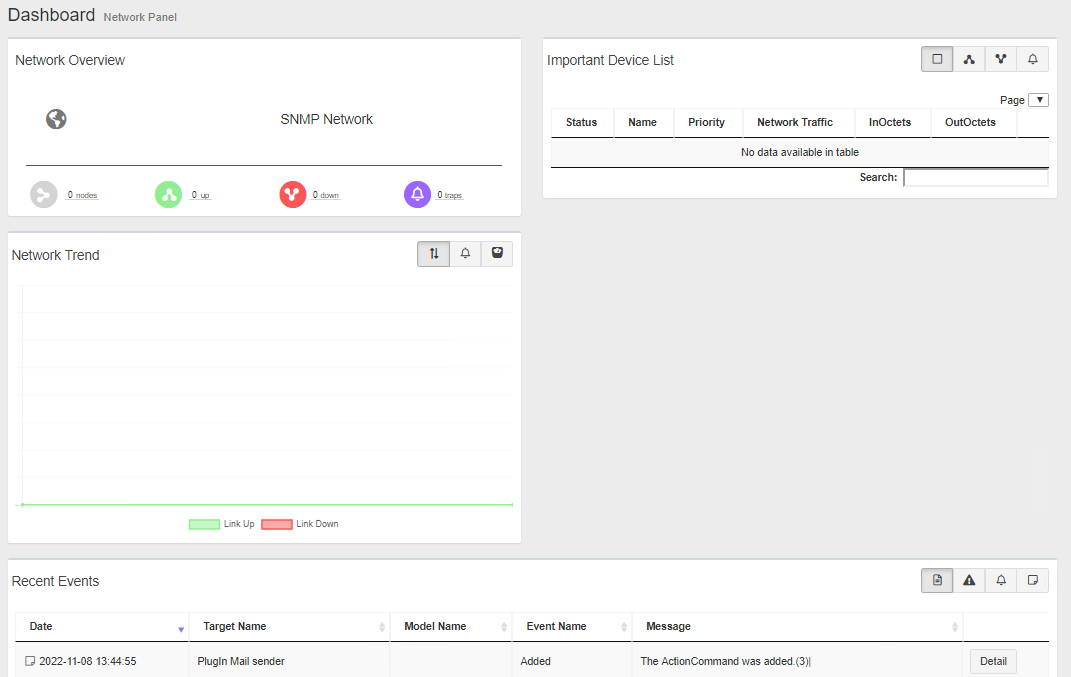
SNMP Plug-in only monitors the subnets in the Network Tree.
Because there's no subnets in the Network Tree at the first login, "Network Overview", "Device List By Importance" and "Network Trend" panels look empty. "Event List" only shows events related to the SNMP Plug-in server.
Before configuring target subnets, make sure you configure device levels and SNMP parameters.
Configure Device Levels
SNMP Plug-in assigns a "Device Level" to each of the newly added devices according to its model. A level defines the importance, monitoring or task intervals and a set of MIB variables to monitor.Mappings between models and levels can be configured a separate utility called "Device Level Configuration Utility".
For detailed procedures, refer to Server Configuration" > "Device Level Configuration Utility.
NoteNote that a device level is determined when the device is added to the plug-in database.
Even if you change the device level configuration, the new level settings will not be applied to the existing devices. To apply the new level mappings, delete the devices and add them again.
Create SNMP Parameters
A SNMP Parameter is a group of SNMP configurations such as community name, username, context name and security level. It is used by the SNMP Plug-in to access devices via SNMP.By default, SNMP parameters "public", "private" and "netman" are defined.
Add other SNMP Parameters as required.
SNMP Parameters can be added from "Add Subnet" page.
- Select "Network Tree" from the menu.
"Device Tree View" screen will appear.
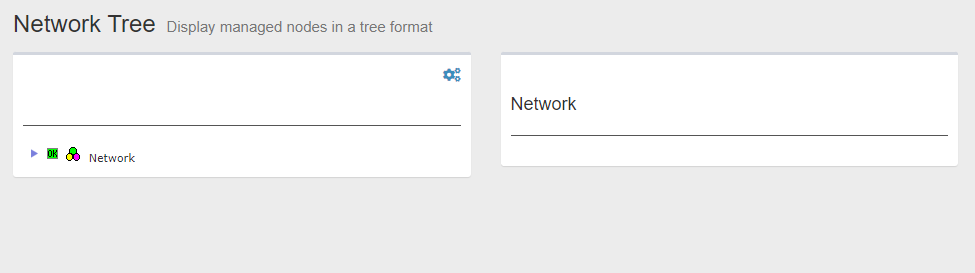
- Click "Network" in the Tree View to expand the tree.
There's no child nodes under the "Network" because there's nothing registered by default.
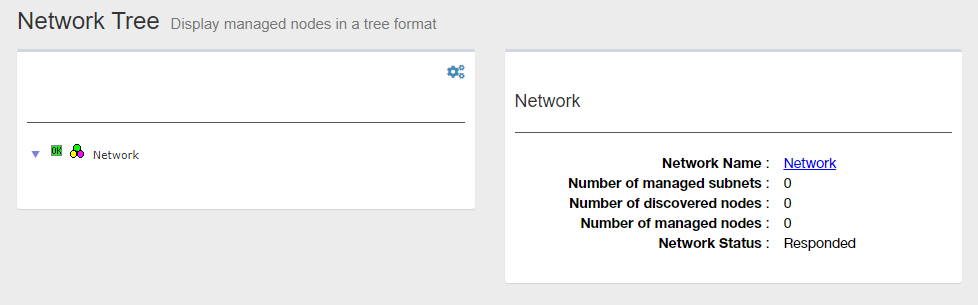
In the right side of the Content section, information about the selected node in the tree is displayed.
The name of the selected node is shown as the title. You can see the current title is "Network".
Under the title, the numbers of monitored subnets, detected devices and monitored devices are shown as zero.
- Click Gear icon at the top right of the Tree View.
A context menu for the selected node will appear.
In this case, "Add Subnet" menu will appear for the "Network".
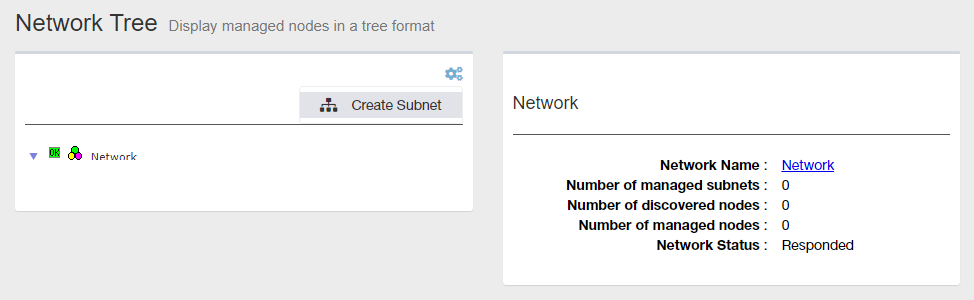
- Select "Add Subnet".
Add Subnet page will appear.
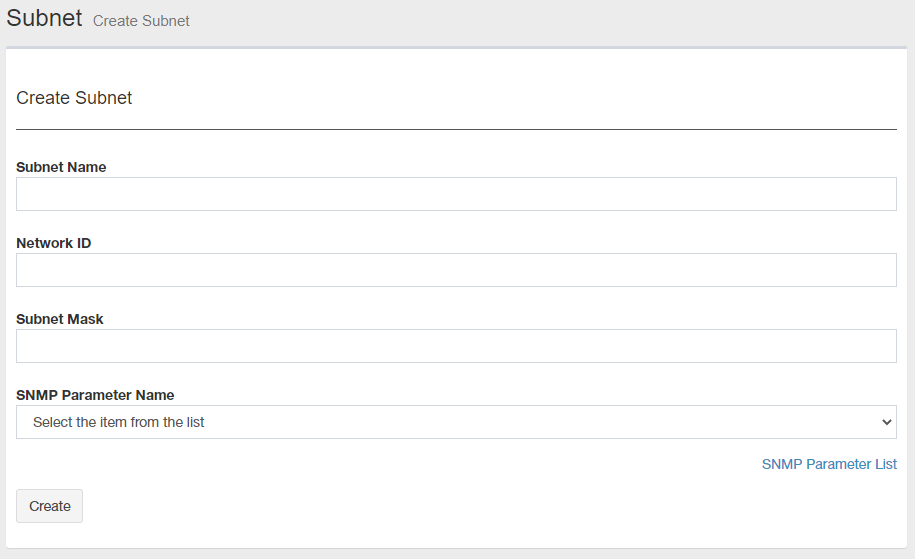
- Click "SNMP Parameter List" under the "SNMP Parameter Name" dropdown list.
28 Nov 2022 12:59