AMF
AMF Application Proxy Settings
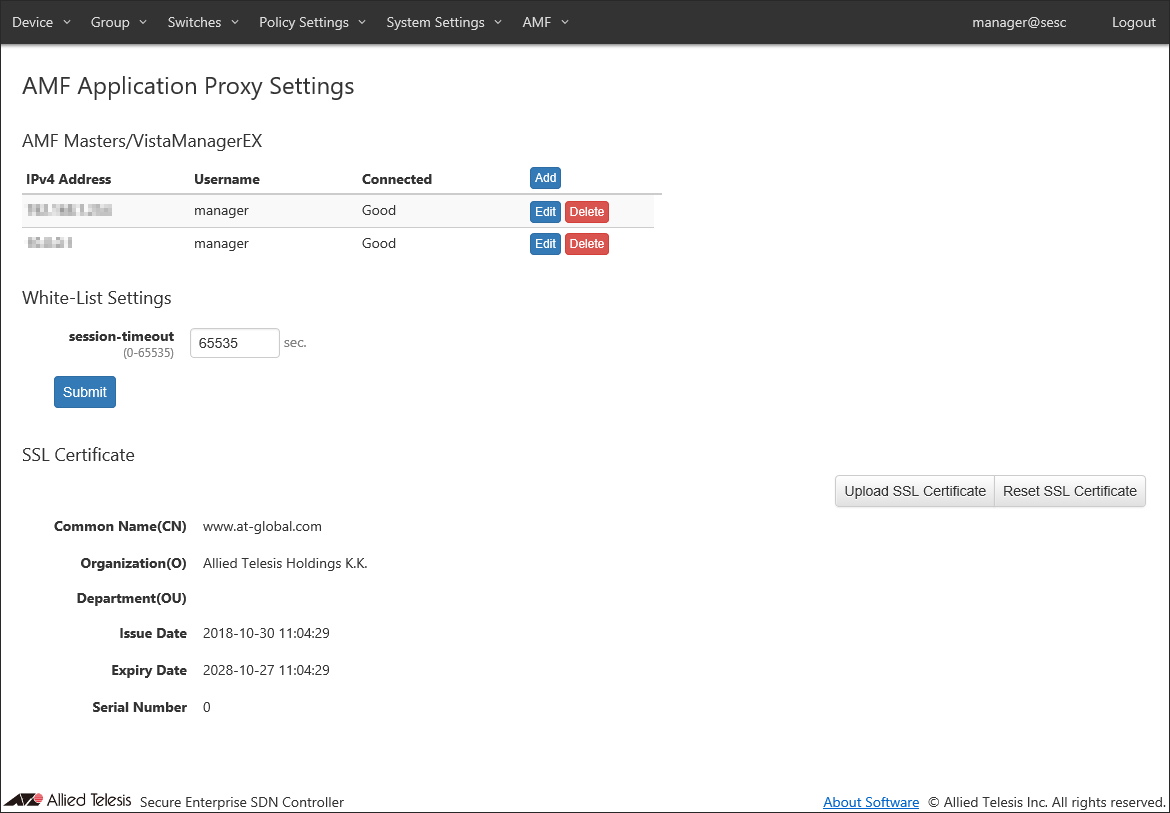
AMF Masters/VistaManagerEX
Register the AMF Master in AT-SESC. It also shows a list of registered AMF Masters.NoteAT-Vista Manager EX is not supported and should not be registered.

| Item Name | Description |
|---|---|
| IPv4 Address | IPv4 address of AMF Master using AMF Application Proxy. |
| Username | Username of a level 15 (privileged) account on the AMF Master. |
| Connected | Displays the connection status with the AMF Master, Good, Error, and Checking. |
| Item Name | Description |
|---|---|
| Add | Open Update AMF Master/VistaManagerEX dialog to register a new AMF Master. |
| Edit | Open the Edit AMF Master/VistaManagerEX dialog to update AMF Master information. |
| Delete | Delete information of the selected AMF Master. |
Edit AMF Master/VistaManagerEX
This dialog lets you add or edit information of AMF Master.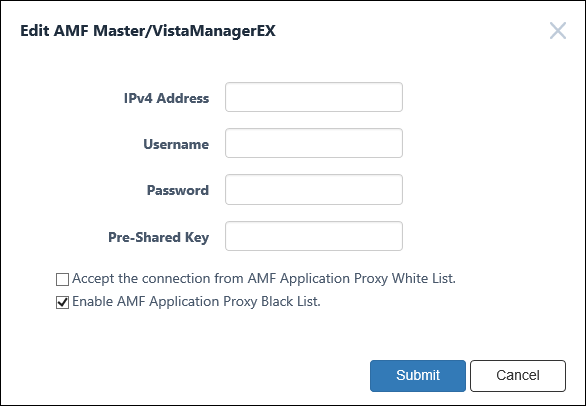
| Item Name | Description |
|---|---|
| IPv4 Address | Enter an IPv4 address of AMF Master using AMF Application Proxy. Then enter the username and password below. |
| Username | Enter a username of a level 15 (privileged) account on the AMF Master. |
| Password | Enter a password for the above username. |
| Pre-Shared Key | Enter a pre-shared key used between the AMF Master and the Whitelist Server (AT-SESC). |
| Accept the connection from AMF Application Proxy White List. | Enable AMF Application Proxy White-list function. |
| Enable AMF Application Proxy Black List. | Enable AMF Application Proxy Black-list function. |
NoteThe same privilege level 15 (privilege level) account must be set up for all AMF Members.
| Item Name | Description |
|---|---|
| Bottom of the dialog | |
| Submit | Register a new AMF Master or update information of an existing AMF Master. |
| Cancel | Cancel the operation for registering or updating AMF Master information. |
NoteWhen you finish this configuration, the AMF Master (proxy node) is contacted periodically (every 30 seconds) in order to acquire edge node information.
It is recommended that the AMF Master account (Username and Password) set for AT-SESC be different from the user account used for AMF Member console connection. Create a user account with authority level 15 in advance by AMF Master and AMF Member.
When sharing the user account used for the console connection of AMF Master and AMF Member with the account set in AT-SESC, set the lockout time for login failure of AMF Master and AMF Member to less than 5 minutes (use "aaa local authentication attempts lockout-time" command). Please note that the user is not able to log in under the following conditions and operations. - Lockout time for AMF Master and AMF Members when login fails is set to 5 minutes or more - Share the AMF Master and AMF Member CLI connection account with the account set in AT-SESC. If the above two conditions are met and the account is locked out due to consecutive failures to log in to the AMF Master and AMF Members, or if the AMF Master account setting is incorrect in AT-SESC, The terminal information of the AMF network cannot be obtained from SESC, and the lockout timer is continuously updated by polling from AT-SESC, so that the user cannot log in.
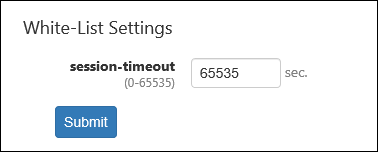
White-List Settings
| Item Name | Description |
|---|---|
| session-timeout | Specify a timer value (in seconds) to be configured on the switch when a device is successfully authenticated. When the timer expires, the device is reset to unauthenticated state. Valid range is 0 to 65535. Default is 65535. When set to zero, nodes are always in authenticated state because no timer is configured on switches. This value is used when a security policy for a device does not have Schedule. This value may be preceded by a Schedule's End Date / Time. This value is used as it is when the interval between the successful authentication and a scheduled End Date / Time is less than 65535 seconds. If the interval between the successful authentication and a scheduled End Date / Time is larger than or equals to 65535 seconds, actual timeout is set to 65535 seconds. |
| Item Name | Description |
|---|---|
| Submit | Save the entered session-timeout value. |
SSL Certificate
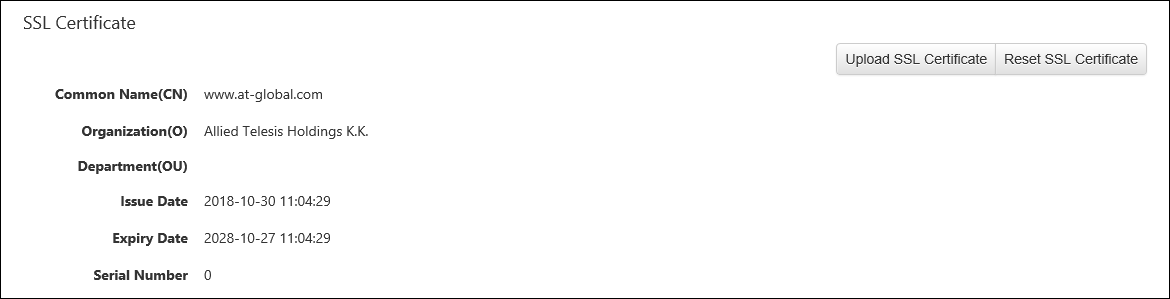
View and configure SSL server certificate of the White-list authentication server.If you want to encrypt control session between AMF Master and Whitelist Server (AT-SESC), upload an SSL server certificate issued by a trusted certificate authority (CA).
This page shows the summary of the registered SSL certificate if it's available.
Use the method best suited for your needs to get the certificate.
| Item Name | Description |
|---|---|
| Common Name(CN) | Common Name(CN) of the White-list Authentication Server. |
| Organization(O) | Organization(O) of the White-list Authentication Server. |
| Department(OU) | Department(OU) of the White-list Authentication Server. |
| Issue Date | Issue date of the certificate. |
| Expiration Date | Expiration date of the certificate. |
| Serial Number | Serial number of the certificate. |
| Item Name | Description |
|---|---|
| Upload SSL Certificate | Open the Upload SSL Certificate dialog to upload an SSL certificate. |
| Reset SSL Certificate | Reset the SSL certificate configurations to the defaults. |
Upload SSL Certificate
This dialog lets you upload your own SSL certificate for the White-list Authentication Server.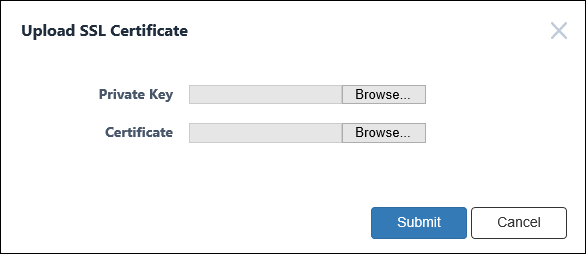
| Item Name | Description |
|---|---|
| Private Key | Specify a private key file to upload. |
| Certificate | Specify a certificate file to upload. |
| Item Name | Description |
|---|---|
| Bottom of the dialog | |
| Submit | Import the specified private key and certificate. |
| Cancel | Cancel the operation for importing SSL certificate. |
NoteWhen AMF Application Proxy Whitelist is enabled, AT-SESC accepts both unencrypted and encrypted sessions. You cannot disable one of them.
14 Jun 2021 09:30